

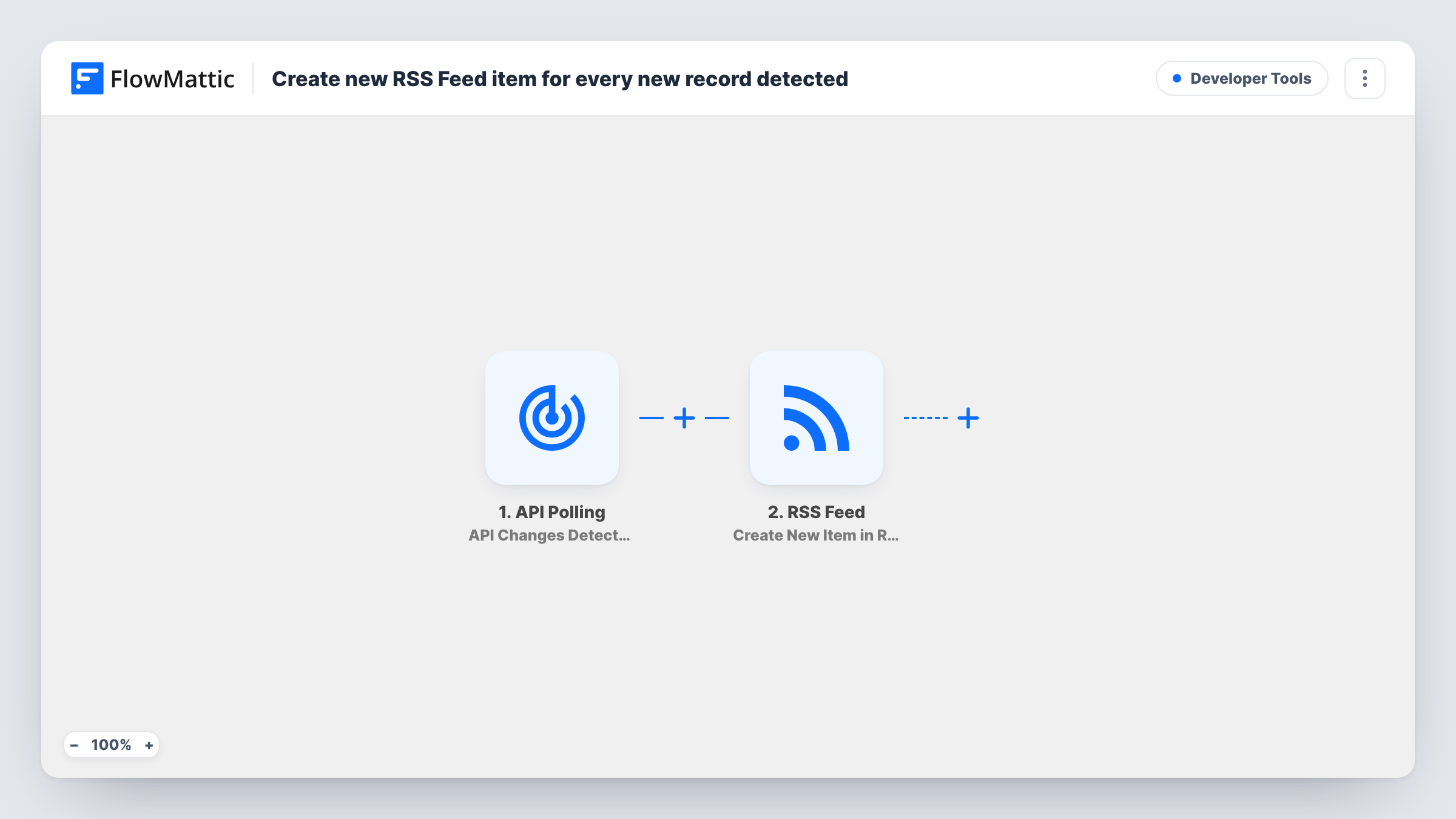
Create a new RSS Feed item whenever API Polling detects a change
FlowMattic watches an API you choose and, each time its response changes, adds a new item to a custom RSS feed, giving people a feed reader view of a source that has no feed of its own.
 API Polling
 RSS Feed
2 steps Setup ~5 min Used on 3.3k sites Free to import
What this workflow does
Plenty of services publish data through an API but offer no RSS feed. If you or your readers follow updates in a feed reader, or you feed RSS into other tools, this workflow builds that missing feed from the API itself.
The API Polling trigger watches an API endpoint you set up after import. FlowMattic keeps a copy of the last response it saw and starts a run when a new response differs from it. That can mean a new record appeared, but an edit to existing data counts as a change too.
The RSS Feed step then adds an item to a custom feed that FlowMattic serves from your WordPress site. The step ships unmapped, so you decide which values from the API response become the item's content. Subscribers to the feed see a new entry for each change.
Because the trigger reacts to any change in the response, look at what the endpoint returns before you rely on it. An API that includes timestamps or counters in every reply can look changed more often than you expect. Do a test run and check Task History to see the response data FlowMattic passed to the RSS step.
A feed for a product changelog API
A developer whose release notes live behind a JSON endpoint gives users an RSS address, so each change to that endpoint shows up in their feed reader.
Status page updates in a reader
A team polls a vendor's status API and gets a feed item whenever the reported status text changes, without visiting the status page.
RSS input for other tools
A site owner turns an internal listings API into a feed that newsletter or social posting tools that accept RSS can read.
How this workflow runs
What happens at each step once the workflow is on, and what you need before you import it.
 API Polling API Changes Detected
Checks the API endpoint you configure and starts a run when its response is different from the last one FlowMattic stored. New records and edits both count as changes.
- RSS Feed Create New Item in RSS Feed
Adds an item to your custom FlowMattic RSS feed. No fields are mapped as shipped, so after import you choose which API response values make up each feed entry, then check the result with a test run.
What you need
- FlowMatticCore
After importing, map your own data. To keep the template universal, not every step is pre-filled. Open each step in the builder and connect your accounts and fields (channels, lists, sheets, recipients) before you switch the workflow on.
Make it yours
Changes worth making after you import it.
- Point the API Polling trigger at the narrowest endpoint you can, such as a list sorted newest first, so unrelated changes elsewhere in the data don't add feed items.
- If you only want items for certain changes, put a Filter between the API Polling trigger and the RSS Feed step on a field from the response, such as a status or type value.
- Map a value that tells readers what changed, for example a record title, into the item, rather than the whole response, so entries are readable in a feed reader.
Questions about this workflow
Does API Polling add a feed item only for brand-new records?
No. The trigger starts a run whenever the API response changes, so an edit to an existing record can also create an RSS item. Add a Filter between the two steps if you need to narrow it.
Which API can the trigger watch?
The API Polling app is built to watch any API you can reach with a request. You set the endpoint, and any authentication it needs, in the trigger after import.
Where does the RSS feed live?
The Create New Item in RSS Feed action stores items for a custom RSS feed that FlowMattic serves from your own WordPress site. You set up the feed in the step after import, then share its address with subscribers.
What ends up in each RSS item?
Only what you map. The step has no mapping in the template, so after import you choose which values from the API response fill each entry. Check Task History after a test to see the data available.
More Developer Tools workflows
Other ready-to-import templates from the same category.





Import this workflow into your WordPress site
Download the JSON, import it from the Workflows screen and connect your accounts. Every run stays on your server, with no per-task fees.
30-day money-back guarantee Unlimited workflows and runs Self-hosted