

Email a personalized result to the respondent after a new Smart Quiz Builder quiz response
When someone completes a Smart Quiz Builder quiz, this workflow sends them an email from your Gmail account with their result, written by you and filled in from their quiz response.
 Smart Quiz Builder
 Gmail
Gmail2 steps Setup ~5 min Used on 2.3k sites Free to import
What this workflow does
People who finish a quiz want their result, and many want to keep it. An email gives them a copy they can come back to, and gives you a direct line to someone who just engaged with your brand. This workflow sends that email as each quiz is completed.
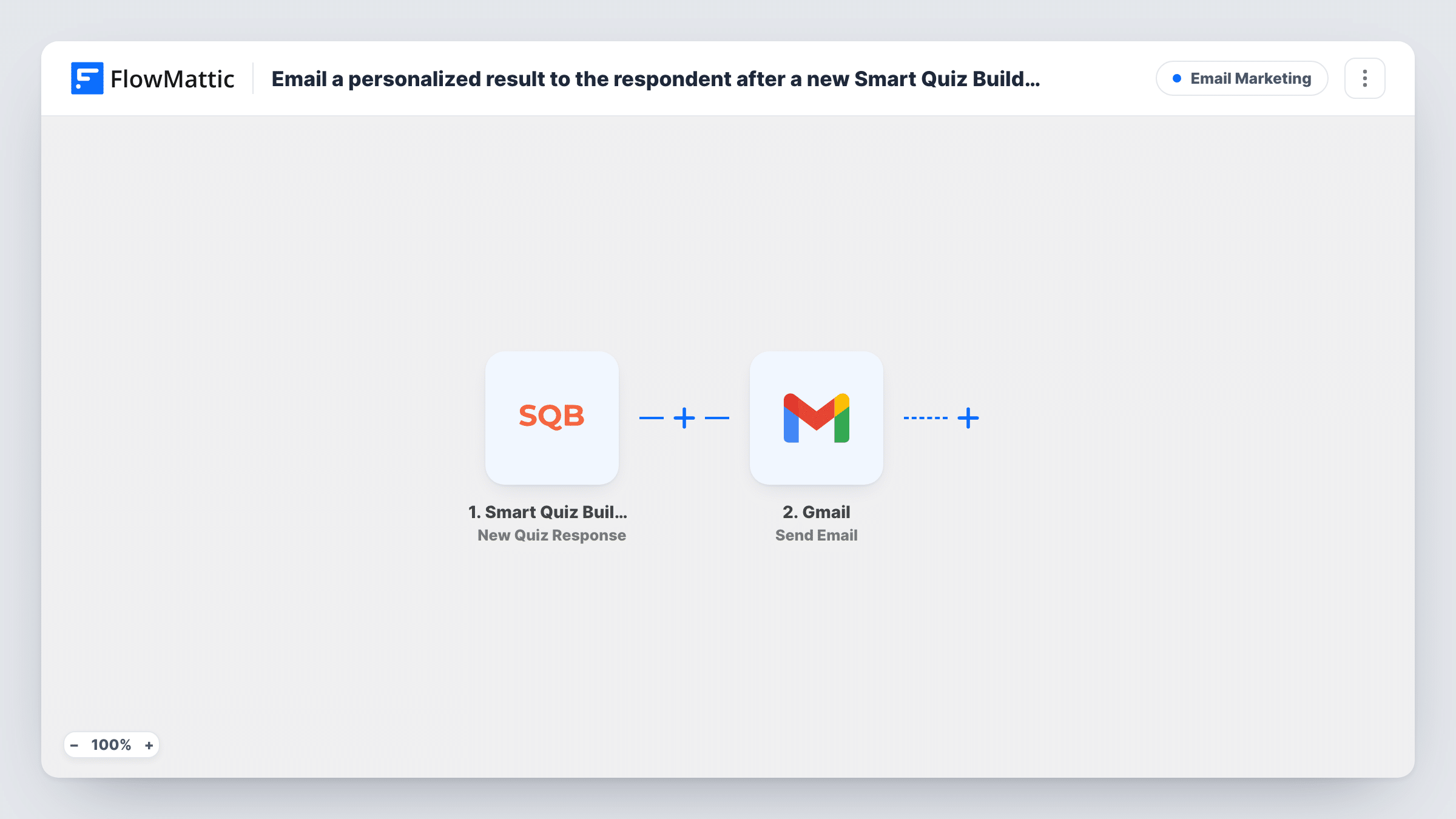
The workflow starts from New Quiz Response in Smart Quiz Builder, an event sent once a respondent has filled the quiz form completely. The response data, including what the respondent entered, comes into FlowMattic. The Gmail step then uses Send Email to send a message from your connected account. You write the subject and body, and insert the person's name, email and result from the response.
The personal part comes from what you map, so the quiz needs to collect an email address, and the response needs to carry the result. Complete the quiz yourself after import and check the captured data in Task History. Respondents who leave the quiz partway get nothing, since the trigger waits for a completed form.
Skin type or style quiz for a shop
A shopper finishes a quiz about their skin type. They receive an email naming their result, with a link to the matching collection you add to the message.
Course placement quiz
A language school's quiz suggests a starting level. Each learner gets an email with their level and how to book the right class.
Business assessment for consultants
Prospects complete a short assessment of their business. The email repeats their result and invites them to book a call.
How this workflow runs
What happens at each step once the workflow is on, and what you need before you import it.
 Smart Quiz Builder New Quiz Response
Fires when someone completes a Smart Quiz Builder quiz. Their answers, contact details and result, as far as the response carries them, become data for the email.
- Gmail Send Email
Sends an email from your connected Gmail account to the respondent. Map their email address as the recipient, then write the subject and body with their name and result inserted.
What you need
- FlowMatticCore
- Smart Quiz Builder AccountAccount
- Gmail AccountAccount
After importing, map your own data. To keep the template universal, not every step is pre-filled. Open each step in the builder and connect your accounts and fields (channels, lists, sheets, recipients) before you switch the workflow on.
Make it yours
Changes worth making after you import it.
- Make the email question required in your quiz, so every completed response has an address for the Gmail step.
- If your quiz has a few distinct outcomes, replace the single Gmail step with a Router whose routes check different result values, each with its own email. Make sure the conditions can't overlap.
- Add a Google Sheets step after Gmail to keep a list of who received which result.
Questions about this workflow
Does the Smart Quiz Builder result appear in the email automatically?
Only if you insert it. Map the result value from the response into the email body when you set up the Gmail step.
What if the respondent didn't give an email address?
The Gmail step has no recipient and Task History shows the error for that run. A required email question in the quiz prevents this.
Which address do the quiz result emails come from?
Whichever Gmail account is linked to the Send Email step. Respondents who reply reach that inbox.
Can the result email include a PDF of the answers?
Not with this Gmail step. FlowMattic's own Email module can attach files stored on your WordPress site, if you build the PDF in an earlier step.
More Email Marketing workflows
Other ready-to-import templates from the same category.





Import this workflow into your WordPress site
Download the JSON, import it from the Workflows screen and connect your accounts. Every run stays on your server, with no per-task fees.
30-day money-back guarantee Unlimited workflows and runs Self-hosted