

Email HR via Gmail when a Hibob employee is inactivated
When an employee is inactivated in Hibob, this workflow sends an email from your Gmail account to HR, so the people who handle offboarding hear about it without checking Bob for changes.
 Hibob
 Gmail
2 steps Setup ~5 min Used on 1.8k sites Free to import
What this workflow does
Inactivating someone in Bob is often the moment offboarding should start: equipment to collect, accounts to close, payroll to confirm. If nobody is watching Bob at that moment, those jobs wait. This workflow turns the inactivation into an email that lands in HR's inbox.
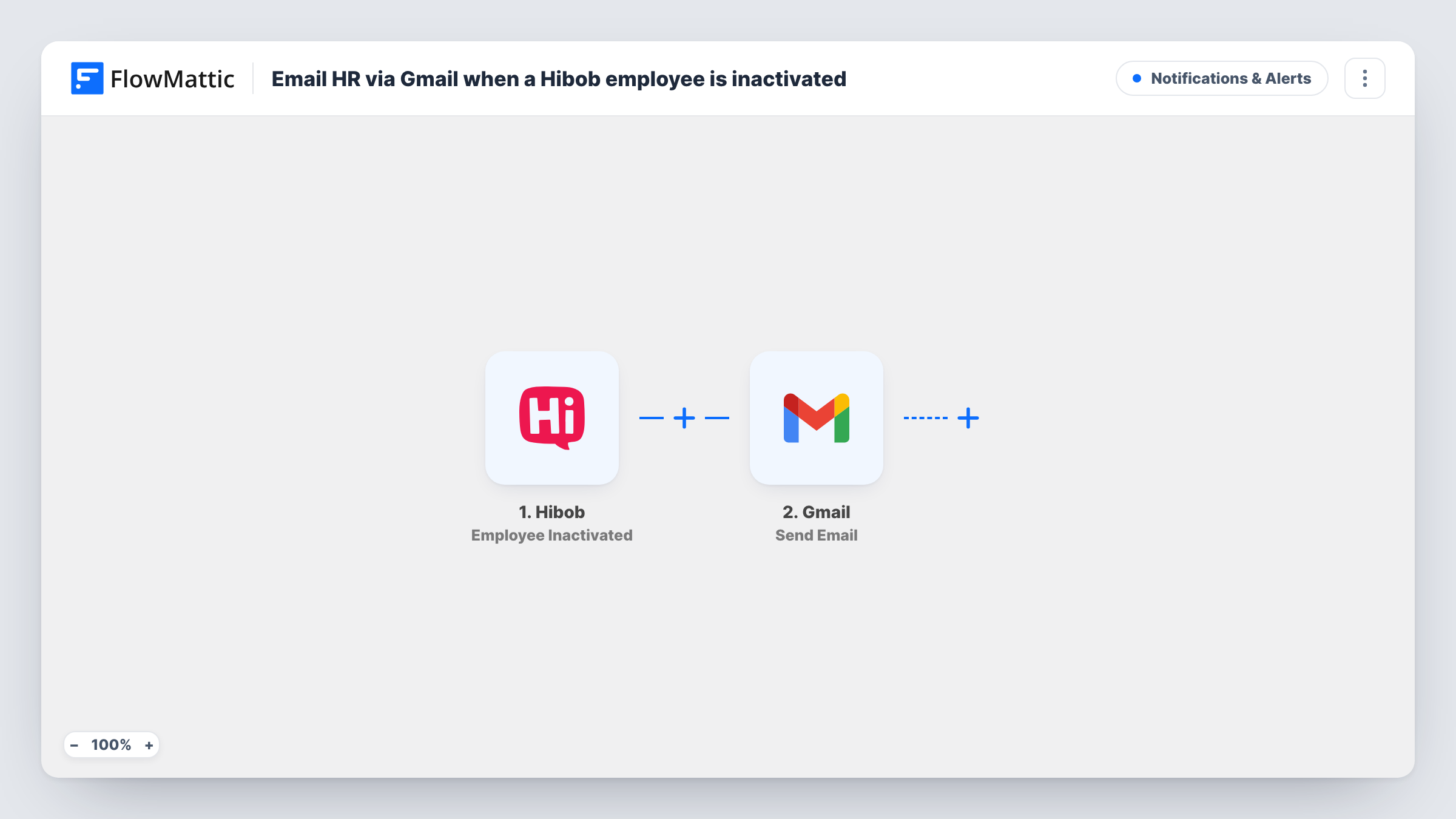
The Hibob trigger fires when an employee is inactivated in Bob. FlowMattic receives the employee data that Hibob sends with the event and passes it to the next step. Next, the Gmail step writes to HR from whichever Google mailbox you link during setup. You choose the recipient, write the subject and body, and drop in employee details from the Hibob event wherever they help.
There is one email per inactivation and nothing else changes in Bob. The workflow only reads the event and sends the message. Each run appears in Task History, so you can see which inactivations produced an email and what the Gmail step sent.
Start the offboarding checklist
The HR coordinator gets an email naming the inactivated employee and works through return of equipment, final pay and exit paperwork from that message.
Tell IT to close accounts
Send the email to a shared IT address as well as HR, so the person's logins and licences are removed soon after they are inactivated in Bob.
Keep a mail record of leavers
Each inactivation creates a sent message in your Gmail account, which gives a simple, searchable trail of who was inactivated and when the email went out.
How this workflow runs
What happens at each step once the workflow is on, and what you need before you import it.
 Hibob Employee Inactivated
Runs when an employee is inactivated in Bob. The employee data Hibob sends with the event is passed on for mapping. Run a test after import to see exactly which details arrive.
- Gmail Send Email
Emails HR from the Google mailbox you link to this step. Set HR's address as the recipient and map employee details from the Hibob step into the subject and message.
What you need
- FlowMatticCore
- Hibob AccountAccount
- Gmail AccountAccount
After importing, map your own data. To keep the template universal, not every step is pre-filled. Open each step in the builder and connect your accounts and fields (channels, lists, sheets, recipients) before you switch the workflow on.
Make it yours
Changes worth making after you import it.
- If IT also handles leavers, add a second Gmail step addressed to IT so they get their own copy of the inactivation notice.
- Hibob also has an Employee Activated trigger. Import a second copy of this workflow with that trigger to email HR when someone comes back.
- Add a Filter after the trigger if only some departments or sites should produce an email. Pick the field from a test run of the Hibob step.
Questions about this workflow
Does this email HR when someone's termination date passes in Hibob?
Not as imported. The trigger is Employee Inactivated. Hibob has a separate Employee Left trigger, which fires when the termination date has occurred. Swap the trigger if that is the moment you care about.
Whose Gmail address does the offboarding notice come from?
It comes from the Google mailbox you authorise for the Gmail step at import time. The notice goes out from that account and shows in its Sent folder.
Does the workflow change anything in Bob?
No. It only listens for the inactivation event. The employee record in Bob stays as it is.
Will employees inactivated before I set this up trigger an email?
No. Only inactivations that happen after the workflow is turned on start a run.
More Notifications & Alerts workflows
Other ready-to-import templates from the same category.




Import this workflow into your WordPress site
Download the JSON, import it from the Workflows screen and connect your accounts. Every run stays on your server, with no per-task fees.
30-day money-back guarantee Unlimited workflows and runs Self-hosted