

Email the marketing team via Gmail when a Hudby popup or alert changes
When a popup or alert event comes through from Hudby, FlowMattic sends an email from your Gmail account to your marketing team with the details you choose to include.
 Hudby
 Gmail
2 steps Setup ~5 min Used on 2.5k sites Free to import
What this workflow does
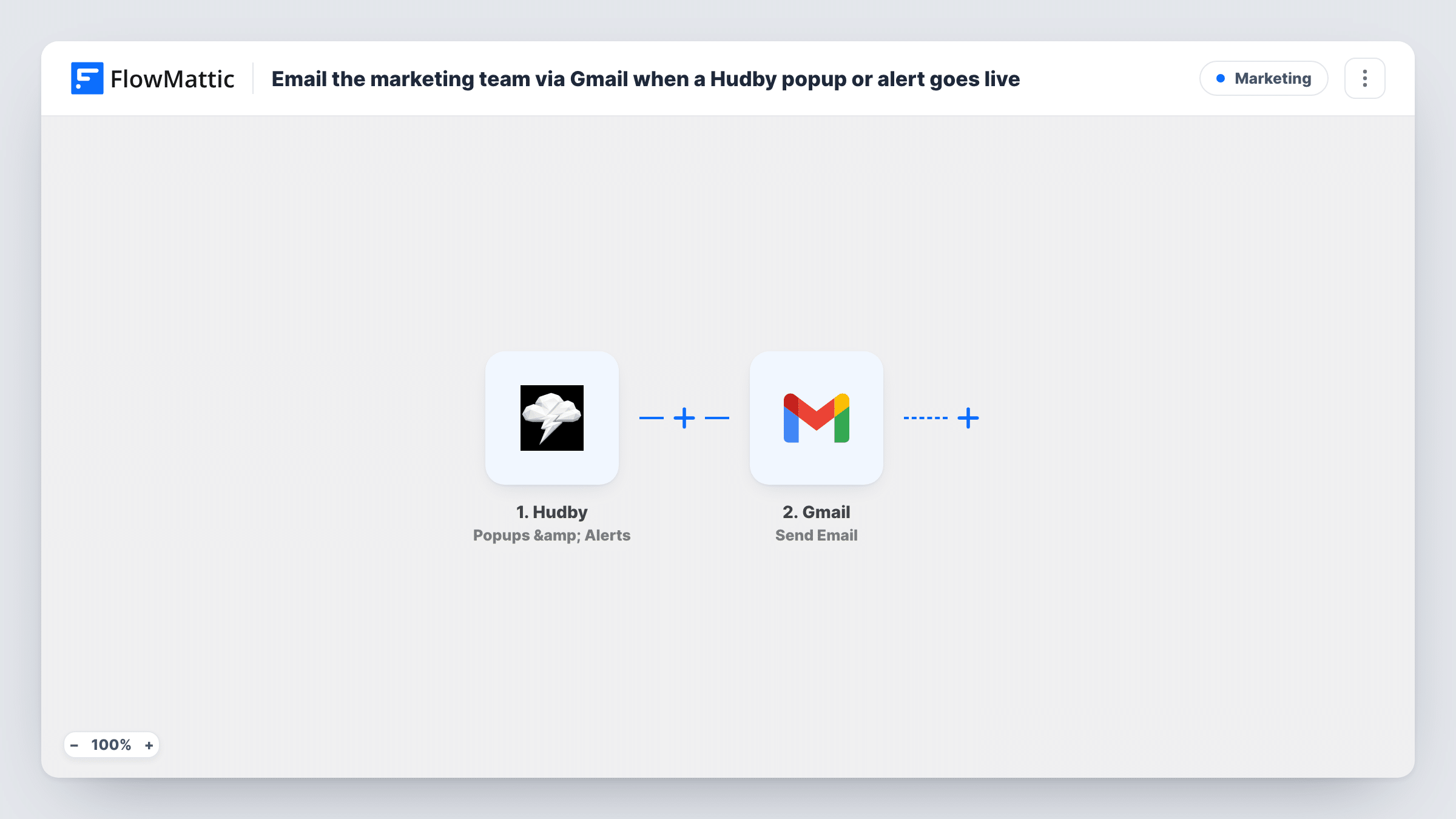
Popups and site alerts often carry offers, deadlines or announcements that the whole marketing team needs to know about. When one is added or edited in Hudby without anyone saying so, people end up promoting an offer that has already changed. This workflow sends the team an email from Gmail each time Hudby reports a popup or alert event.
The Hudby Popups & Alerts trigger starts the run. FlowMattic describes it simply as firing when a popup or alert event happens, so run a test with a real change to see which edits start it and which popup details Hudby sends.
The Gmail step then sends a message from the Gmail account you connect. It ships unmapped: after import you enter the team's address or a shared group address as the recipient, write a subject, and map the popup details into the body.
Every event the trigger receives sends one email, so a burst of edits means a burst of messages. Task History lists each run and what Gmail returned.
Heads-up when a sale popup goes up
A shop's designer adds a holiday discount popup in Hudby. The marketing team's shared inbox gets an email so social posts and newsletters quote the same offer.
Keeping copywriters in the loop
Copywriters who don't log in to Hudby find out about a changed site alert from their inbox, and can check that the wording matches the brand guide.
A record of alert changes in email
A team lead keeps the Gmail notifications in a label, giving a simple running list of when popups and alerts were touched.
How this workflow runs
What happens at each step once the workflow is on, and what you need before you import it.
 Hudby Popups & Alerts
Fires when Hudby reports a popup or alert event. FlowMattic passes on the popup data Hudby sends; a test with a real popup shows which edits count and which fields you can use in the email.
- Gmail Send Email
Mails the team from the Gmail account you link to FlowMattic. The step is empty on import: set the marketing team's address as recipient, write the subject and map the Hudby popup details into the message.
What you need
- FlowMatticCore
- Hudby AccountAccount
- Gmail AccountAccount
After importing, map your own data. To keep the template universal, not every step is pre-filled. Open each step in the builder and connect your accounts and fields (channels, lists, sheets, recipients) before you switch the workflow on.
Make it yours
Changes worth making after you import it.
- Send to a Google Group or shared team address rather than one person, so the alert still reaches the team when someone is away.
- Put the popup's name in the email subject, so the team can tell several Hudby notifications apart at a glance.
- If only some popups matter to marketing, put a Filter between the Hudby trigger and the Gmail step on a field from the popup data, such as its name. Pick the field after a test run.
Questions about this workflow
Which Hudby popup changes send an email?
Every popup or alert event the trigger receives. FlowMattic describes the trigger only as firing when a popup or alert event happens, so test it with the kinds of change you make, then check Task History to see which ones started a run.
Which address do the Hudby popup emails come from?
They come from whichever Gmail account you link while setting up the Send Email step, so the team sees that address as the sender of every Hudby notice.
Can more than one person get the Hudby notification?
Yes. Enter a group or distribution address as the recipient when you set up the Gmail step, and everyone on that group receives each message.
More Marketing workflows
Other ready-to-import templates from the same category.







Import this workflow into your WordPress site
Download the JSON, import it from the Workflows screen and connect your accounts. Every run stays on your server, with no per-task fees.
30-day money-back guarantee Unlimited workflows and runs Self-hosted