

When a new media is uploaded in WordPress, create a new Replug link
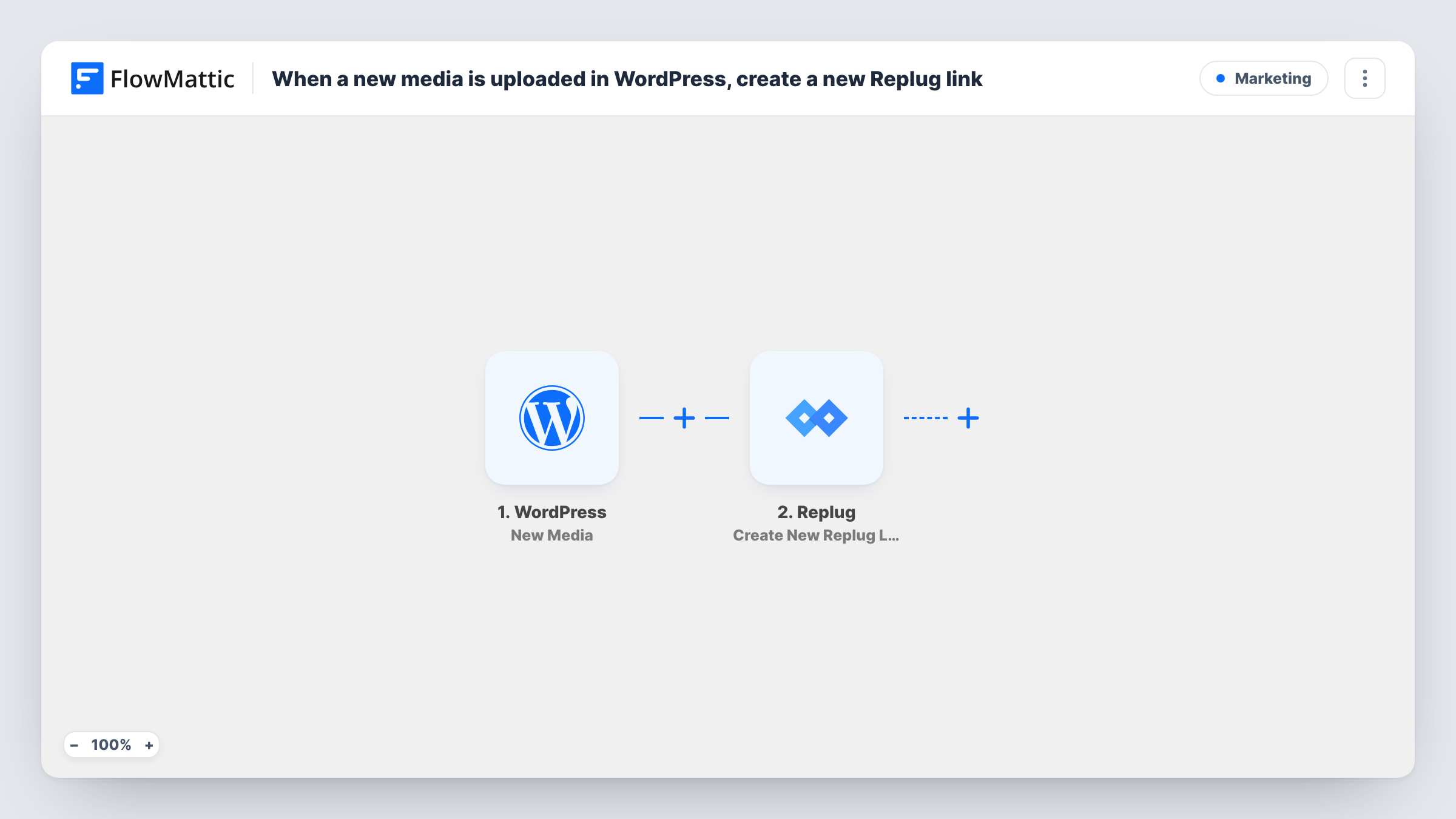
When you upload a file to the WordPress Media Library, this workflow creates a Replug short link for it, so every image, PDF or video you add has a link ready to share.
 WordPress
 Replug
2 steps Setup ~5 min Used on 2.6k sites Free to import
What this workflow does
Files in the WordPress Media Library have long, dated URLs that look messy in a social post or a text message. If you share downloads, lead magnets or images often, making a short link for each one by hand is a chore. This workflow asks Replug for a link every time you upload.
The WordPress trigger, New Media, fires when a new file is uploaded to your site. It passes on the file's title, its direct URL, its attachment page link and the attachment ID. The Replug step, Create New Replug Link, then creates a short link from the URL you map, usually the direct file URL.
Every upload triggers a run, including images added while you write a post, so you may get more links than you need. Add a Filter if you only want some files. Note that the trigger fires at upload, before you type alt text or a caption, so those values are usually empty. Upload a test file after import and check the link in Replug and the run in Task History.
Lead magnet PDFs
Upload a new guide to the Media Library and get a Replug link you can paste into emails, social bios and ads, instead of the long file URL.
Press kit images
A PR team uploads product photos and shares a short Replug link to each one with journalists.
Event slides and handouts
After a talk you upload the slide deck PDF. A short link is ready to put on the closing slide or send to attendees.
How this workflow runs
What happens at each step once the workflow is on, and what you need before you import it.
 WordPress New Media
Starts a run for each file added to your Media Library, whether from the library screen or the post editor. The file's title, direct URL, attachment page link and attachment ID become available to map into Replug.
- Replug Create New Replug Link
Creates a short link in Replug for the uploaded file. Connect your Replug account and map the file's direct URL as the address to shorten. A test upload shows what else the step asks for.
What you need
- FlowMatticCore
- Replug AccountAccount
After importing, map your own data. To keep the template universal, not every step is pre-filled. Open each step in the builder and connect your accounts and fields (channels, lists, sheets, recipients) before you switch the workflow on.
Make it yours
Changes worth making after you import it.
- Add a Filter after the trigger that continues only when the file URL contains .pdf, so only downloadable documents get a short link and post images don't.
- Add a Slack or email step after Replug to send the new short link to whoever shares files with your audience, so they don't need to log in to Replug to find it.
- Upload one test file after import and open the new short link to check it reaches the right file before you leave the workflow running.
Questions about this workflow
Does every WordPress Media Library upload create a Replug link?
Yes, as imported. Any new file uploaded to the Media Library starts the workflow. Add a Filter on the file URL or title to limit it.
Will existing media files get Replug links?
No. Only files uploaded after the workflow is turned on are sent to Replug. Create links for older files in Replug yourself.
Where do I find the Replug link once it is made?
In your Replug account. The workflow doesn't save the short link back to WordPress as imported. Task History also shows Replug's response for each run.
Can the short link point to the attachment page instead of the file?
Yes. The trigger also provides the attachment page link, so map that in the Replug step if you want people to land on a WordPress page.
More Marketing workflows
Other ready-to-import templates from the same category.




Import this workflow into your WordPress site
Download the JSON, import it from the Workflows screen and connect your accounts. Every run stays on your server, with no per-task fees.
30-day money-back guarantee Unlimited workflows and runs Self-hosted