

Email the lead when a reward is unlocked in UpViral
When a participant earns a reward in your UpViral campaign, FlowMattic sends them an email from your WordPress site telling them the reward is now theirs.
 UpViral
 Email
2 steps Setup ~5 min Used on 1.9k sites Free to import
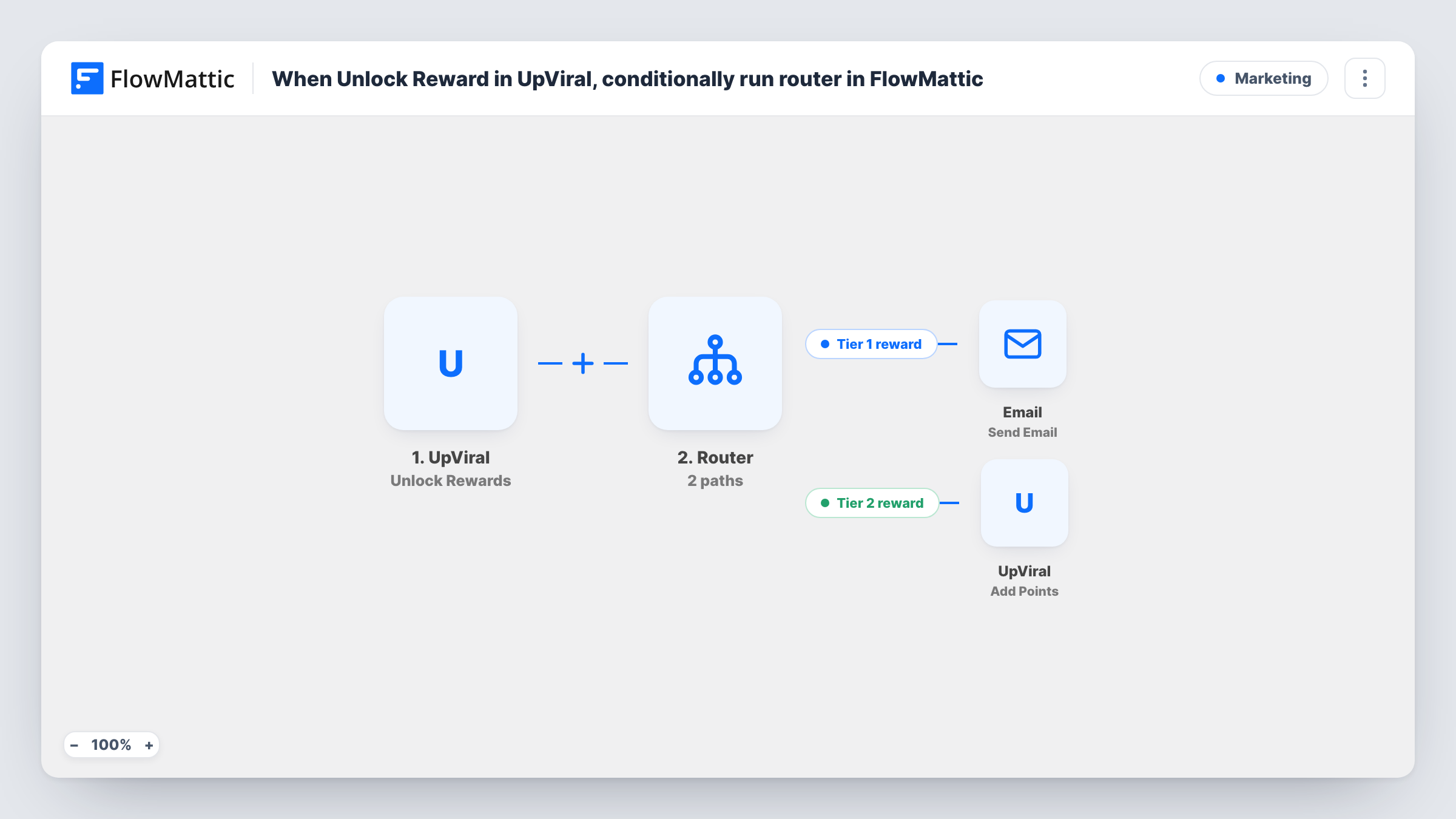
What this workflow does
Referral campaigns work on the promise of a reward, so the moment someone earns one is a good time to tell them. UpViral handles the referral counting; this workflow adds a message from your own site that confirms the reward and can tell the person how to claim it.
The UpViral trigger is Unlock Rewards, which fires when a participant reaches a new reward in your campaign. FlowMattic receives the lead's data with it, so you can use their name and email in the next step. Each reward a person reaches starts its own run.
The Email step sends the message through WordPress mail or the SMTP account you connect. The subject and a one-line congratulation are already written in the template. No recipient is set, so after import map the lead's email from the UpViral data into the To address, and make a test referral to check the field.
The ready-made text doesn't say which reward was earned or how to collect it. Expand it with the reward name from the UpViral payload, a download link or a coupon code, so the email is useful on its own.
Download link for a referral reward
A course creator's UpViral campaign gives a bonus PDF at three referrals. The email that follows includes the download link, so the participant gets the file straight away.
Coupon for a product launch waitlist
A shop's pre-launch campaign rewards referrers with a discount. The email names the reward and lists the coupon code to use when the store opens.
Prize tier announcement
A giveaway with several reward levels sends a separate email at each level the participant reaches, telling them what they've earned so far.
How this workflow runs
What happens at each step once the workflow is on, and what you need before you import it.
 UpViral Unlock Rewards
Starts a run each time someone in your UpViral referral campaign earns a new reward. Their lead data comes with it, so check a test run to see the email, name and reward fields UpViral sends.
 Email Send Email
Sends an email from your site. The subject and a short congratulation come pre-written. Map the lead's email from UpViral as the recipient, then add the reward details to the body before you turn it on.
What you need
- FlowMatticCore
- UpViral AccountAccount
After importing, map your own data. To keep the template universal, not every step is pre-filled. Open each step in the builder and connect your accounts and fields (channels, lists, sheets, recipients) before you switch the workflow on.
Make it yours
Changes worth making after you import it.
- Put the reward name from the UpViral payload in the subject line, so participants with several reward levels can tell the emails apart.
- To email only for your top reward, put a Filter between the UpViral trigger and the Email step that checks the reward name. Pick the field and value from a test run, since they depend on your campaign.
- Add UpViral's Get Lead Details by Email action between the trigger and the Email step if a test run shows the trigger data lacks a lead detail you want to quote in the message.
Questions about this workflow
Who receives the UpViral reward email?
The address you map in the Email step. The template sets the subject and body but leaves the address empty, so map the lead's email from the UpViral trigger before going live.
Does the email say which UpViral reward was earned?
Not as imported, since the pre-written body only offers a short congratulation. Add the reward field from the trigger data, and any claim instructions, when you edit the Email step.
Will a participant get more than one email from this workflow?
Yes, if your campaign has several reward levels. Each reward the participant reaches fires the trigger again and sends another email.
More Marketing workflows
Other ready-to-import templates from the same category.






Import this workflow into your WordPress site
Download the JSON, import it from the Workflows screen and connect your accounts. Every run stays on your server, with no per-task fees.
30-day money-back guarantee Unlimited workflows and runs Self-hosted