

Generate Facebook Ad copy with Shopia for each new record in Airtable and add a new row to Google Sheet
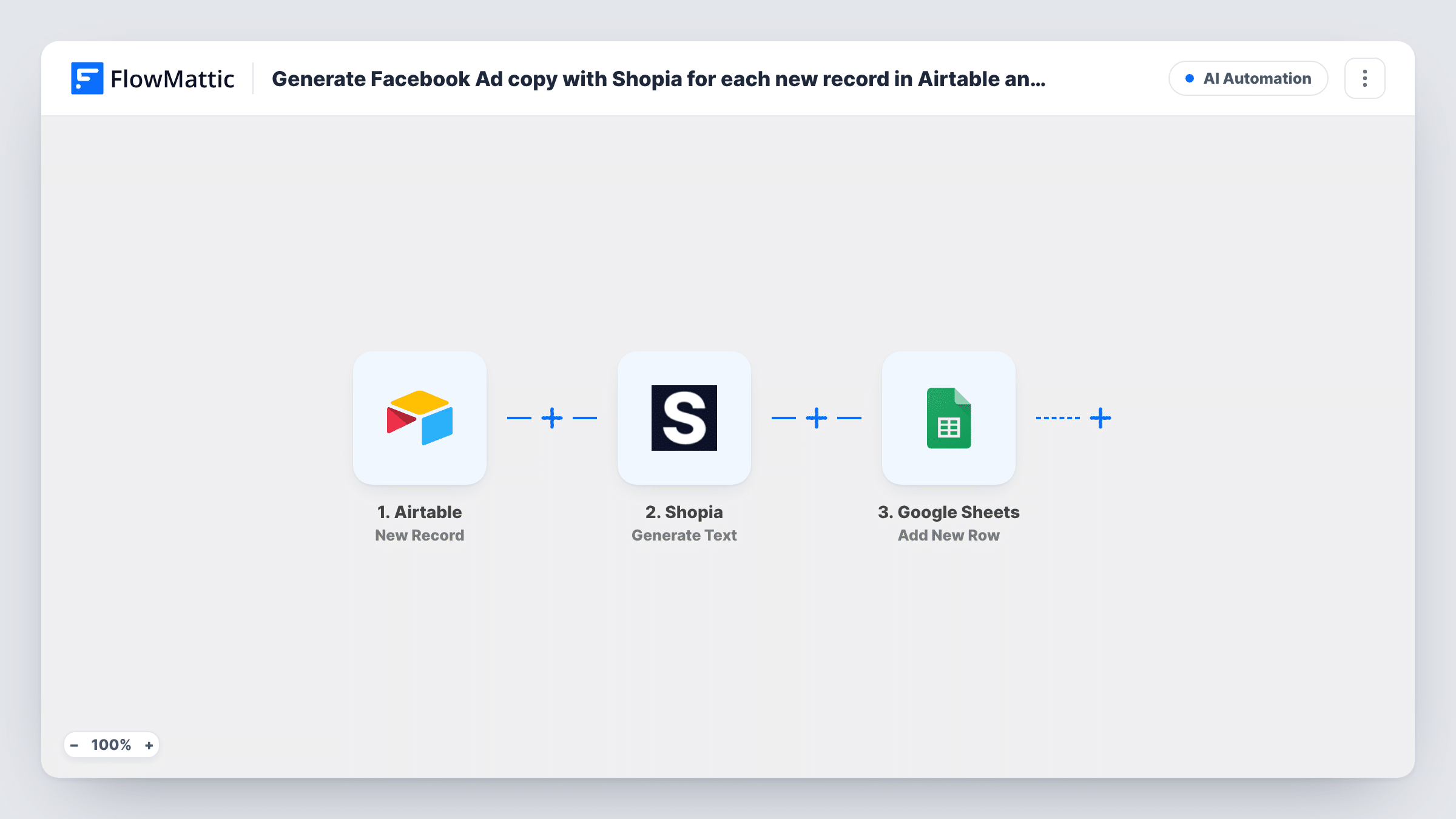
Each new record in your Airtable base is passed to Shopia to write Facebook ad copy, and the result is saved as a new row in Google Sheets next to the details it was written from.
 Airtable
 Shopia
 Google Sheets
3 steps Setup ~5 min Used on 1.3k sites Free to import
What this workflow does
Writing ad copy for every product, offer or campaign idea takes time, and drafts end up scattered across documents. If you already keep those ideas in Airtable, this workflow turns each new record into a draft ad and files it in one spreadsheet you can review.
The Airtable trigger fires when a new record is created in the table you pick. FlowMattic sends the fields you map, such as a product name and its selling points, to Shopia, an AI writer for emails, ads and other content. Its Generate Text action returns a single piece of generated text. The last step adds a row in Google Sheets holding that text and any record fields you want beside it.
Set up the Shopia step so it writes Facebook ad copy, then check the output with a test record before you rely on it. The sheet is a review queue, not a publisher: nothing is posted to Facebook. You read the drafts, edit them and use the ones you like.
Product catalogue kept in Airtable
Each time you add a product record, a draft Facebook ad for it appears in the sheet, ready for your marketer to polish.
Agency briefs from clients
Account managers log each client offer as an Airtable record. The sheet collects a first-draft ad per offer for the copywriter to review.
Testing angles for one campaign
Add several records that describe the same offer from different angles. You get a draft for each, side by side in the sheet, to pick from.
How this workflow runs
What happens at each step once the workflow is on, and what you need before you import it.
 Airtable New Record
Starts a run whenever someone adds a record to the Airtable table you select. That record's fields are passed on for mapping in the Shopia and Google Sheets steps.
- Shopia Generate Text
Sends the details you map from the Airtable record to Shopia and returns one generated text. Set the step up for Facebook ad copy and connect your Shopia account.
- Google Sheets Add New Row
Adds a row to your chosen Google Sheets spreadsheet. Map Shopia's generated text to one column and the Airtable fields you want for reference, like the record name, to others.
What you need
- FlowMatticCore
- Airtable AccountAccount
- Shopia AccountAccount
- Google Sheets AccountAccount
After importing, map your own data. To keep the template universal, not every step is pre-filled. Open each step in the builder and connect your accounts and fields (channels, lists, sheets, recipients) before you switch the workflow on.
Make it yours
Changes worth making after you import it.
- Add a Filter after the Airtable trigger that continues only when a field such as Status equals Ready, so records you are still filling in are not sent to Shopia.
- Map a few reference fields from Airtable, such as the product name and the date added, into their own sheet columns. Each ad draft then shows which record it came from.
- Create one test record after import with realistic details, then read Shopia's output in Task History and adjust what you send before turning the workflow on.
Questions about this workflow
Does this workflow publish ads to Facebook?
No. It writes ad copy and saves it to Google Sheets. Posting or running the ad is up to you, in Facebook's own tools.
Which Airtable records start the workflow?
Records created after you turn the workflow on, in the base and table you choose in the trigger. Existing records and edits to them are not sent.
Do I need a Shopia account?
Yes. The text is generated through your Shopia account, which you connect in the Shopia step. Any usage limits come from your Shopia plan.
Will Shopia write a new ad if I edit the Airtable record later?
No. The trigger only fires for newly created records, so changes to a record after it was created do not produce another draft or another sheet row.
More AI Automation workflows
Other ready-to-import templates from the same category.






Import this workflow into your WordPress site
Download the JSON, import it from the Workflows screen and connect your accounts. Every run stays on your server, with no per-task fees.
30-day money-back guarantee Unlimited workflows and runs Self-hosted