

Generate items in Notion databases with new Jotform submissions
Each new Jotform submission becomes an item in the Notion database you choose, so form responses sit next to your notes, tasks and projects instead of only in Jotform.
 Jotform
 Notion
2 steps Setup ~5 min Used on 3.2k sites Free to import
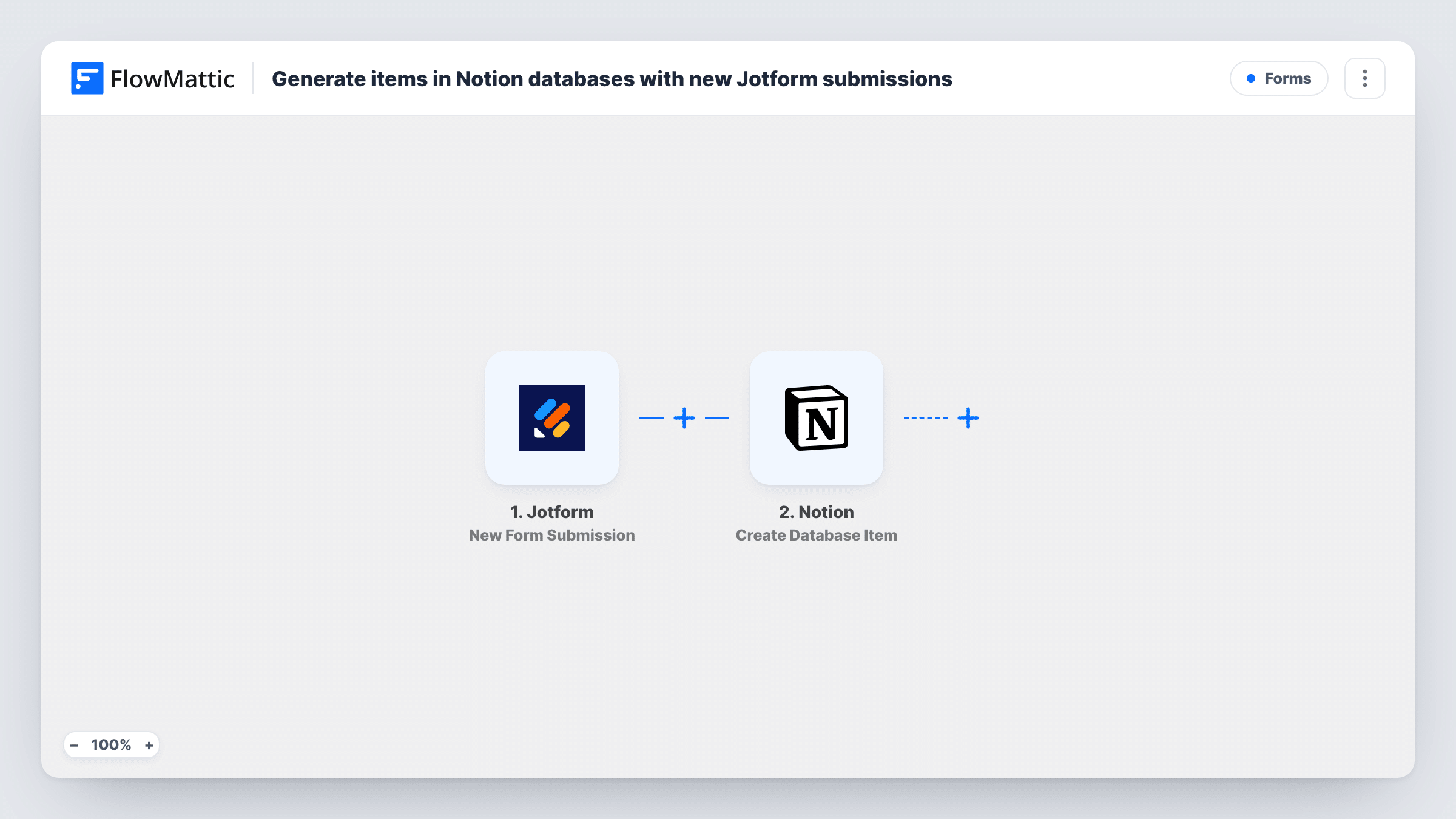
What this workflow does
Jotform is good at collecting answers, but many teams plan and track their work in Notion. Copying each response into a database by hand is slow and easy to forget. Here, each response reaches your Notion database on its own.
The Jotform trigger runs when someone submits your form. FlowMattic receives the answers and hands them to Notion, where the Create Database Item step adds a new item to the database you pick. You decide which answer fills which property, such as a title, a date or a select option.
Every submission creates its own item, so two responses from the same person become two items. Task History keeps a record of each run, including what Notion returned, which helps when a property doesn't fill the way you expected.
Client intake into a Notion CRM
A Jotform onboarding questionnaire adds each new client to a Notion database where your team tracks status, owner and next steps.
Content ideas from contributors
Guest writers pitch through a Jotform form, and each pitch lands in your Notion editorial database ready to be reviewed and scheduled.
Bug and feedback reports
A public feedback form feeds a Notion board where the product team triages each report alongside its existing tasks.
How this workflow runs
What happens at each step once the workflow is on, and what you need before you import it.
 Jotform New Form Submission
Runs each time someone submits the Jotform form you connect. The submitted answers are passed on for mapping in the Notion step.
- Notion Create Database Item
Adds a new item to your chosen Notion database. Connect Notion, share the database with the FlowMattic connection, and map Jotform answers to the database properties.
What you need
- FlowMatticCore
- Jotform AccountAccount
- Notion AccountAccount
After importing, map your own data. To keep the template universal, not every step is pre-filled. Open each step in the builder and connect your accounts and fields (channels, lists, sheets, recipients) before you switch the workflow on.
Make it yours
Changes worth making after you import it.
- Share the target database with your Notion connection before mapping. A Notion connection can't see a database until that database is shared with it.
- Send a test submission through Jotform after import so the answers are captured, then map them to the Notion properties.
- If only some responses belong in Notion, add a Filter after the trigger that checks an answer, for example a dropdown value.
Questions about this workflow
Do Jotform submissions still stay in Jotform?
Yes. The workflow only reads each new submission. Jotform keeps the entry and sends its usual notifications.
Can the workflow update an existing Notion item instead?
Not as imported. The Create Database Item step always adds a new item, so a second submission from the same person creates another one.
Which Notion property types can I fill from Jotform?
That depends on what the Notion step shows for your database. Run a test after mapping and open the new item to check that each property filled as expected.
More Forms workflows
Other ready-to-import templates from the same category.







Import this workflow into your WordPress site
Download the JSON, import it from the Workflows screen and connect your accounts. Every run stays on your server, with no per-task fees.
30-day money-back guarantee Unlimited workflows and runs Self-hosted