

Get Slack notifications for new Typeform entries
Get a Slack message for every new Typeform entry. Each time someone submits your typeform, this workflow posts their answers to the Slack channel you choose, so your team reads responses without opening Typeform.
 Typeform
 Slack
2 steps Setup ~5 min Used on 492 sites Free to import
What this workflow does
Typeform collects the answers, but someone has to go and look at them. When responses matter quickly, such as a sales enquiry or a bug report, waiting for someone to check the dashboard slows the reply. This workflow brings each new entry into Slack, where your team already works.
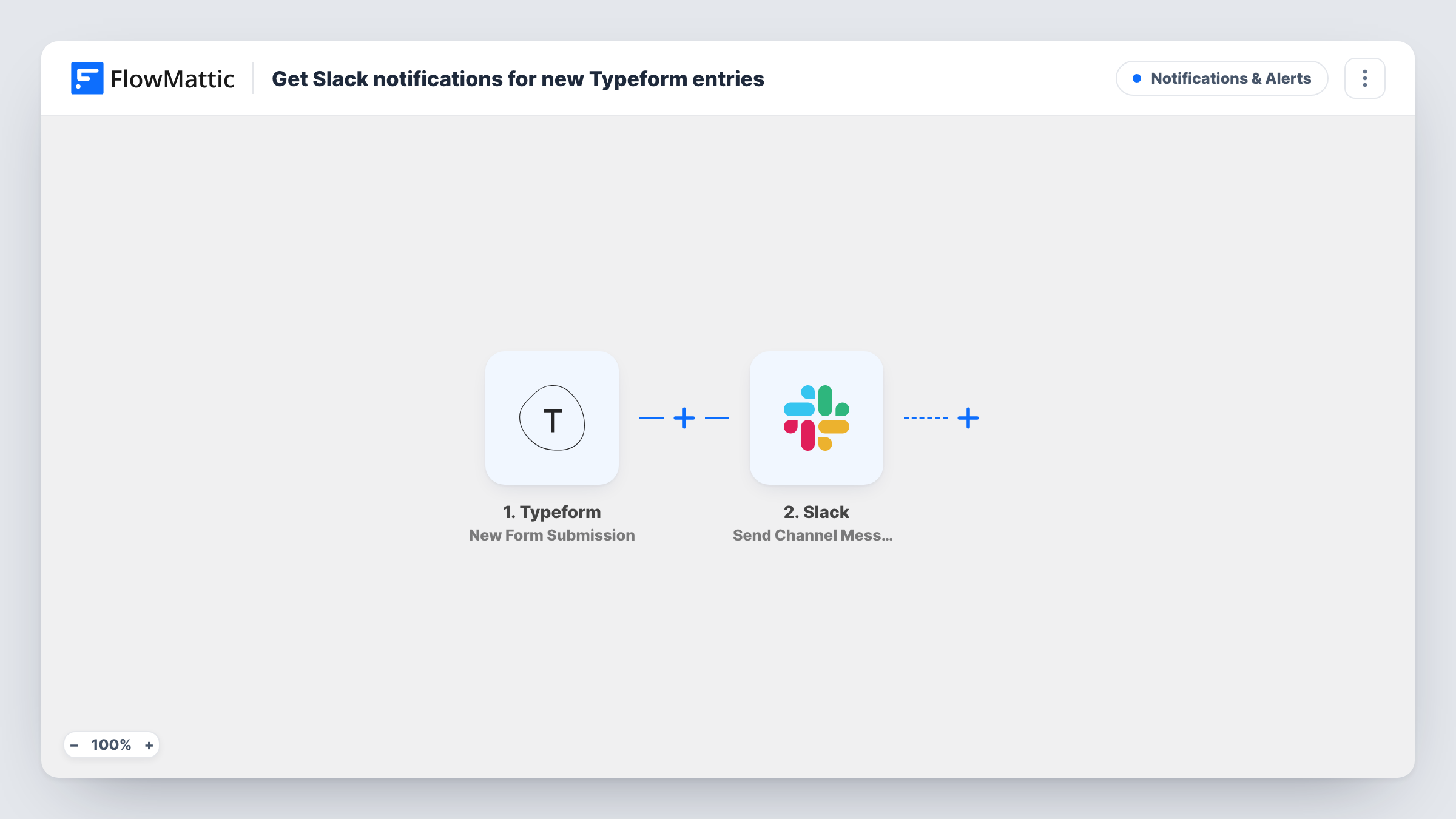
The Typeform trigger starts a run whenever a respondent submits your form. FlowMattic captures the answers from that response. The Slack step then sends a channel message, and you decide which answers appear in it and how the text reads.
Every submission produces its own message, with nothing in between to hold any back. If one channel collects entries from several typeforms, mention the form name in the message so readers can tell them apart. Each run is recorded in Task History along with Slack's response.
Lead forms watched by a sales channel
A Typeform on your pricing page asks for company size and needs. Each response lands in #sales so a rep can pick it up.
Customer feedback surveys
Product and support staff see every survey answer in a shared channel and can discuss a comment in a thread right below it.
Internal request forms
Staff request equipment or access through a typeform, and the operations channel gets each request with the details filled in.
How this workflow runs
What happens at each step once the workflow is on, and what you need before you import it.
 Typeform New Form Submission
Fires each time a response is submitted to your typeform. The answers are captured so you can choose which ones go into the Slack text.
- Slack Send Channel Message
Sends a message to a Slack channel. Connect your workspace, select the channel and build the message from the Typeform answers you map in.
What you need
- FlowMatticCore
- Typeform AccountAccount
- Slack AccountAccount
After importing, map your own data. To keep the template universal, not every step is pre-filled. Open each step in the builder and connect your accounts and fields (channels, lists, sheets, recipients) before you switch the workflow on.
Make it yours
Changes worth making after you import it.
- Submit a test response after import so FlowMattic captures every question, then map the answers your team needs into the Slack message.
- Add a Filter after the trigger to post only some entries, for example responses where a rating answer is less than 3. Note that a blank rating counts as 0 and passes that rule.
- Need the entry in a private channel or sent to one person? Swap the step for Slack's Send Private Channel Message or Send Direct Message action.
Questions about this workflow
Does every Typeform response get posted to Slack?
Yes. Each submission starts a run and posts one message. Add a Filter if you want only some responses to reach the channel.
Can I choose which Typeform answers show in the Slack message?
Yes. You write the message in the Slack step and map in only the answers you want. Questions you leave out are not posted.
Will responses submitted before the workflow was on show up in Slack?
No. The trigger reacts to new submissions only, so earlier Typeform responses stay where they are.
Can Typeform entries go to a private Slack channel?
The template's channel action can't do that. Use Slack's Send Private Channel Message action for a private channel, or Send Direct Message for one person.
More Notifications & Alerts workflows
Other ready-to-import templates from the same category.



Import this workflow into your WordPress site
Download the JSON, import it from the Workflows screen and connect your accounts. Every run stays on your server, with no per-task fees.
30-day money-back guarantee Unlimited workflows and runs Self-hosted