

Send a Pushover notification when a PageVitals multistep test completes
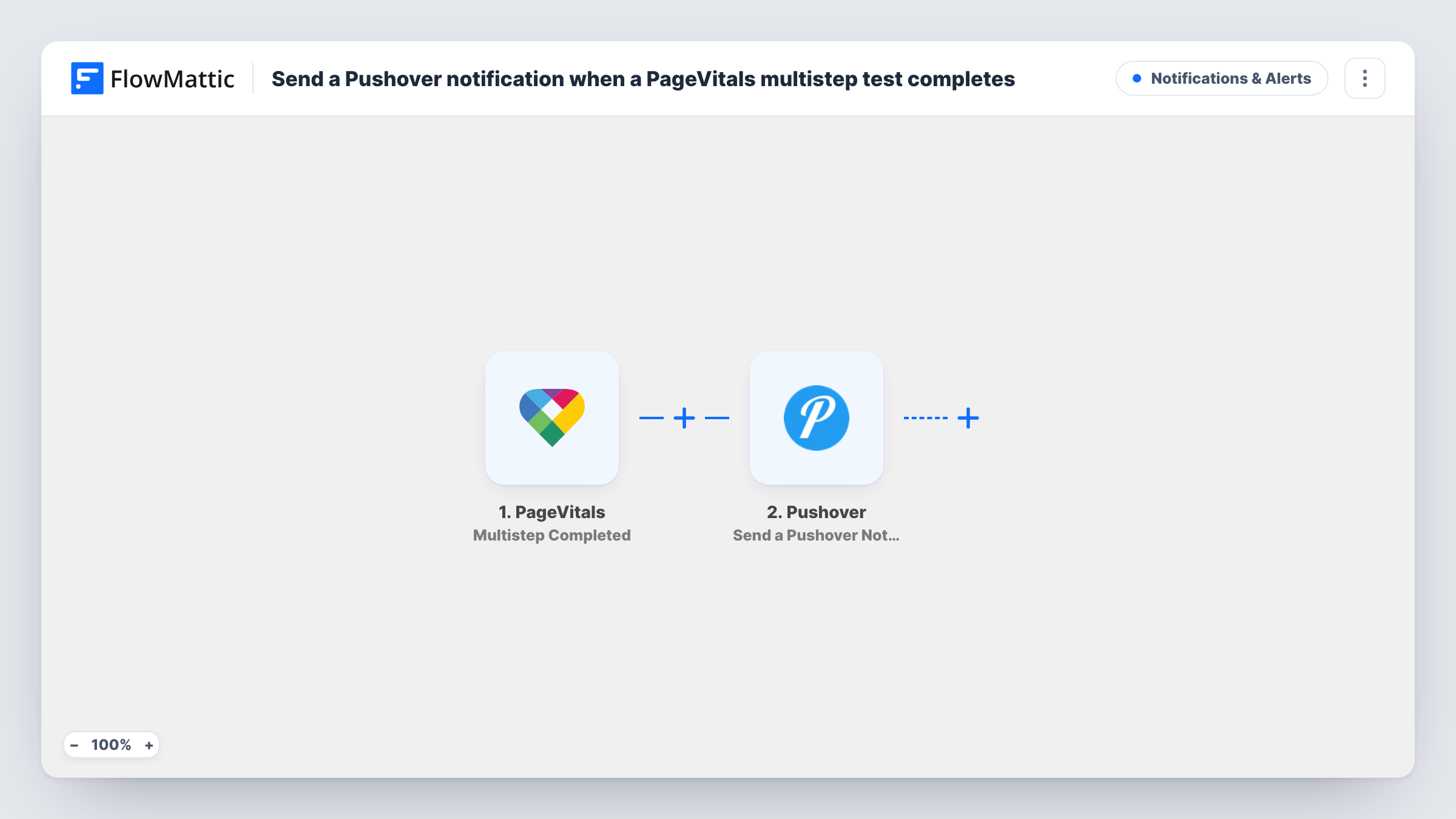
When a PageVitals multistep test finishes, this workflow sends a Pushover notification to your subscribed devices, with the result details you map, so you hear about it away from the dashboard.
 PageVitals
 Pushover
2 steps Setup ~5 min Used on 1.8k sites Free to import
What this workflow does
After a change to your site, you usually want to know the moment a PageVitals multistep test is done. Waiting at the dashboard for them to finish is a poor use of time. This workflow sends a push notification as soon as one completes.
The PageVitals trigger uses the Multistep Completed event, which fires when a multistep test series gets completed. The data PageVitals sends about that test becomes available to map. The Pushover step then generates a notification to the devices subscribed to your Pushover account, with the text and fields you put in it.
The workflow has no Filter, so every completed multistep test sends a notification, whatever its result. It does not judge whether the scores are good or bad. If you only want to hear about poor results, add a condition after import, as the tips explain. Each notification is a separate run in Task History, where you can see what PageVitals sent.
Checking a checkout flow after a release
You deploy changes to a store and PageVitals runs a multistep test through the checkout. The Pushover alert tells you the run has finished so you can review it.
Agency monitoring of client journeys
An agency tracks sign-up flows for several clients. A notification for each completed test lets the developer on call know new results are in.
Solo site owner away from the desk
You run multistep tests on your own site. Pushover on your phone lets you know each one has completed without opening PageVitals.
How this workflow runs
What happens at each step once the workflow is on, and what you need before you import it.
 PageVitals Multistep Completed
Fires when a multistep test series completes in PageVitals. The details PageVitals sends about that test become available to map into the notification.
- Pushover Send a Pushover Notification
Generates a Pushover notification to the devices subscribed to your account. Write the message and map PageVitals test fields into it, then connect your Pushover account.
What you need
- FlowMatticCore
- PageVitals AccountAccount
- Pushover AccountAccount
After importing, map your own data. To keep the template universal, not every step is pre-filled. Open each step in the builder and connect your accounts and fields (channels, lists, sheets, recipients) before you switch the workflow on.
Make it yours
Changes worth making after you import it.
- Run a multistep test once after import so FlowMattic captures the fields PageVitals sends. Then map the ones you care about into the Pushover message.
- Add a Filter after the trigger with a condition on a score or metric field, if you only want a push when a result crosses a threshold you choose.
- To hear about other PageVitals test series as well, import a second copy and switch its trigger to the Series Completed event.
Questions about this workflow
Does every completed PageVitals multistep test send a push?
Yes, as imported. There is no Filter, so each completed multistep test series sends one Pushover notification, whether the results are good or poor.
Where does the PageVitals alert show up once Pushover sends it?
On every device subscribed to the Pushover account linked in the step. Install the Pushover app on each phone or computer that should get the alerts.
Does the PageVitals notification include the test scores?
Only if you map them. The message holds the text and PageVitals fields you place in the Pushover step, so run a test to see which fields are available.
Will regular PageVitals test series trigger this too?
No. The trigger is Multistep Completed. PageVitals has a separate Series Completed trigger, which you can use in another workflow.
More Notifications & Alerts workflows
Other ready-to-import templates from the same category.





Import this workflow into your WordPress site
Download the JSON, import it from the Workflows screen and connect your accounts. Every run stays on your server, with no per-task fees.
30-day money-back guarantee Unlimited workflows and runs Self-hosted