

Send channel messages in Slack for new stage changes in LeadConnector pipelines
Whenever an opportunity moves to a different pipeline stage in LeadConnector, FlowMattic posts a message to the Slack channel you pick, so your sales team follows deal progress where it already talks.
 LeadConnector V2
 Slack
2 steps Setup ~5 min Used on 3.5k sites Free to import
What this workflow does
Your pipeline lives in LeadConnector, but your team's conversations happen in Slack. Unless someone keeps the opportunities board open, a deal moving forward or slipping back goes unnoticed until the next pipeline review. This workflow announces every stage move in a Slack channel.
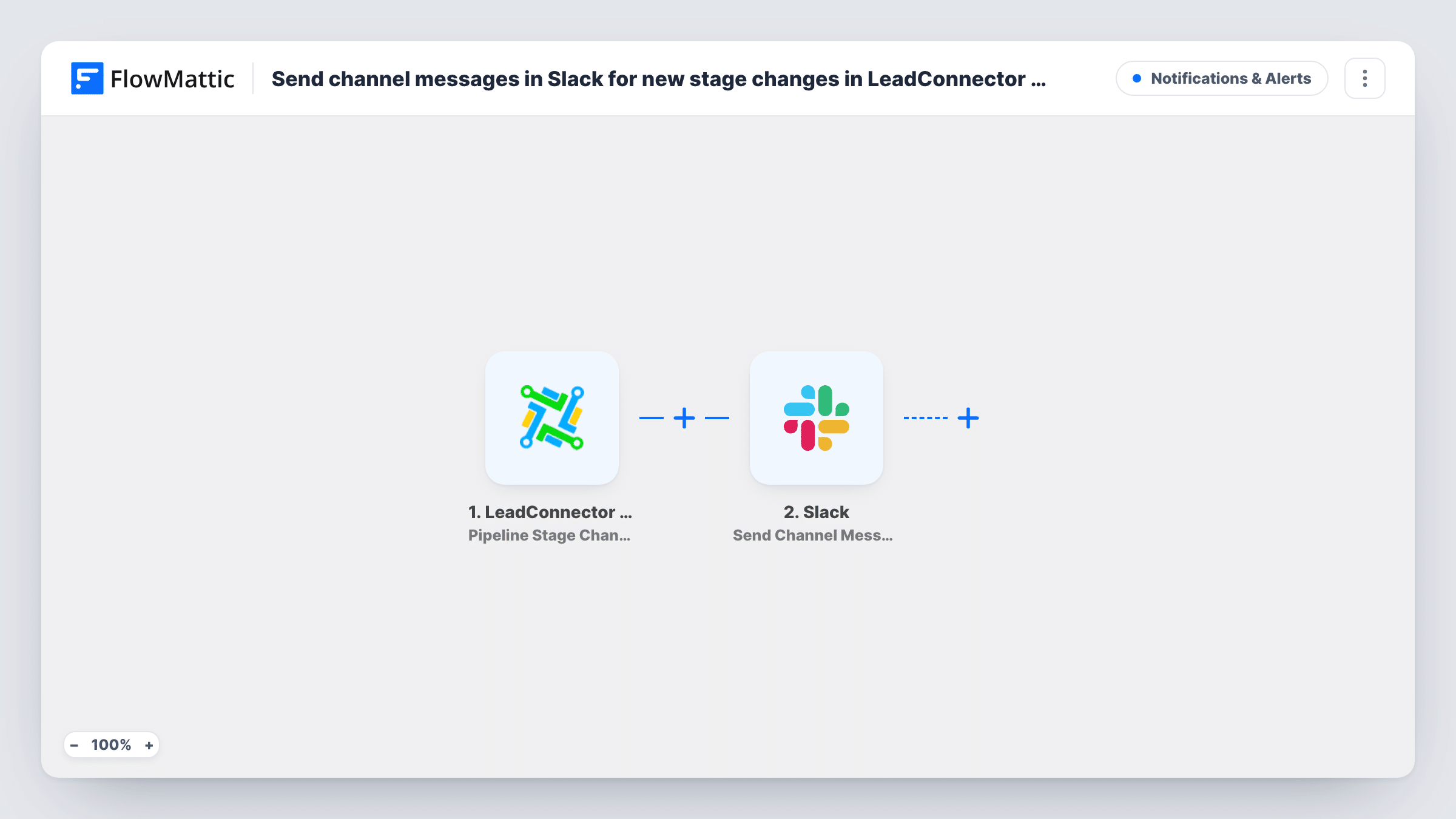
The LeadConnector V2 trigger, Pipeline Stage Changed, fires when the pipeline stage updates for an opportunity. FlowMattic receives the opportunity's details from that event, and you can place them in your message. The Slack step runs Send Channel Message and posts the text you write to the channel you choose.
No Filter is included, so every stage change produces a post, whichever pipeline and stage it involves and whether the opportunity moves forward or back. On a busy account that can mean many messages a day; the tips show how to narrow it. Task History records each run, with the opportunity data received and Slack's reply.
Agency sales team following deals in Slack
Reps work opportunities in LeadConnector while the manager watches a #pipeline channel. Each stage move shows up there, so the stand-up starts with what changed yesterday.
Handover to onboarding
When an opportunity reaches your won stage, the onboarding team sees it in Slack. Add a Filter on that stage name if they should hear about nothing else.
Spotting deals that slip back
A post also appears when an opportunity moves to an earlier stage. The team lead can ask about it the same day instead of finding it at month end.
How this workflow runs
What happens at each step once the workflow is on, and what you need before you import it.
 LeadConnector V2 Pipeline Stage Changed
Fires when an opportunity's pipeline stage updates in your LeadConnector account. Move a test opportunity after connecting so FlowMattic captures the fields you can map.
- Slack Send Channel Message
Posts your message to a Slack channel. Write the text, map in LeadConnector values such as the opportunity name and its new stage, and connect your Slack workspace.
What you need
- FlowMatticCore
- LeadConnector V2 AccountAccount
- Slack AccountAccount
After importing, map your own data. To keep the template universal, not every step is pre-filled. Open each step in the builder and connect your accounts and fields (channels, lists, sheets, recipients) before you switch the workflow on.
Make it yours
Changes worth making after you import it.
- Add a Filter after the trigger that continues only when the stage name equals the stage you care about, for example your won stage, to cut the channel down to key moments.
- Use a Router with one route per pipeline, each with its own Slack step, so separate teams see only their own LeadConnector pipeline in their own channel.
- Include the opportunity's value and owner in the message when a test run shows those fields, so readers know at a glance who to ask about the deal.
Questions about this workflow
Does every LeadConnector stage change post to Slack, even backward moves?
Yes. As imported there's no Filter, so any update to an opportunity's stage starts a run. Add a Filter on the stage if you want fewer posts.
Will new opportunities post to Slack as well?
Only if LeadConnector reports their stage as changed. For alerts on brand-new deals, use LeadConnector's separate Opportunity Created trigger in another workflow.
Can LeadConnector stage alerts go to a private Slack channel?
Use Slack's Send Private Channel Message action in place of Send Channel Message, and connect a Slack account that belongs to that channel.
Which LeadConnector details can the Slack message include?
Anything the Pipeline Stage Changed event returns. Move a test opportunity, then pick the captured fields to place in the message text.
More Notifications & Alerts workflows
Other ready-to-import templates from the same category.



Import this workflow into your WordPress site
Download the JSON, import it from the Workflows screen and connect your accounts. Every run stays on your server, with no per-task fees.
30-day money-back guarantee Unlimited workflows and runs Self-hosted