

Log each AppDirect order event in a Google Sheets spreadsheet
Every AppDirect order event, whether an order is added, changed or deleted, becomes a new row in Google Sheets, giving you a running activity log of your marketplace orders.
 AppDirect
 Google Sheets
2 steps Setup ~5 min Used on 717 sites Free to import
What this workflow does
AppDirect handles subscription commerce, and order activity there is more than new sales: plans change, seats are adjusted, orders are removed. Finance and operations teams often want all of that in one plain list they can filter and total. This workflow writes a spreadsheet line for each order event AppDirect reports.
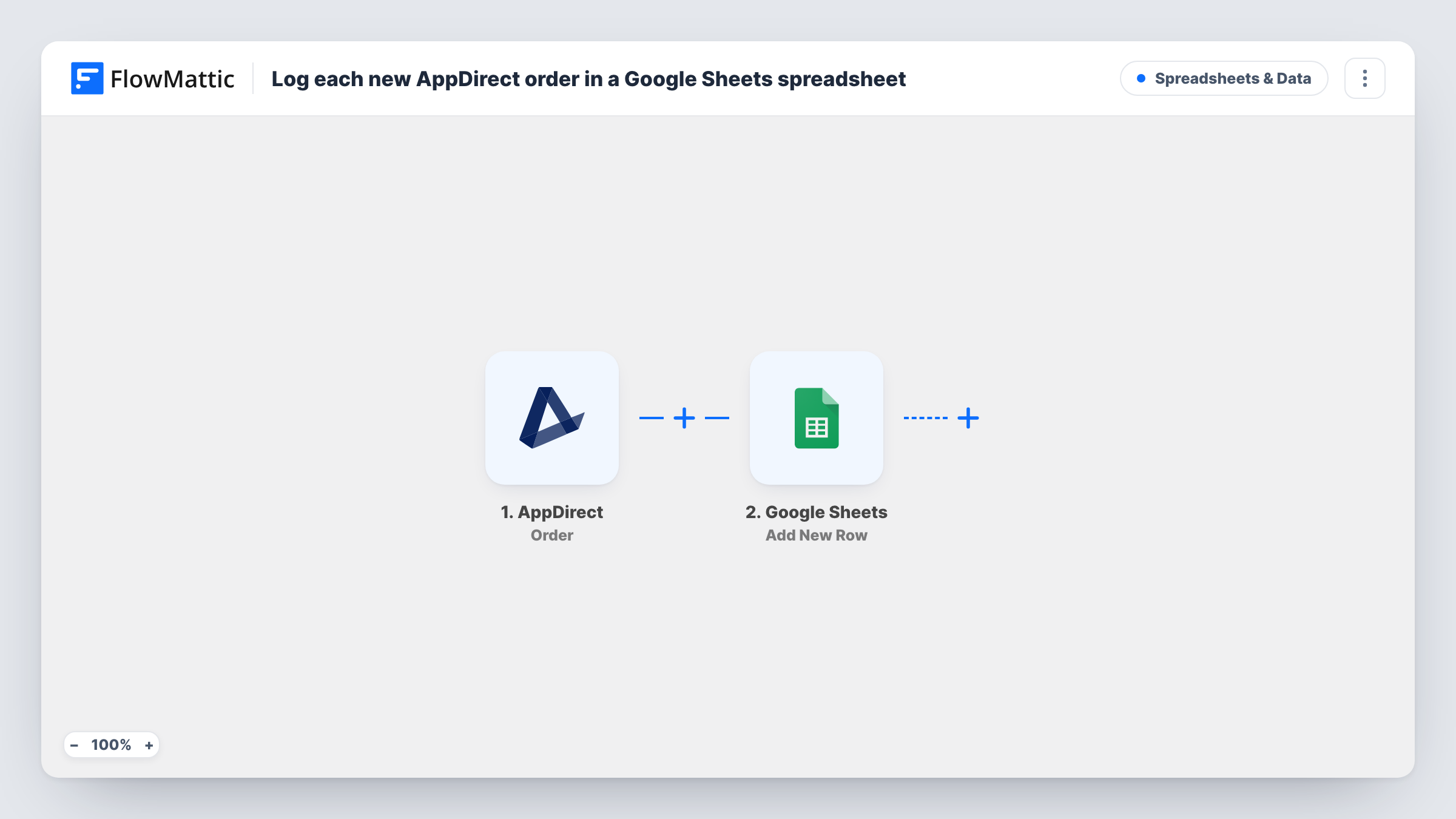
The AppDirect trigger, Order, fires when an order is added, changed or deleted. FlowMattic receives the order data AppDirect sends with each event; look at one test event to see which fields describe the order and the kind of change.
The Google Sheets step adds a new row with that data. No columns are mapped in the template, so after import you connect your Google account, choose the spreadsheet and sheet, and map the AppDirect fields to your headers.
Because every event adds a row, one order can appear several times: once when it's created and again for each change or deletion. That's what makes the sheet a history rather than a current order list. If the data includes a field naming the kind of change, map it into its own column so events are easy to tell apart. Each run, with the response from Google, is listed in Task History.
Audit trail for subscription changes
A software vendor selling through an AppDirect marketplace keeps a sheet of every order added, changed or deleted, so disputes about plan changes can be checked by date.
Monthly revenue reconciliation
A finance analyst filters the sheet to the month's order events and compares them with invoices before closing the books.
Spotting cancellations quickly
An account manager filters the sheet each morning for the previous day's deletion events and reaches out to those customers.
How this workflow runs
What happens at each step once the workflow is on, and what you need before you import it.
 AppDirect Order
Starts a run each time AppDirect reports an order being added, changed or deleted. That event's order data is handed to the Google Sheets step.
- Google Sheets Add New Row
Writes one row per AppDirect order event to the sheet you pick. The template maps no columns, so connect Google and match the order fields to your headers after import.
What you need
- FlowMatticCore
- AppDirect AccountAccount
- Google Sheets AccountAccount
After importing, map your own data. To keep the template universal, not every step is pre-filled. Open each step in the builder and connect your accounts and fields (channels, lists, sheets, recipients) before you switch the workflow on.
Make it yours
Changes worth making after you import it.
- Add a column for the event type, if a test event shows a field for it, and one for the time of the run, so the sheet shows what happened to each order and when.
- To log only new orders, put a Filter between the AppDirect Order trigger and the Add New Row step that continues only when the event type is the added one, using the value a test event shows.
- Keep the log on its own tab and build summaries or pivot tables on another, so new rows never land inside your reports.
Questions about this workflow
Does each AppDirect order get one row or several?
Several if it changes. Each added, changed or deleted event creates its own row, so the sheet records the history of an order rather than one current line.
Can I log only new AppDirect orders?
Yes. Put a Filter between the Order trigger and the Google Sheets step that checks the event type for the added value, so change and delete events stop before the sheet.
Will orders from before I import this appear in the sheet?
No. Only order events AppDirect sends while the workflow is active create rows. Export older orders from AppDirect if you need them in the sheet.
More Spreadsheets & Data workflows
Other ready-to-import templates from the same category.



Import this workflow into your WordPress site
Download the JSON, import it from the Workflows screen and connect your accounts. Every run stays on your server, with no per-task fees.
30-day money-back guarantee Unlimited workflows and runs Self-hosted