

When new Timely hours are created, append them to Google Sheets and notify the manager in Slack
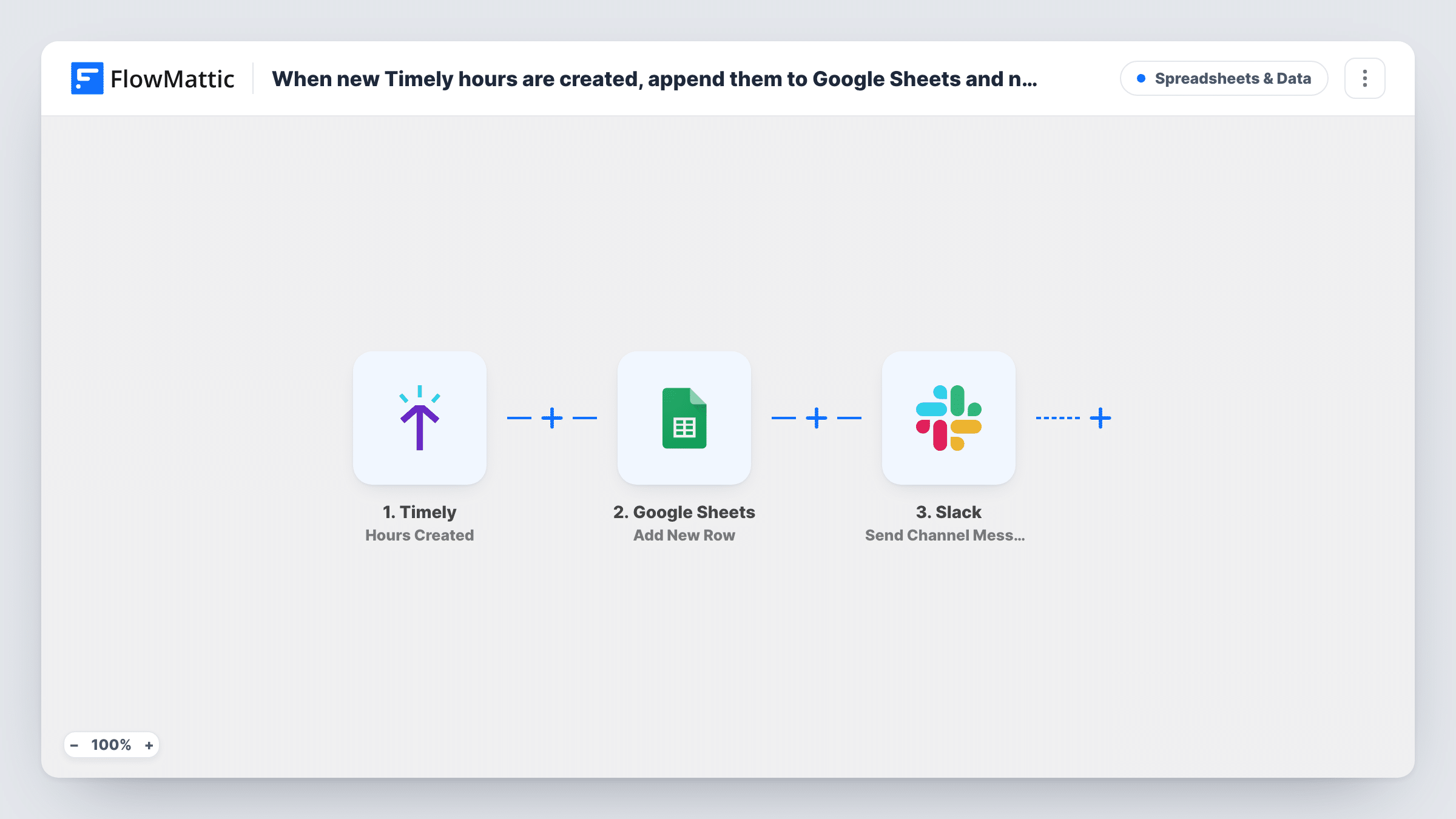
Each time hours are logged in Timely, this workflow adds them as a new row in a Google Sheets timesheet and then posts a message in Slack so the manager sees the entry.
 Timely
 Google Sheets
 Slack
3 steps Setup ~5 min Used on 2.0k sites Free to import
What this workflow does
Timely records the time your team spends, but managers often want those hours in a spreadsheet for billing, payroll or project budgets. Exporting them by hand at the end of each week is slow and easy to get wrong. This workflow writes each entry to the sheet as it is created and tells the manager about it.
The Timely trigger fires when hours are created in your account. The entry's details are available to map. First, the Google Sheets step adds a row to the spreadsheet you choose, filling the columns with the Timely values you map. Then the Slack step posts a message to a channel, which can be a channel the manager watches.
Each logged entry gets its own row and its own Slack message. The trigger reacts to new hours only, so edits to existing entries are not copied. Task History keeps each run, showing what reached the sheet and Slack.
Billing sheet for client work
An agency bills by the hour. Every Timely entry lands in a sheet the accounts team uses to build invoices, and the account manager sees each one in Slack.
Watching a fixed-budget project
A project lead keeps a sheet that totals hours against the budget. New entries arrive as rows, and a Slack note shows who logged time.
Payroll prep for hourly staff
A small business pays contractors by the hour. The sheet collects every entry for the pay period, and the owner sees the log in Slack.
How this workflow runs
What happens at each step once the workflow is on, and what you need before you import it.
 Timely Hours Created
Fires whenever hours are created in Timely. The details of the new entry are passed to the Google Sheets and Slack steps.
- Google Sheets Add New Row
Appends the new Timely entry as a row in your timesheet spreadsheet. Map the Timely values you want to keep to the sheet's columns. A test run shows which values Timely sends.
- Slack Send Channel Message
Posts a note in the Slack channel you choose. Write the text and include whichever Timely values the manager needs to see.
What you need
- FlowMatticCore
- Timely AccountAccount
- Google Sheets AccountAccount
- Slack AccountAccount
After importing, map your own data. To keep the template universal, not every step is pre-filled. Open each step in the builder and connect your accounts and fields (channels, lists, sheets, recipients) before you switch the workflow on.
Make it yours
Changes worth making after you import it.
- Add a Filter after the trigger to continue only for one client or project, if the manager only needs hours for their own work.
- Send the Slack message to a private channel with just the manager in it, so other staff don't see everyone's hours.
- Log a short test entry in Timely after import so FlowMattic captures its fields, then map them in both steps.
Questions about this workflow
Are edited Timely hours updated in the Google Sheet?
No. The trigger fires when hours are created, so later edits in Timely don't reach the sheet. You would need a separate workflow for changes.
Will the manager get a Slack message for every Timely entry?
Yes, as imported. Each new entry posts one message. Add a Filter if only some entries should be announced.
Does the workflow total the hours?
No. It adds one row per entry. Use a SUM formula or a pivot table in Google Sheets to total them.
Does it copy hours logged in Timely before import?
No. Only hours created after the workflow is turned on start a run.
More Spreadsheets & Data workflows
Other ready-to-import templates from the same category.




Import this workflow into your WordPress site
Download the JSON, import it from the Workflows screen and connect your accounts. Every run stays on your server, with no per-task fees.
30-day money-back guarantee Unlimited workflows and runs Self-hosted