

Log each new Descript recording session in a Google Sheets spreadsheet
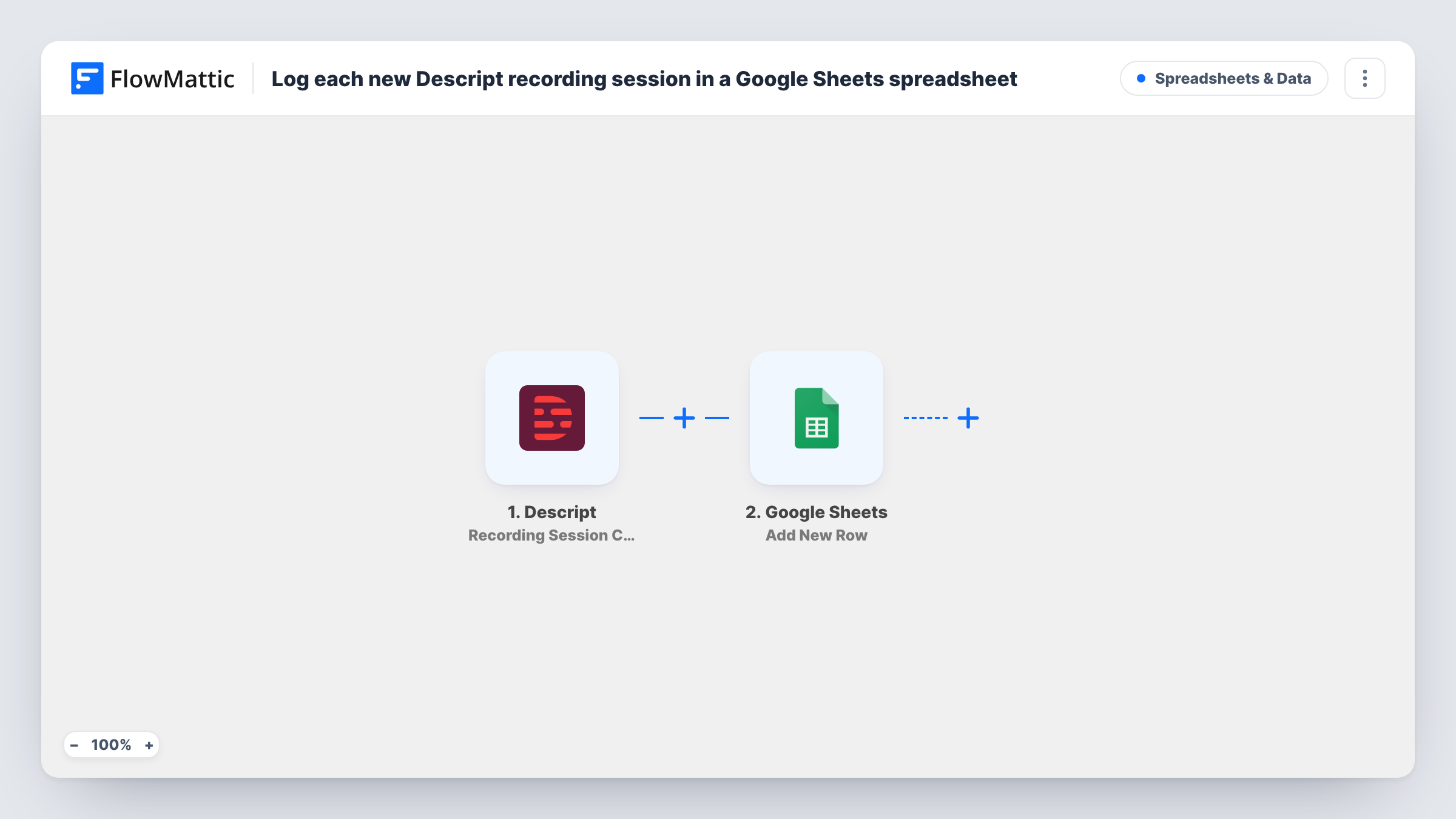
Each time a recording session is created in Descript, this workflow adds a row to a Google Sheets spreadsheet with the session details you map, giving your podcast or video team one running log of planned sessions.
 Descript
 Google Sheets
2 steps Setup ~5 min Used on 2.6k sites Free to import
What this workflow does
Teams that record interviews and podcasts in Descript set up many sessions over a season. Without a shared log, producers ask around to find out what is scheduled, and nobody has a list to plan edits from. This workflow writes each new session into a spreadsheet as it is created.
The Descript trigger, Recording Session Created, fires when a recording session is created. This is when the session is set up, not when recording starts or ends. FlowMattic passes the session data on, and the Google Sheets step adds a new row to the spreadsheet and sheet you choose, with each column filled from a value you map.
One session gives one row. Later changes to the session, or deleting it in Descript, don't touch that row. Create a test session after import to see which fields Descript provides, then map them to your column headers.
Podcast season planning
Every interview session a producer sets up in Descript appears in the season sheet, where the host can see the run of upcoming recordings.
Video production tracking for an agency
Client recording sessions are logged in one spreadsheet, so account managers can match each session to a client and project.
Course recording schedule
An instructor creating sessions for each course module gets a sheet listing them all, useful for ticking off which modules are recorded.
How this workflow runs
What happens at each step once the workflow is on, and what you need before you import it.
 Descript Recording Session Created
Runs when a recording session is created in your Descript account. The session details are passed on so you can map them into spreadsheet columns.
- Google Sheets Add New Row
Adds a row to the Google Sheets spreadsheet and sheet you pick, holding the Descript session values you map. Set up header columns first, then connect your Google account on import.
What you need
- FlowMatticCore
- Descript AccountAccount
- Google Sheets AccountAccount
After importing, map your own data. To keep the template universal, not every step is pre-filled. Open each step in the builder and connect your accounts and fields (channels, lists, sheets, recipients) before you switch the workflow on.
Make it yours
Changes worth making after you import it.
- Add a status column that you fill by hand, so the same sheet doubles as a tracker for edits and publishing after each session.
- Build a second workflow on Descript's Recording Session Ended trigger that writes to a different tab, so you can see which created sessions were actually recorded.
- Map the time the run happened as well as the session name, which helps you sort the log by when sessions were set up.
Questions about this workflow
Does the row appear when the Descript session starts recording?
No. The trigger fires when the session is created. Descript has separate triggers for a session starting and ending if you want to log those moments instead.
What happens if I rename or delete a Descript session later?
Your Descript change leaves the earlier spreadsheet row untouched. The template has no step that updates or removes rows, so the sheet is a log of sessions as they were created.
Can several Descript workspaces log to one spreadsheet?
Each workflow listens to the Descript account you connect. Import the workflow once per account and point every copy at the same sheet if you want one combined log.
More Spreadsheets & Data workflows
Other ready-to-import templates from the same category.




Import this workflow into your WordPress site
Download the JSON, import it from the Workflows screen and connect your accounts. Every run stays on your server, with no per-task fees.
30-day money-back guarantee Unlimited workflows and runs Self-hosted