

Log every completed iDenfy identity verification in a Google Sheets spreadsheet
Each time a client completes an iDenfy identity verification, this workflow adds a row to Google Sheets with the details you map, building a running list of finished checks.
 iDenfy
 Google Sheets
2 steps Setup ~5 min Used on 1.3k sites Free to import
What this workflow does
Teams that verify customers with iDenfy often need a simple list of who has finished a check and when, for an onboarding tracker, a weekly review or a hand-off to another team. Pulling that from the iDenfy dashboard by hand gets old fast. This workflow writes the list for you.
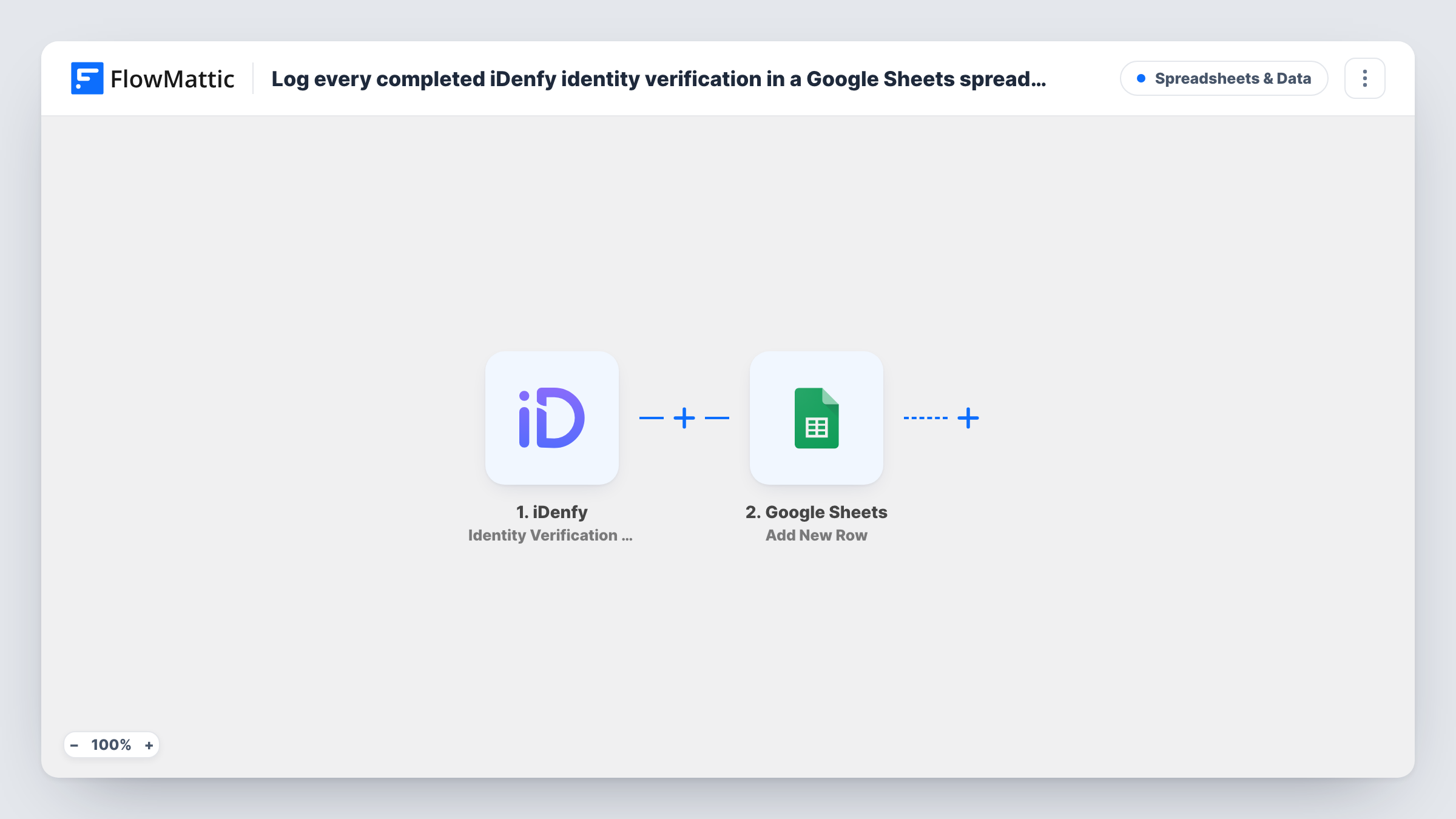
The iDenfy trigger fires when a client completes an identity verification. FlowMattic receives the verification data and passes it to Google Sheets, which adds a new row to the spreadsheet you choose. You decide which details go in which column.
Every completed verification produces one row, whatever its outcome, so map a status field, if iDenfy sends one, to tell approved and declined checks apart. Identity data is personal, so think about which fields you actually need in a spreadsheet and who can open it. Run a test verification after import to see the fields iDenfy sends, then map only those you need. Each run, with the data sent to the sheet, appears in Task History.
Onboarding tracker for a fintech team
Operations keep a sheet of customers who finished verification, with the date and status, and use it to chase people who still need to fund their account.
Weekly review of declined checks
A compliance lead sorts the sheet by status every Monday to review declined verifications before anyone is contacted.
Hand-off to account managers
A marketplace shares the sheet with account managers so they can see which new sellers have completed verification and can be set live.
How this workflow runs
What happens at each step once the workflow is on, and what you need before you import it.
 iDenfy Identity Verification Completed
Runs when a client completes an identity verification in iDenfy. The verification data is passed on so you can map it into the spreadsheet.
- Google Sheets Add New Row
Adds a row to the Google Sheets spreadsheet you pick for each completed verification. Map iDenfy fields to columns and connect your Google account.
What you need
- FlowMatticCore
- iDenfy AccountAccount
- Google Sheets AccountAccount
After importing, map your own data. To keep the template universal, not every step is pre-filled. Open each step in the builder and connect your accounts and fields (channels, lists, sheets, recipients) before you switch the workflow on.
Make it yours
Changes worth making after you import it.
- Map a status or result column from the iDenfy data, if the trigger carries one, so you can filter the sheet by outcome instead of reading every row.
- To log only approved verifications, add a Filter after the trigger on the status field. Check a test run for the exact value iDenfy sends.
- Leave sensitive identity fields out of the mapping unless you need them, and share the spreadsheet only with the people who review verifications.
Questions about this workflow
Are declined iDenfy verifications logged too?
Yes, as imported. Every completed verification adds a row whatever the result. Add a Filter after the trigger if you only want some outcomes in the sheet.
Which iDenfy details can go into Google Sheets?
Whatever the trigger data includes for the verification. Complete a test check, then look at the captured fields before you map columns.
Will verifications completed before I turn this on be added?
No. Only checks completed after the workflow is active start a run, so earlier ones stay out of the sheet.
Can I send iDenfy results somewhere other than Google Sheets?
Yes. Swap the Google Sheets step for another action in FlowMattic, such as a FlowMattic Tables row or a CRM update, and map the same fields.
More Spreadsheets & Data workflows
Other ready-to-import templates from the same category.




Import this workflow into your WordPress site
Download the JSON, import it from the Workflows screen and connect your accounts. Every run stays on your server, with no per-task fees.
30-day money-back guarantee Unlimited workflows and runs Self-hosted