

Log every new Greenhouse application in a Google Sheets spreadsheet
Each application created in Greenhouse is added as a new row in Google Sheets, so hiring managers and others outside your applicant tracking system can follow incoming applications in a spreadsheet.
 Greenhouse
 Google Sheets
2 steps Setup ~5 min Used on 1.5k sites Free to import
What this workflow does
Greenhouse is built for recruiters, but hiring managers, founders and finance often want a simpler view of who applied and for which role. Giving each of them Greenhouse access is not always practical. This workflow writes every new Greenhouse application to a Google Sheets spreadsheet you can share.
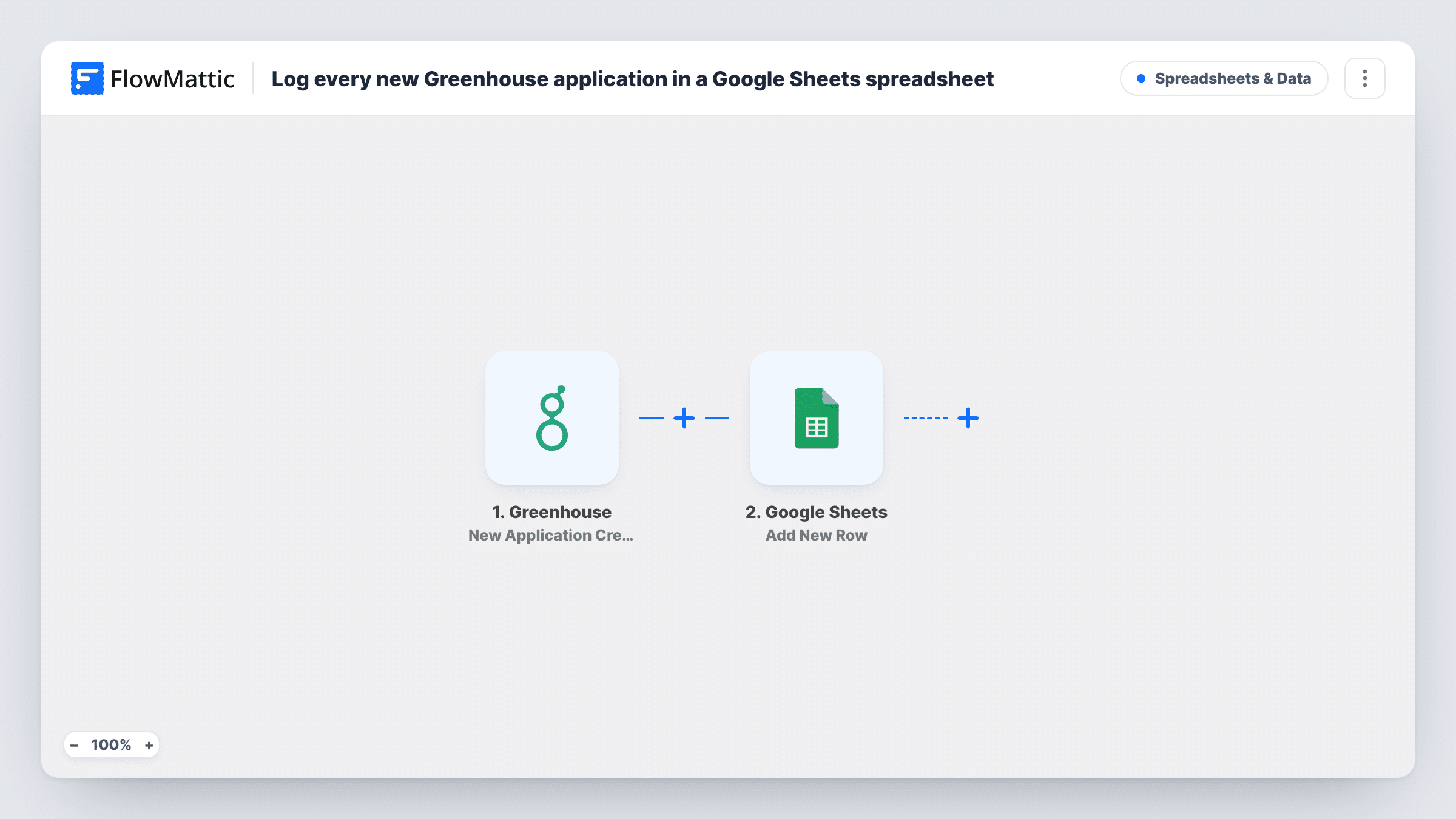
The Greenhouse trigger runs on New Application Created. FlowMattic receives the application data and passes it to the Add New Row action in Google Sheets. You pick the spreadsheet and map the application values you want into its columns.
The sheet is a log of applications as they were created. When a candidate moves stage or is rejected in Greenhouse, the row does not change. Candidate data is personal, so share the spreadsheet only with people who should see it and map only the values they need. Task History shows each run and what was written.
Hiring manager overview
A manager hiring for one team checks the shared sheet each morning to see new applications without asking a recruiter for an update.
Application counts per role
Add a summary tab that counts rows per mapped job value, giving you a quick view of how many applications each opening has received.
Reporting for leadership
Leadership reads the spreadsheet for a monthly hiring report, built from the rows the workflow added as applications arrived.
How this workflow runs
What happens at each step once the workflow is on, and what you need before you import it.
 Greenhouse New Application Created
Runs when a new application is created in your Greenhouse account. The application data is passed to the Google Sheets step for mapping.
- Google Sheets Add New Row
Adds one row per Greenhouse application to the spreadsheet you select. Map the application values to its columns and connect your Google account.
What you need
- FlowMatticCore
- Greenhouse AccountAccount
- Google Sheets AccountAccount
After importing, map your own data. To keep the template universal, not every step is pre-filled. Open each step in the builder and connect your accounts and fields (channels, lists, sheets, recipients) before you switch the workflow on.
Make it yours
Changes worth making after you import it.
- Add a Filter after the trigger to log only applications for certain roles. Check a captured run for the value that names the job.
- Create a test application in Greenhouse after import so FlowMattic captures real data, then map it in the Google Sheets step and check the first row.
- Map only the candidate values the sheet's readers need. Leave out contact details if the people viewing it do not contact candidates.
Questions about this workflow
Does the sheet update when a Greenhouse candidate changes stage?
No. The trigger fires when an application is created and the step only adds rows. Stage changes and rejections in Greenhouse do not reach the sheet.
Are existing Greenhouse applications copied to Google Sheets?
No. Only applications created after the workflow is turned on get a row.
What if one candidate applies to two Greenhouse jobs?
Each application starts its own run, so the candidate appears in two rows, one for each application.
Which Greenhouse application details can I log?
Whatever the New Application Created trigger returns. Look at a captured test run in the Google Sheets step to see what you can map.
More Spreadsheets & Data workflows
Other ready-to-import templates from the same category.




Import this workflow into your WordPress site
Download the JSON, import it from the Workflows screen and connect your accounts. Every run stays on your server, with no per-task fees.
30-day money-back guarantee Unlimited workflows and runs Self-hosted