

Log every GMass email sent to a Google Sheets spreadsheet
Each email GMass sends as part of a campaign is added as a new row in Google Sheets, giving you a send log you can sort, filter and share without exporting reports from GMass.
 GMass
 Google Sheets
2 steps Setup ~5 min Used on 960 sites Free to import
What this workflow does
GMass sends campaigns from your Gmail account, and checking afterwards who received what usually means digging through reports. If you want a plain record you own, a spreadsheet is the simplest place for it. This workflow writes one row for every campaign email GMass sends.
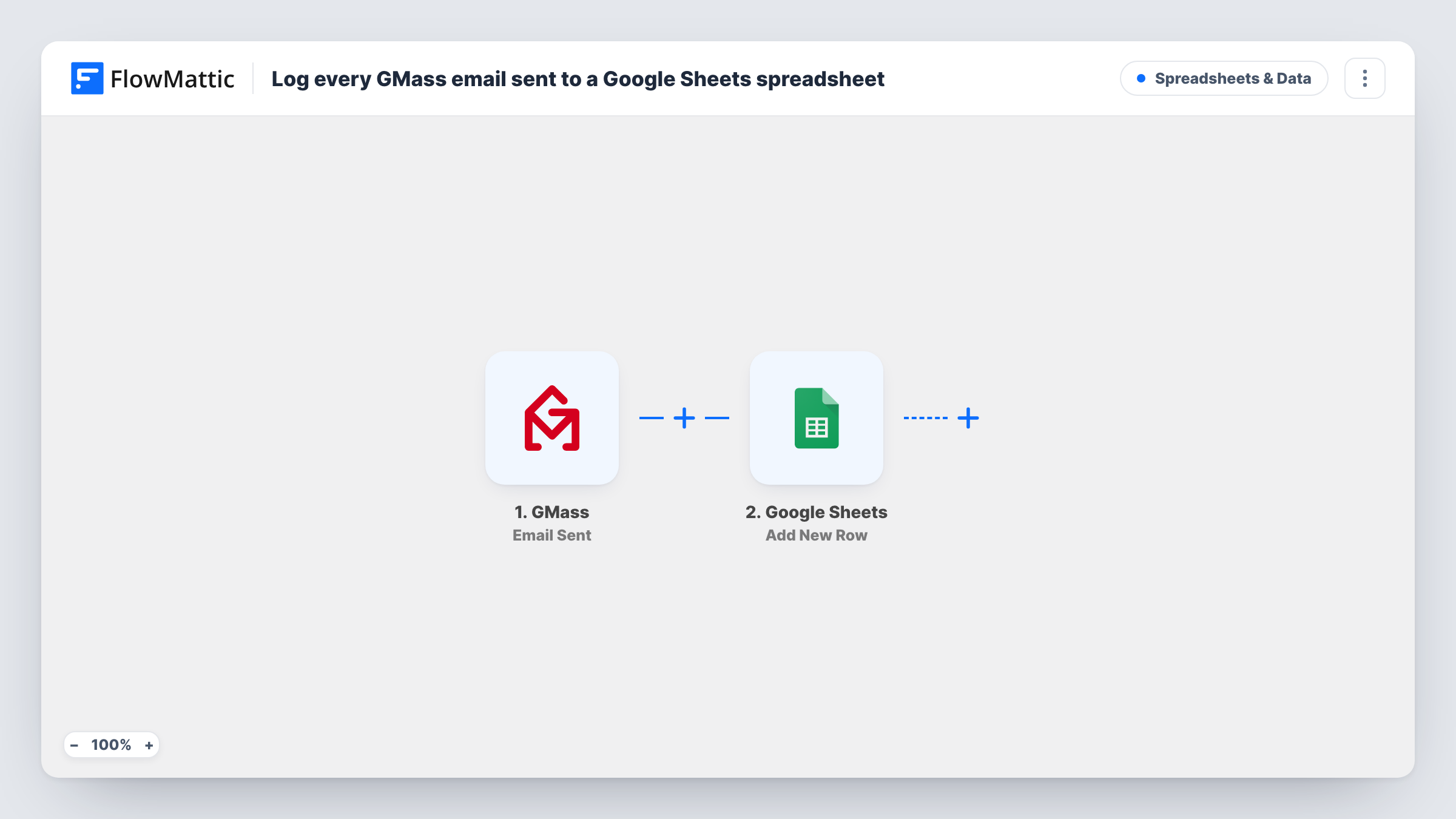
The GMass trigger is Email Sent. It fires each time an individual email goes out as part of a GMass campaign, and passes the details GMass provides about that send to FlowMattic. Transactional emails are not covered by this trigger. The next step uses the Add New Row action in Google Sheets to append those details to the spreadsheet you pick.
Because the trigger fires per recipient, a campaign to a large list adds a row for every person on it. The template does not filter or group the sends. Run a small test campaign after import to see which details GMass passes, then decide which columns you want. Task History lists each run and what was written to the sheet.
Outreach log for a sales team
Reps send cold outreach through GMass, and the shared sheet shows every email that went out, so a manager can see who has been contacted without opening anyone's Gmail.
Proof of notice for members
An association sends policy updates through GMass. The sheet records each member who was sent the update, which helps when someone says they never heard about it.
Combining sends with your own data
Keep the GMass log in one tab and your customer list in another, then use sheet formulas to see which customers were included in each campaign.
How this workflow runs
What happens at each step once the workflow is on, and what you need before you import it.
 GMass Email Sent
Fires each time GMass sends an individual email as part of a campaign. The send details GMass provides become available to map into the sheet.
- Google Sheets Add New Row
Appends a row to the Google Sheets spreadsheet you choose for each campaign email sent. Connect your Google account and map the GMass details to your column headers.
What you need
- FlowMatticCore
- GMass AccountAccount
- Google Sheets AccountAccount
After importing, map your own data. To keep the template universal, not every step is pre-filled. Open each step in the builder and connect your accounts and fields (channels, lists, sheets, recipients) before you switch the workflow on.
Make it yours
Changes worth making after you import it.
- Add header names to the first row of your sheet before you map the step, so each GMass detail has a clear column to land in.
- Add a Filter after the trigger if you only want to log some campaigns. Run a test send first, then build the condition on a detail that identifies the campaign in the trigger data.
- Want opens or replies logged as well? Copy the workflow, swap the trigger for the matching GMass event, and point its Google Sheets step at a separate tab.
Questions about this workflow
Does this GMass workflow log transactional emails?
No. FlowMattic's own description of the Email Sent trigger says it fires for emails sent as part of a campaign and is not the trigger for transactional messages.
Will a GMass campaign to many recipients add many rows?
Yes. The trigger fires once per individual email, and the Google Sheets step adds a row each time, so every recipient gets their own row.
Does the GMass log update when a recipient opens or replies?
No. This template only reacts to sends, and each row is written once. Opens, clicks and replies would need their own workflow built on another GMass trigger.
Are GMass campaigns sent before I import this logged?
No. Only emails sent after the workflow is turned on reach the sheet. The trigger does not go back over earlier campaigns.
More Spreadsheets & Data workflows
Other ready-to-import templates from the same category.





Import this workflow into your WordPress site
Download the JSON, import it from the Workflows screen and connect your accounts. Every run stays on your server, with no per-task fees.
30-day money-back guarantee Unlimited workflows and runs Self-hosted