

Log new Vimeo OTT subscriptions in a Google Sheets spreadsheet
Each time a customer is added to a product in Vimeo OTT, this workflow adds a row to Google Sheets, building a running log of new subscriptions you can sort, share and report on.
 Vimeo OTT
 Google Sheets
2 steps Setup ~5 min Used on 542 sites Free to import
What this workflow does
Vimeo OTT runs your video subscription channel, but pulling a list of who signed up and when means exports and manual cleanup. A spreadsheet that grows on its own is easier to hand to a partner, total by month, or compare across products. This workflow writes each new subscription into one.
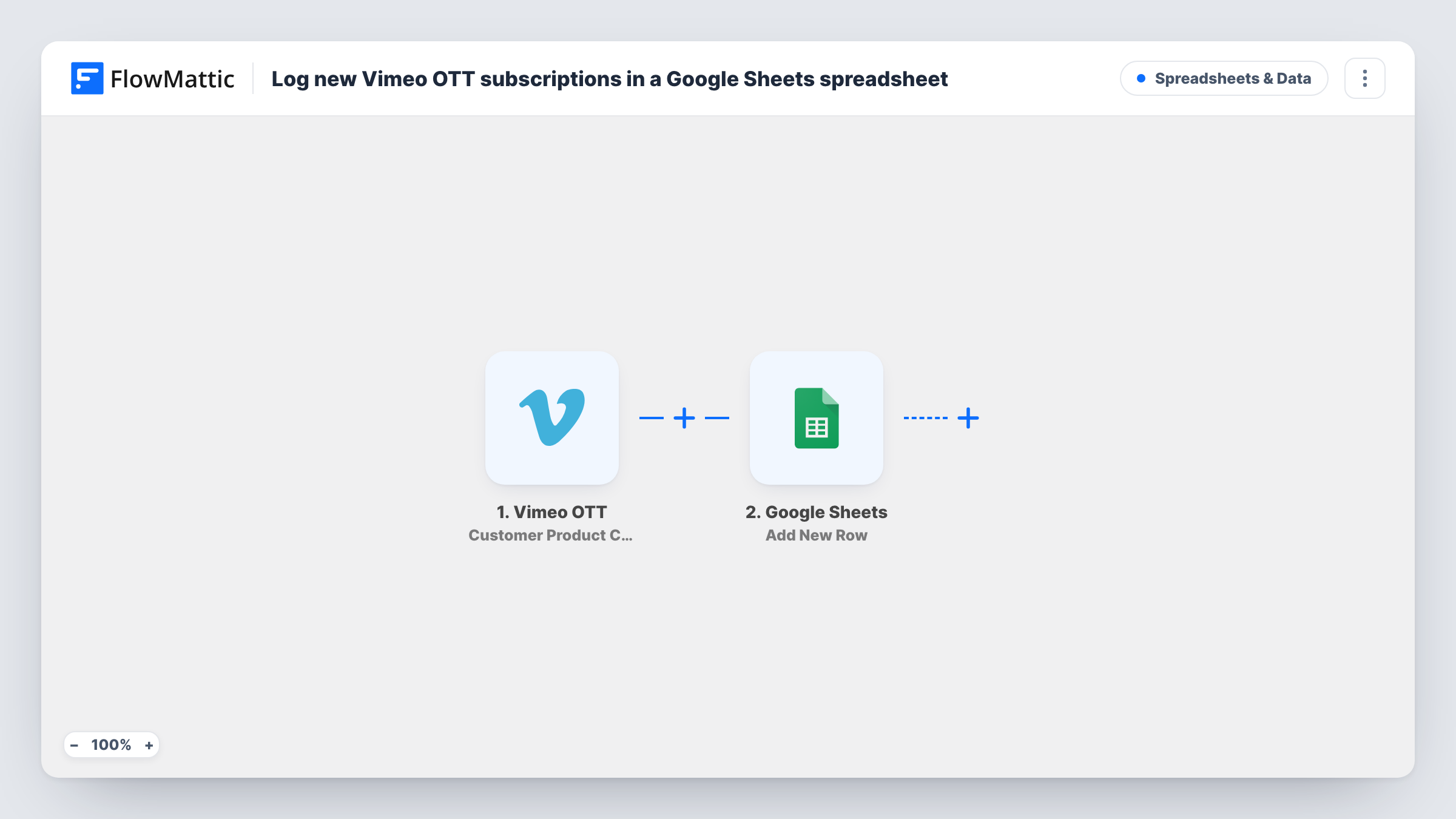
The Vimeo OTT trigger is Customer Product Created, which fires when a customer is attached to one of your products, as happens when someone subscribes. The customer and product details from that event become data you can map. The second step adds a row in Google Sheets, with each column filled from the values you pick.
Every event produces a new row, and nothing already in the sheet is edited. A customer who joins two products shows up twice, once per product. Each run appears in Task History, where you can see the data Vimeo OTT sent.
Monthly subscriber reports
A fitness channel on Vimeo OTT logs every new subscription to a sheet, and the owner totals sign-ups per month with a simple pivot table.
Sharing numbers with a co-producer
A documentary series sold through Vimeo OTT shares its subscriber sheet with a co-producer who has no access to the OTT admin.
Comparing products side by side
A course creator with several Vimeo OTT products adds a product column and sees which one gains the most new customers.
How this workflow runs
What happens at each step once the workflow is on, and what you need before you import it.
 Vimeo OTT Customer Product Created
Runs when a customer is added to one of your Vimeo OTT products, such as when they start a subscription. Customer and product details are passed to the sheet step.
- Google Sheets Add New Row
Appends a row to the Google spreadsheet you choose for each new Vimeo OTT subscription. Connect Google, set your column headings, and map customer and product values into them.
What you need
- FlowMatticCore
- Vimeo OTT AccountAccount
- Google Sheets AccountAccount
After importing, map your own data. To keep the template universal, not every step is pre-filled. Open each step in the builder and connect your accounts and fields (channels, lists, sheets, recipients) before you switch the workflow on.
Make it yours
Changes worth making after you import it.
- Map the product name or ID into its own column so you can tell subscriptions to different Vimeo OTT products apart in the sheet.
- Track one product only by adding a Filter after the trigger that continues when the product matches the one you want logged.
- Subscribe a test account to a product after import, then use the captured data to map the Google Sheets columns before going live.
Questions about this workflow
What counts as a new Vimeo OTT subscription here?
The trigger is Customer Product Created, which fires when a customer is added to a product. Test with your own channel to confirm which sign-ups, trials or purchases produce that event for you.
Are cancellations removed from the Google Sheet?
No. The workflow only adds rows for new customer products. It never edits or deletes rows, so a cancelled subscriber's row stays in the sheet.
Will my existing Vimeo OTT subscribers be added?
No. Only events after the workflow is turned on create rows. Export older subscribers from Vimeo OTT if you want them in the same sheet.
More Spreadsheets & Data workflows
Other ready-to-import templates from the same category.




Import this workflow into your WordPress site
Download the JSON, import it from the Workflows screen and connect your accounts. Every run stays on your server, with no per-task fees.
30-day money-back guarantee Unlimited workflows and runs Self-hosted