

Log every new Givecloud contributions in a Google Sheets spreadsheet
Each paid Givecloud contribution, one-time or recurring, is added to Google Sheets as a new row, giving your team a running donation log it can sort, share and reconcile.
 Givecloud
 Google Sheets
2 steps Setup ~5 min Used on 2.3k sites Free to import
What this workflow does
Givecloud records your donations, but finance staff, board members and volunteers often work from a spreadsheet. Exporting by hand every week leaves the sheet out of date in between. This workflow adds each paid contribution to the sheet as it comes in.
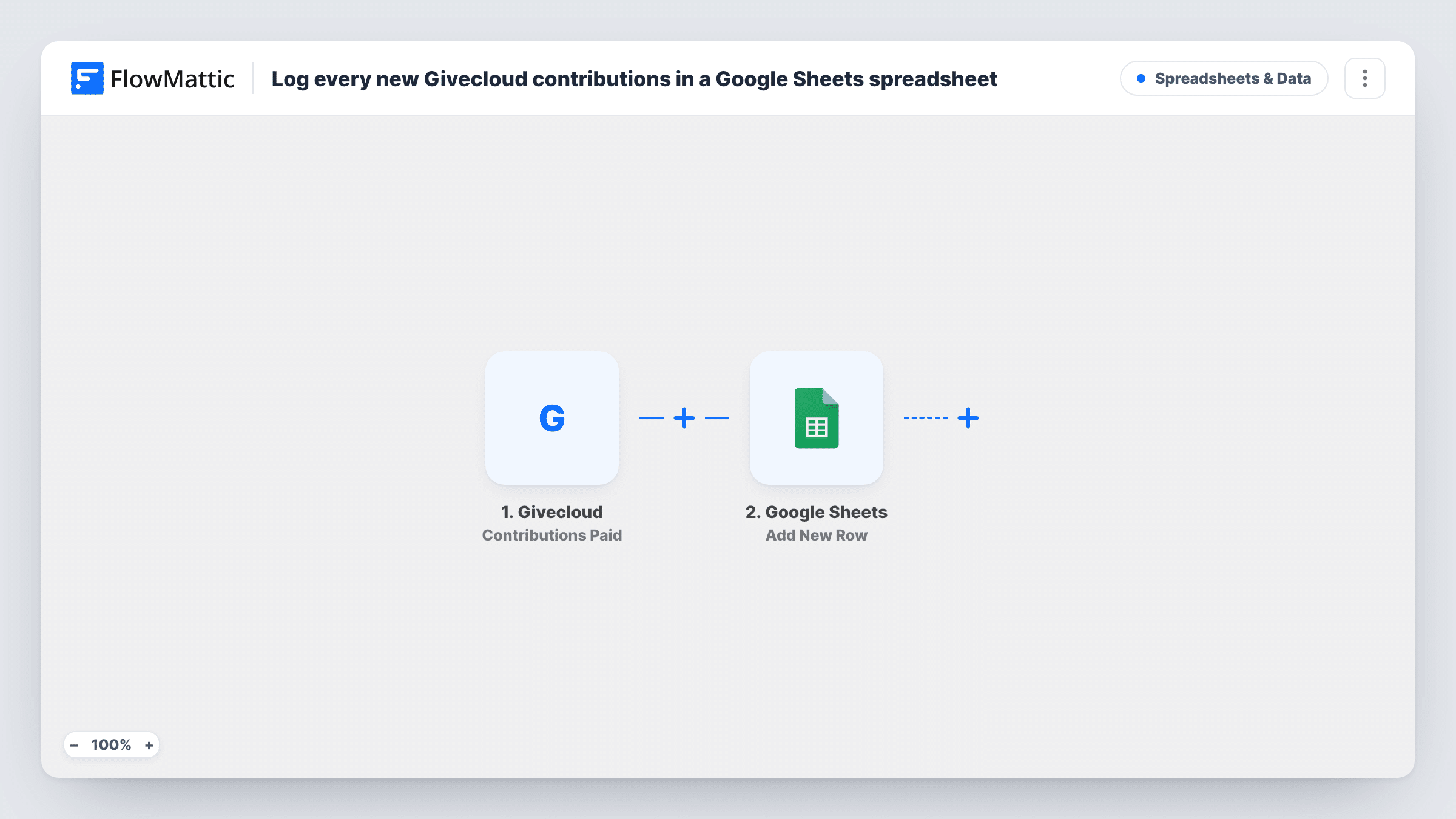
The Givecloud trigger, Contributions Paid, fires for one-time and recurring contribution transactions. FlowMattic passes the contribution's details to Google Sheets, where the Add New Row action writes them to the spreadsheet you pick. You decide which details go in which column, such as the supporter's name, the amount and the date, based on what a test run shows.
Each transaction gets its own row. A monthly donor therefore appears once for every payment, which is what you want for reconciling against payouts. Rows are only ever added, never updated, so a later change in Givecloud does not alter the sheet.
Monthly reconciliation for the treasurer
The treasurer matches the sheet against bank deposits at month end, with every paid contribution, including each recurring payment, already listed.
Campaign totals for a fundraising drive
During a year-end appeal, staff sort the sheet by date or add a SUM column to see how much has come in so far.
Thank-you call lists for volunteers
Volunteers who have no Givecloud login work from a shared copy of the sheet to phone recent donors and say thanks.
How this workflow runs
What happens at each step once the workflow is on, and what you need before you import it.
 Givecloud Contributions Paid
Fires when a contribution transaction is paid in Givecloud, for both one-time and recurring gifts. The contribution and supporter details become available to map.
- Google Sheets Add New Row
Writes one row per paid contribution into the Google Sheets file you select. Map the contribution details from the trigger to your columns and connect your Google account on import.
What you need
- FlowMatticCore
- Givecloud AccountAccount
- Google Sheets AccountAccount
After importing, map your own data. To keep the template universal, not every step is pre-filled. Open each step in the builder and connect your accounts and fields (channels, lists, sheets, recipients) before you switch the workflow on.
Make it yours
Changes worth making after you import it.
- Set up column headers in the sheet before you map, then run a test payment so the Givecloud fields are captured and easy to match to each column.
- Add a Filter after the trigger if you only want one kind of gift in this sheet, using a field from the test run that marks recurring or one-time payments.
- Point a second Google Sheets step at a separate summary spreadsheet if your board only needs the date and amount without supporter names.
Questions about this workflow
Are recurring Givecloud donations logged each time they are paid?
Yes. The Contributions Paid trigger fires for recurring transactions as well as one-time ones, so each payment adds its own row.
Will past Givecloud contributions be added to the sheet?
No. Only contributions paid after you turn the workflow on reach the sheet. Older gifts need to be added to the sheet some other way.
What if a contribution is changed in Givecloud after it is logged?
The sheet keeps the row as it was written. This workflow only adds rows and has no step that updates them.
Must my Google account be able to edit the donation sheet?
Yes. The Google account you connect in FlowMattic must be able to edit the spreadsheet, or the Add New Row step cannot write to it.
More Spreadsheets & Data workflows
Other ready-to-import templates from the same category.




Import this workflow into your WordPress site
Download the JSON, import it from the Workflows screen and connect your accounts. Every run stays on your server, with no per-task fees.
30-day money-back guarantee Unlimited workflows and runs Self-hosted