

Log every new Hitpay charge in a Google Sheets spreadsheet
Every completed Hitpay charge adds a row to your Google Sheets spreadsheet with the payment details you map, giving you one running list of payments you can sort, total and share.
 Hitpay
 Google Sheets
2 steps Setup ~5 min Used on 3.5k sites Free to import
What this workflow does
Your Hitpay dashboard shows payments, but your bookkeeping, a partner's report or a quick monthly total often lives in a spreadsheet. Exporting and pasting charges by hand gets skipped when the month is busy. This workflow writes each charge into Google Sheets as it happens.
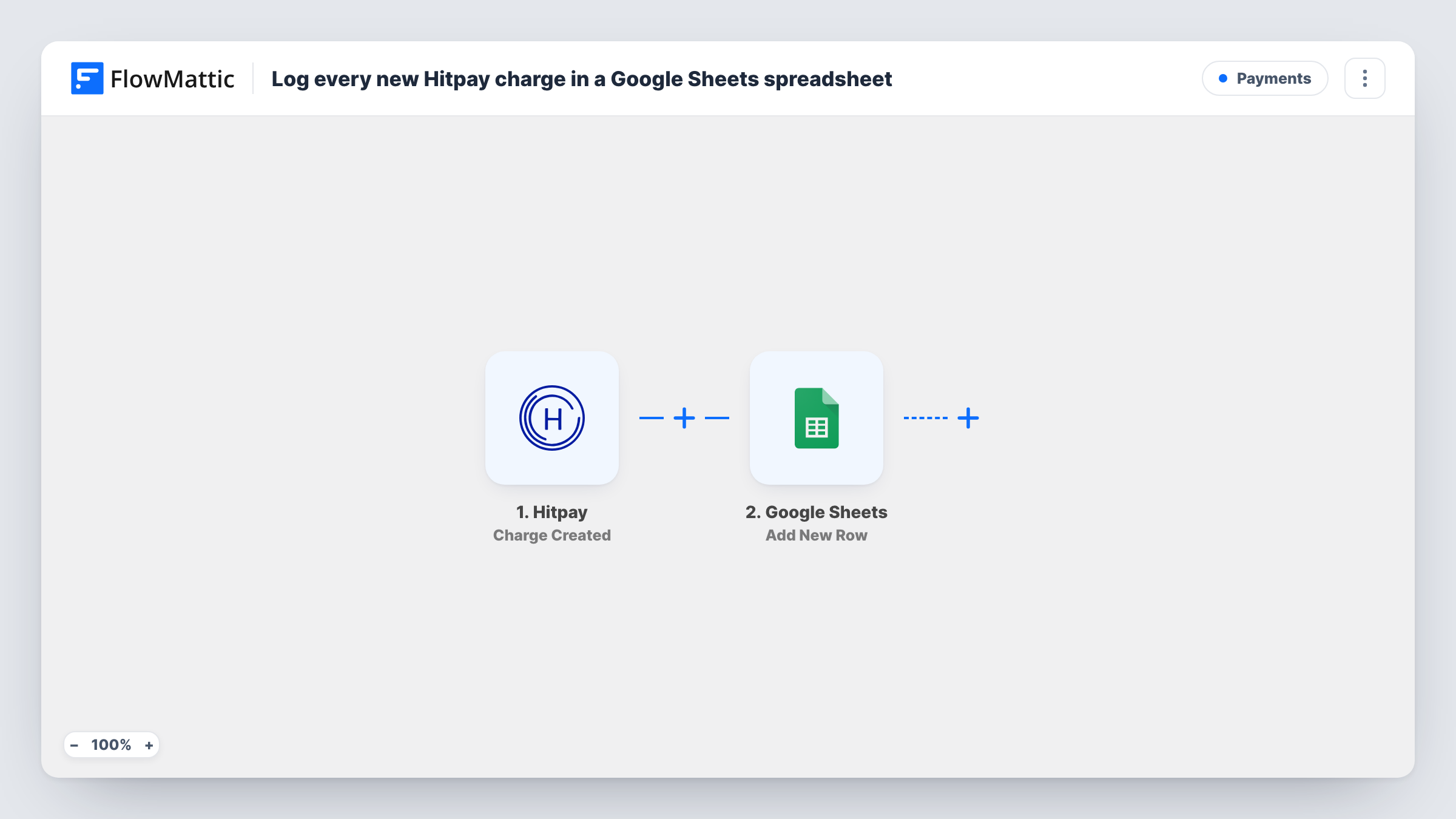
The Hitpay trigger is Charge Created, which fires when a payment is completed successfully. FlowMattic takes the charge data Hitpay sends and passes the values you pick to Google Sheets. The Add New Row action writes them into the spreadsheet and worksheet you choose, one row per charge.
You decide which columns hold what, for example the amount, currency, customer email and payment reference. Hitpay's own Charge Updated trigger is separate, so later changes to a charge don't add or edit rows here. Task History keeps a record of each charge the workflow logged.
A payments ledger for your accountant
Share the sheet with your accountant so they see every Hitpay payment with its amount and reference, without needing access to your Hitpay account.
Daily sales totals for a small shop
A shop taking payments through Hitpay adds a SUM formula below the rows or in a second tab, so the day's or month's takings are visible at a glance.
Matching payments to orders
Log the payment reference and customer email next to each charge, then match rows against your order list when you check what has been paid.
How this workflow runs
What happens at each step once the workflow is on, and what you need before you import it.
 Hitpay Charge Created
Fires when a payment is completed in Hitpay. Connect your Hitpay account, then make a test payment so FlowMattic captures the charge fields, such as the amount and currency, for mapping.
- Google Sheets Add New Row
Adds one row to the Google Sheets spreadsheet and worksheet you pick. Set up column headers first, connect your Google account and map each column to a Hitpay charge value.
What you need
- FlowMatticCore
- Hitpay AccountAccount
- Google Sheets AccountAccount
After importing, map your own data. To keep the template universal, not every step is pre-filled. Open each step in the builder and connect your accounts and fields (channels, lists, sheets, recipients) before you switch the workflow on.
Make it yours
Changes worth making after you import it.
- Add a date column and map the charge's timestamp to it, so you can sort and filter the sheet by day or month.
- If you only want larger payments in this sheet, add a Filter after the trigger with a greater-than condition on the amount. It compares whole numbers, so decimals are cut off.
- Add a second workflow on Hitpay's Charge Updated trigger if you also need to record later changes to a charge, and log those to a separate tab.
Questions about this workflow
Which Hitpay payments are logged in Google Sheets?
Each charge that Hitpay reports as successfully completed. The workflow has no Filter, so every one of them gets a row.
Are past Hitpay charges added to the sheet?
No. Only charges completed after you turn the workflow on reach Google Sheets. Add older payments to the sheet yourself if you want a complete record.
Does a refund remove the row?
No. The workflow only adds rows when a charge is created. A refund or other change to the charge leaves the row as it was.
Can I log Hitpay charges to a FlowMattic Table instead?
Yes. Replace the Google Sheets step with the New Record action from Tables by FlowMattic, then map the same charge values into your table's columns.
More Payments workflows
Other ready-to-import templates from the same category.






Import this workflow into your WordPress site
Download the JSON, import it from the Workflows screen and connect your accounts. Every run stays on your server, with no per-task fees.
30-day money-back guarantee Unlimited workflows and runs Self-hosted