

Add newly-captured Paddle payments to rows in Google Sheets
Every successful Paddle payment is written to a new row in Google Sheets, giving you a running payment log you can sort, total and share with your accountant without logging into Paddle.
 Paddle
 Google Sheets
2 steps Setup ~5 min Used on 958 sites Free to import
What this workflow does
Paddle reports are fine for a quick look, but many teams want payments in a spreadsheet: finance reconciles against the bank, founders build their own revenue charts, and a bookkeeper needs a file without a Paddle login. Exporting by hand each month is tedious and easy to forget. This workflow keeps that sheet filled as payments succeed.
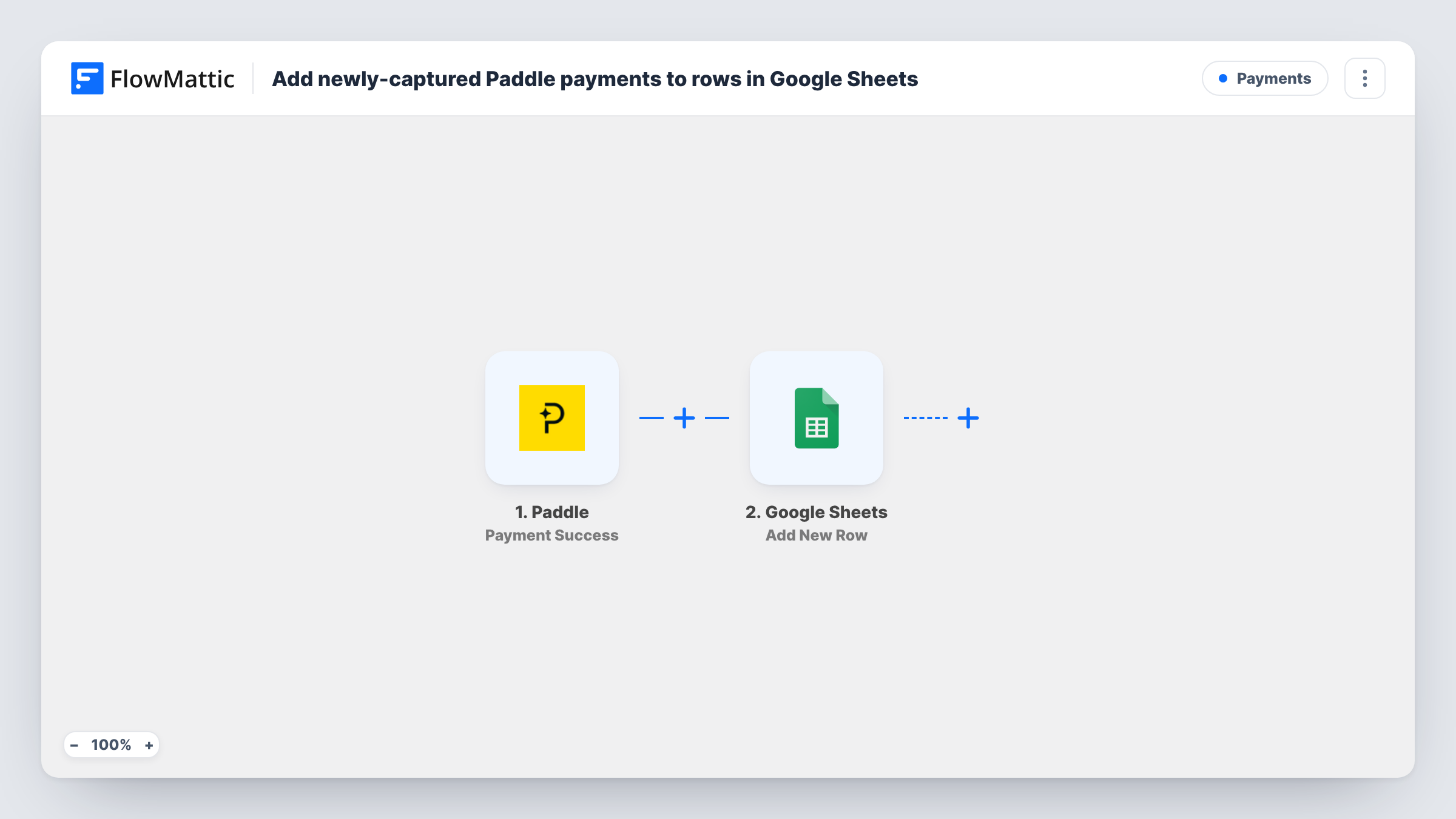
The Paddle trigger fires when a payment is successful. FlowMattic receives the payment details Paddle sends and passes them to Google Sheets. The Add New Row action writes them into the spreadsheet and sheet you choose, one column per value you map.
Every successful payment adds its own row, including renewals of the same subscription, so the sheet is a log of payments rather than a list of customers. Refunds and failed payments do not run this workflow. Task History stores the data from each run if you need to check a row against Paddle.
Monthly reconciliation
Your bookkeeper matches the rows in the payment sheet against bank payouts at month end, without needing access to your Paddle account.
Simple revenue dashboard
A chart built on the sheet shows daily or monthly totals from Paddle payments, and it updates as new rows arrive.
Sharing sales with a co-founder
A non-technical partner follows new sales in a shared Google Sheet instead of asking for screenshots of the Paddle dashboard.
How this workflow runs
What happens at each step once the workflow is on, and what you need before you import it.
 Paddle Payment Success
Fires when a payment succeeds in Paddle. The payment details Paddle sends become values you can map to sheet columns.
- Google Sheets Add New Row
Writes the payment into a fresh row of the spreadsheet tab you pick. Connect your Google account and map each Paddle value your test run shows, such as the amount, to a column.
What you need
- FlowMatticCore
- Paddle AccountAccount
- Google Sheets AccountAccount
After importing, map your own data. To keep the template universal, not every step is pre-filled. Open each step in the builder and connect your accounts and fields (channels, lists, sheets, recipients) before you switch the workflow on.
Make it yours
Changes worth making after you import it.
- Add header names in the first row of the sheet before mapping, matching the Paddle values you plan to record, so columns are easy to line up.
- Add a Router if you sell several products and want each one in its own tab, with a route per product and a Google Sheets step for each tab.
- Let one real payment come through after import, or make a small one yourself, so FlowMattic captures the fields you need to map.
Questions about this workflow
Do Paddle subscription renewals add a new row each time?
Yes, as long as Paddle reports the renewal as a successful payment. Each one is logged as its own row.
Are Paddle refunds recorded in the Google Sheet?
No. Only successful payments trigger this workflow, so refunds and failed charges are not written to the sheet.
Will past Paddle payments be added to Google Sheets?
No. Payments that succeeded before you turned the workflow on are not included. Export them from Paddle and paste them above the new rows if you want one complete log.
Can I record Paddle payments in FlowMattic Tables instead?
Yes. Swap the Google Sheets step for a FlowMattic Tables step and map the same payment values into your table.
More Payments workflows
Other ready-to-import templates from the same category.





Import this workflow into your WordPress site
Download the JSON, import it from the Workflows screen and connect your accounts. Every run stays on your server, with no per-task fees.
30-day money-back guarantee Unlimited workflows and runs Self-hosted