

When invoice payment is succeeded in Stripe, add the details to Google Spreadsheet
Each time a Stripe invoice payment succeeds, this workflow adds a row to Google Sheets with the invoice details you choose, giving you a running payment record that anyone with access to the sheet can read.
 Stripe
 Google Sheets
2 steps Setup ~5 min Used on 2.2k sites Free to import
What this workflow does
Stripe holds every invoice and payment, but not everyone who needs the numbers has a Stripe login. Bookkeepers, partners and managers often work from a spreadsheet instead. This workflow writes each paid invoice into Google Sheets as it happens.
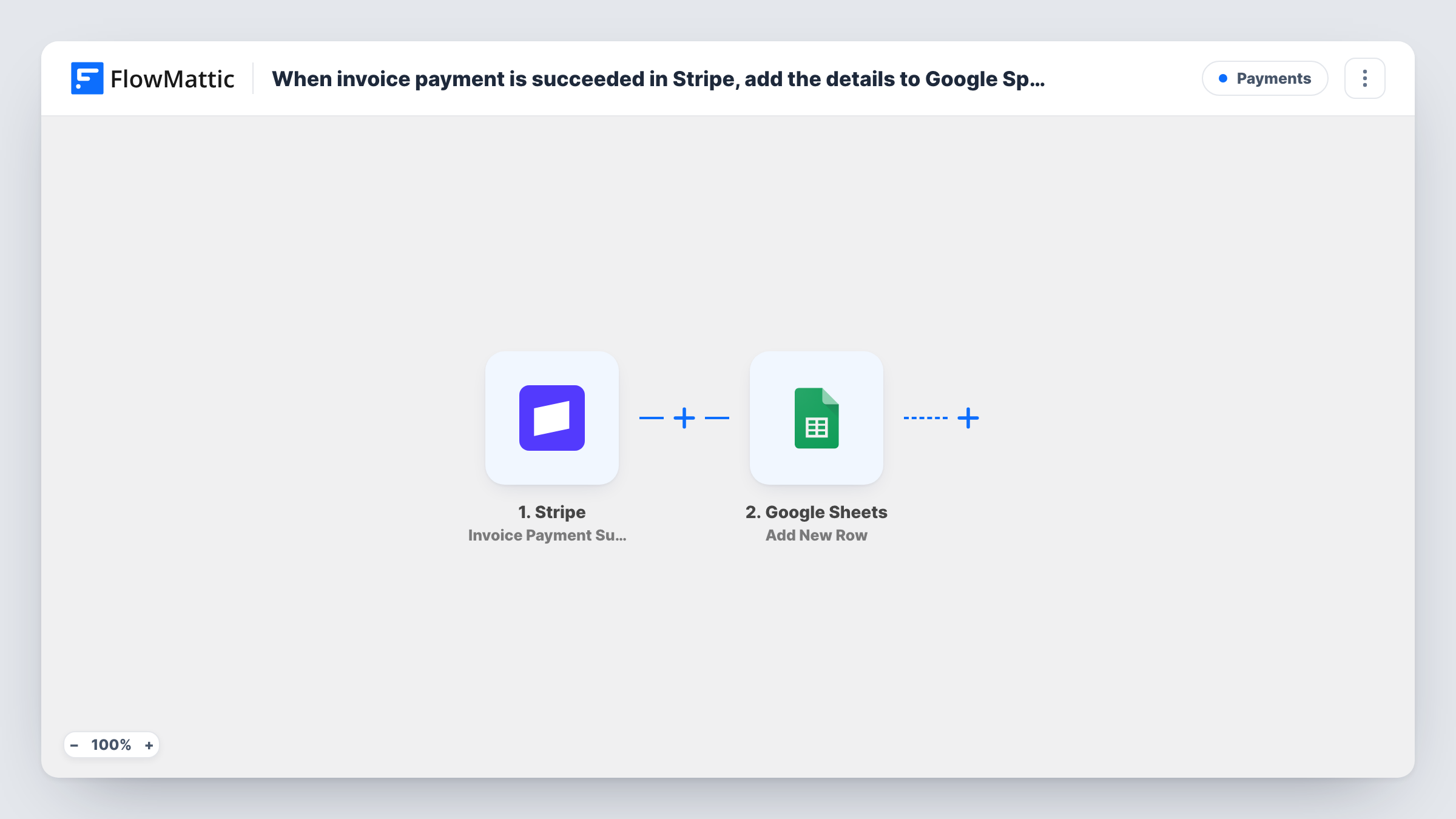
The Stripe trigger fires whenever an invoice payment attempt succeeds. That covers paid invoices from subscriptions as well as invoices you send by hand. FlowMattic passes the invoice data, such as customer, amount and invoice number, to the next step. The Google Sheets step adds a row to the spreadsheet you pick, with each column mapped to an invoice field.
Only successful payments reach the sheet, because the trigger does not fire on failed attempts. Stripe sends amounts in the smallest currency unit, such as cents, so you may want a formula column that divides by 100. Task History records each run if you need to check what Stripe sent.
Monthly bookkeeping for a subscription business
Your accountant works from a sheet that fills with each paid Stripe invoice, ready for reconciling at month end.
Tracking client retainers
An agency that bills retainers through Stripe invoices sees which clients have paid this month by reading the sheet.
Sharing revenue with a partner
A co-founder without Stripe access follows paid invoices in a shared spreadsheet.
How this workflow runs
What happens at each step once the workflow is on, and what you need before you import it.
 Stripe Invoice Payment Succeeded
Fires whenever a Stripe invoice payment attempt succeeds. The invoice data, including customer and amount, is passed on for mapping into the sheet.
- Google Sheets Add New Row
Adds a row to the Google Sheets spreadsheet you choose for each paid invoice. Map invoice fields such as number, customer email, amount and currency to columns.
What you need
- FlowMatticCore
- Stripe AccountAccount
- Google Sheets AccountAccount
After importing, map your own data. To keep the template universal, not every step is pre-filled. Open each step in the builder and connect your accounts and fields (channels, lists, sheets, recipients) before you switch the workflow on.
Make it yours
Changes worth making after you import it.
- Add a column with a formula that divides the amount by 100, since Stripe reports amounts in cents for most currencies.
- Map the invoice number and customer email into separate columns, so you can search the sheet when a customer asks about a payment.
- Let one invoice payment come through after import, then use the captured data to finish mapping the columns and check the row it added.
Questions about this workflow
Are failed Stripe invoice payments added to the sheet?
No. The trigger fires only when an invoice payment succeeds, so failed attempts never reach Google Sheets.
Will past Stripe invoices be added to Google Sheets?
No. Only payments that succeed after the workflow is on are written. Export older invoices from Stripe if you need them in the sheet.
Why does the amount in my sheet look 100 times too large?
Stripe sends amounts in the smallest currency unit, such as cents. Divide by 100 in a sheet formula to show the usual amount.
Does this include one-off Stripe charges that are not invoices?
No. The trigger is for invoice payments. Charges made without an invoice need a different Stripe trigger.
More Payments workflows
Other ready-to-import templates from the same category.




Import this workflow into your WordPress site
Download the JSON, import it from the Workflows screen and connect your accounts. Every run stays on your server, with no per-task fees.
30-day money-back guarantee Unlimited workflows and runs Self-hosted