

Log every new LeadGen App lead in a Google Sheets spreadsheet
Every lead LeadGen App receives is written to a new row in Google Sheets, giving your team one shared list of leads to sort, assign and work through.
 LeadGen App
 Google Sheets
2 steps Setup ~5 min Used on 3.2k sites Free to import
What this workflow does
LeadGen App collects leads from its forms, but your sales team may not all have a login, and some reporting is simply easier in a spreadsheet. A sheet that fills as leads arrive gives everyone the same list. This workflow keeps that sheet up to date.
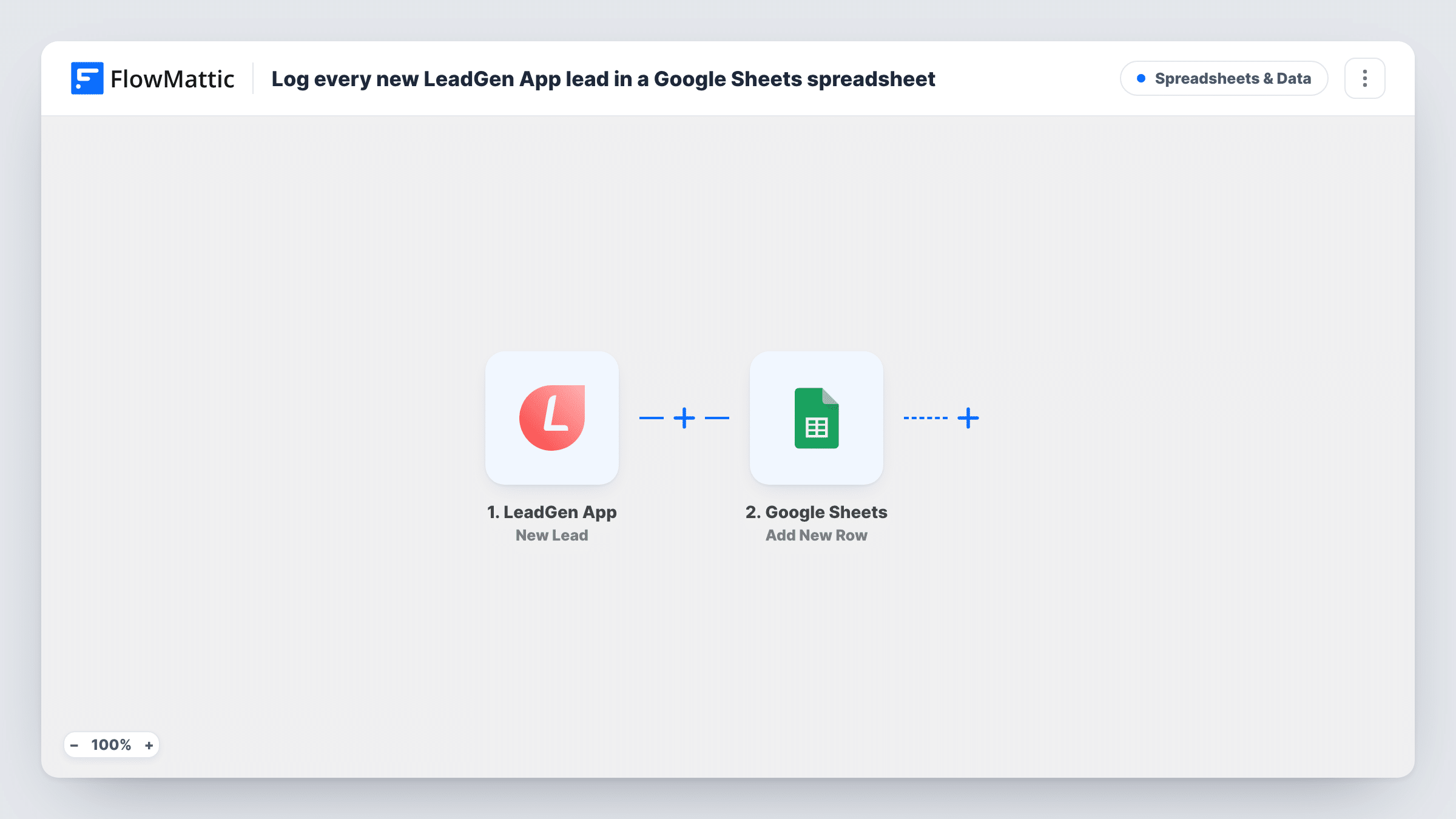
The LeadGen App trigger fires when a new lead is received. FlowMattic captures the lead's answers from that event. The Google Sheets step then adds a row to your chosen spreadsheet, and you match each lead detail, such as name, email or phone if your form asks for them, to a column.
Each lead gets one row, with no filtering or merging, so a person who submits twice shows up twice. Leads collected before you switch the workflow on aren't copied. Task History lists each run if you need to trace a missing row.
Sharing leads with a sales team
A marketer runs LeadGen App forms on landing pages, and the sales team works from the Google Sheet, adding status notes in extra columns.
Agency reporting to clients
An agency collects leads for a client through LeadGen App and shares the sheet, so the client sees every lead without another tool login.
Comparing lead sources
Leads from several LeadGen App forms land in one sheet with a form column, making it easy to count which page brings in the most.
How this workflow runs
What happens at each step once the workflow is on, and what you need before you import it.
 LeadGen App New Lead
Starts a run each time LeadGen App receives a new lead. The lead's answers become values you can map to spreadsheet columns.
- Google Sheets Add New Row
Writes a row for the lead in the Google Sheets spreadsheet you choose. Connect your Google account, pick the sheet and map LeadGen App answers to its columns.
What you need
- FlowMatticCore
- LeadGen App AccountAccount
- Google Sheets AccountAccount
After importing, map your own data. To keep the template universal, not every step is pre-filled. Open each step in the builder and connect your accounts and fields (channels, lists, sheets, recipients) before you switch the workflow on.
Make it yours
Changes worth making after you import it.
- Submit one test lead through your LeadGen App form after import, so FlowMattic captures the real answer fields before you map columns.
- Add a column for the form or page name and map it from the trigger, if LeadGen App sends it, so you can tell leads from different forms apart.
- Should the sales team also hear about each LeadGen App lead? Add a Slack Send Channel Message step after the sheet step so the sales channel hears about each new lead.
Questions about this workflow
Do all LeadGen App forms send leads to this sheet?
Check a test run to see what the New Lead trigger covers in your account. To keep only one form's leads, add a Filter on a field that names the form, if one is sent.
Which LeadGen App answers can I put in Google Sheets?
Any field the New Lead trigger delivers. Send a test lead and review the captured data in FlowMattic to choose your columns.
What if the same person fills in a LeadGen App form twice?
They get two rows. The Add New Row step doesn't look for earlier rows, so remove duplicates in the sheet if you need to.
Are leads from before import added to the spreadsheet?
No. Only leads received after the workflow is turned on start a run. Export older leads from LeadGen App if you want them in the sheet.
More Spreadsheets & Data workflows
Other ready-to-import templates from the same category.



Import this workflow into your WordPress site
Download the JSON, import it from the Workflows screen and connect your accounts. Every run stays on your server, with no per-task fees.
30-day money-back guarantee Unlimited workflows and runs Self-hosted