

Log every new MarketBox order in a Google Sheets spreadsheet
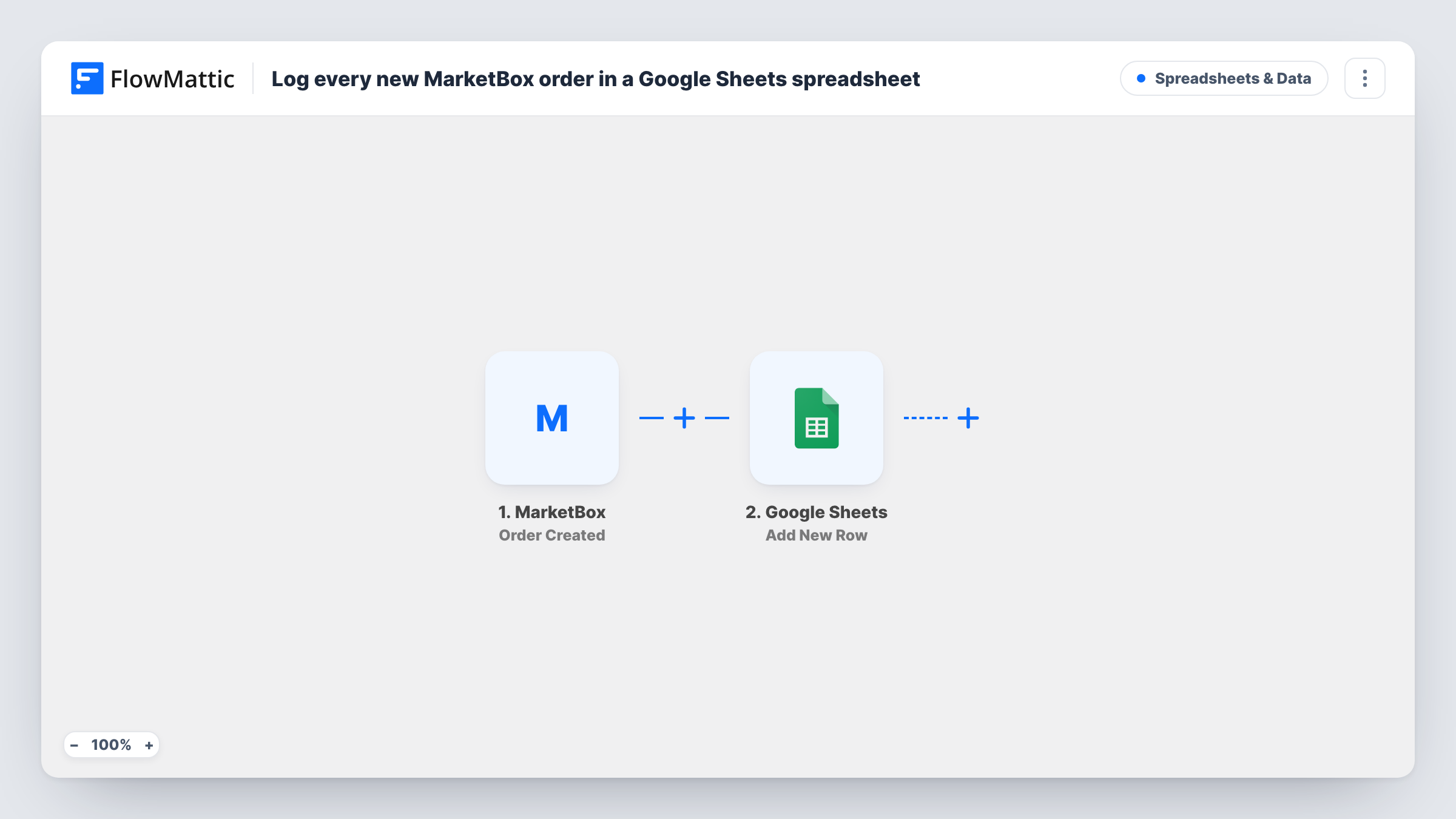
Each order created in MarketBox is copied into a new row of a Google Sheets spreadsheet, giving you a running order log you can sort, total and share without logging in to MarketBox.
 MarketBox
 Google Sheets
2 steps Setup ~5 min Used on 756 sites Free to import
What this workflow does
Order screens are good for handling one order at a time, less so for seeing the month at a glance or sharing figures with a bookkeeper. A spreadsheet fixes that, as long as someone keeps it filled. This workflow fills it for you, one row per order.
The MarketBox trigger fires when a new order is created. FlowMattic sends the order data to Google Sheets, where Add New Row writes it into the spreadsheet and sheet you choose. You decide after import which order details go in which column.
The row is written when the order is created. If the order changes later, for example it is cancelled, the sheet keeps the row as it was. Every run, and any error from Google Sheets, shows in Task History.
Monthly sales totals
A shop owner adds a SUM formula under the amount column and sees each month's MarketBox sales without exporting reports.
Sharing orders with a bookkeeper
The accountant gets view access to the Google Sheet and reconciles payments from it, with no MarketBox account needed.
Fulfilment checklist
Staff add a Done column next to the mapped order details and tick off each row as they prepare the order.
How this workflow runs
What happens at each step once the workflow is on, and what you need before you import it.
 MarketBox Order Created
Starts the run whenever a customer places a new MarketBox order. The order details are passed on so you can place them in the spreadsheet's columns.
- Google Sheets Add New Row
Writes a fresh row for the order in the Google Sheets file and tab you pick. Connect your Google account, then match each column header to an order detail from MarketBox.
What you need
- FlowMatticCore
- MarketBox AccountAccount
- Google Sheets AccountAccount
After importing, map your own data. To keep the template universal, not every step is pre-filled. Open each step in the builder and connect your accounts and fields (channels, lists, sheets, recipients) before you switch the workflow on.
Make it yours
Changes worth making after you import it.
- Set up the column headers in your sheet before mapping, so FlowMattic shows each column by name in the Add New Row step.
- Map the order ID into its own column. If an order changes later, you can find its row quickly by that ID.
- Add a Filter after the trigger if you only want certain orders logged, for example those for one product or location.
Questions about this workflow
Does the Google Sheets row change when a MarketBox order is cancelled?
No. The workflow adds a row when the order is created and does not edit it afterwards. Update the row by hand or extend the workflow.
Are past MarketBox orders copied into the sheet?
No. The sheet only receives MarketBox orders placed while the workflow is switched on.
Can I use an existing spreadsheet for the MarketBox orders?
Yes. Pick it in the Add New Row step after import. New rows are added after your existing data.
More Spreadsheets & Data workflows
Other ready-to-import templates from the same category.




Import this workflow into your WordPress site
Download the JSON, import it from the Workflows screen and connect your accounts. Every run stays on your server, with no per-task fees.
30-day money-back guarantee Unlimited workflows and runs Self-hosted