

Log every new Radancy job application in a Google Sheets spreadsheet
Every job application created in Radancy adds a row to the Google Sheets spreadsheet you choose, giving hiring managers a running list of applicants they can sort and share.
 Radancy
 Google Sheets
2 steps Setup ~5 min Used on 3.4k sites Free to import
What this workflow does
Not everyone involved in hiring has a login to your recruiting platform. Hiring managers, interview panels and agency partners often just want a list of who applied. Exporting that list by hand goes stale within a day. This workflow adds each application to a spreadsheet as it comes in.
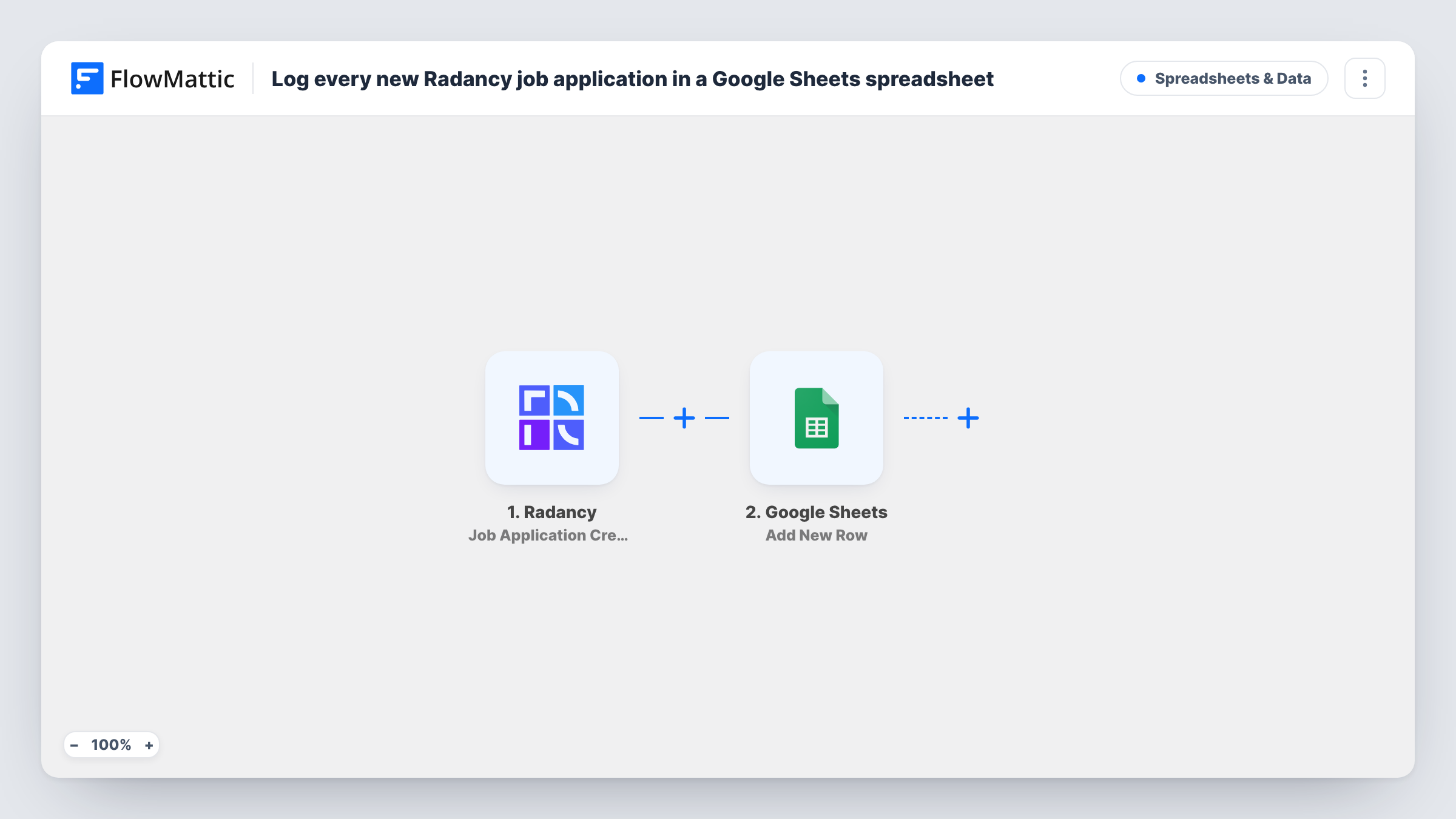
The Radancy trigger fires when a job application is created. FlowMattic passes the application data to Google Sheets, whose Add New Row action writes one new row to the spreadsheet and sheet you select. You decide which application values fill which columns.
Each application becomes exactly one row, in the order they arrive. The workflow does not change the row later, so status changes in Radancy after the application is created are not reflected in the sheet. Because applicant data is personal information, share the spreadsheet only with people who should see it. Task History lists each run and the values written.
A shortlist sheet for the hiring manager
The manager for an open role reviews new applicants in Google Sheets each morning, adding notes in a column next to each row.
Reporting on application volume
An HR lead counts rows per job title or per week in the sheet to see which openings attract the most applicants.
Sharing applicants with an agency partner
A recruiting agency working on a role gets view access to a sheet of applicants without needing access to Radancy.
How this workflow runs
What happens at each step once the workflow is on, and what you need before you import it.
 Radancy Job Application Created
Fires when a job application is created in Radancy. The application's data is passed on so you can map it into the spreadsheet.
- Google Sheets Add New Row
Writes one new row to the Google Sheets spreadsheet you pick for each application. Map the Radancy values to the sheet's columns and connect your Google account.
What you need
- FlowMatticCore
- Radancy AccountAccount
- Google Sheets AccountAccount
After importing, map your own data. To keep the template universal, not every step is pre-filled. Open each step in the builder and connect your accounts and fields (channels, lists, sheets, recipients) before you switch the workflow on.
Make it yours
Changes worth making after you import it.
- Add a header row to the sheet before mapping, with columns such as applicant name, job and date, so each Radancy value has a clear place to go.
- Add a Filter after the trigger if this sheet should only hold applications for one job or department, and use a value from the application data in its condition.
- Create a test application after import and check Task History to see which Radancy values arrive before you finish mapping.
Questions about this workflow
Does the sheet update when a Radancy application changes status?
No. The trigger fires when an application is created, and the Google Sheets step only adds rows. Later changes in Radancy are not written back to the sheet.
Are applications submitted before import added to Google Sheets?
No. Only applications created after the workflow is turned on reach the spreadsheet. Older applications would have to be added to the sheet another way.
Can different Radancy jobs go to different tabs?
Not as imported. Add a Router with a route per job, each with a condition on the job value and its own Google Sheets step pointing at a different tab.
Which Radancy application details reach the spreadsheet?
Whichever values you map to columns in the Add New Row step. Run a test application to see what Radancy sends before you decide.
More Spreadsheets & Data workflows
Other ready-to-import templates from the same category.



Import this workflow into your WordPress site
Download the JSON, import it from the Workflows screen and connect your accounts. Every run stays on your server, with no per-task fees.
30-day money-back guarantee Unlimited workflows and runs Self-hosted