

Log every new Smart Quiz Builder quiz response to a Google Sheets spreadsheet
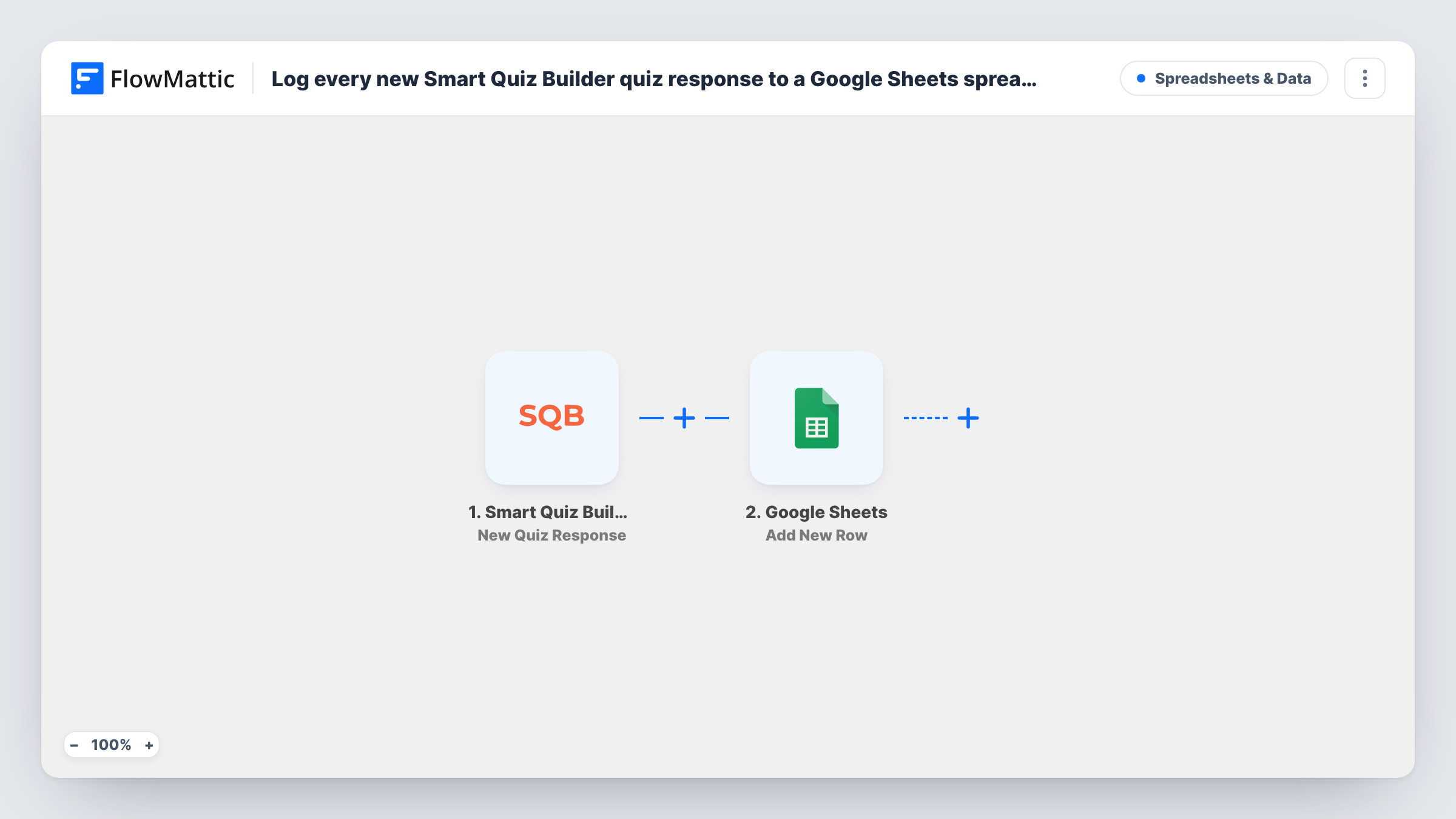
Every completed Smart Quiz Builder response is added as a new row in a Google Sheets spreadsheet, giving you one sheet of quiz takers and their answers to sort and share.
 Smart Quiz Builder
 Google Sheets
2 steps Setup ~5 min Used on 643 sites Free to import
What this workflow does
Quiz responses hold useful information: who took the quiz, what they chose, and the result they got. Reading them one by one inside the quiz tool makes it hard to compare or count them. A spreadsheet row per response turns the quiz into data you can sort, chart and share.
The Smart Quiz Builder trigger, New Quiz Response, fires when a quiz form is filled in completely. People who stop partway don't start a run. The response data then goes to Google Sheets, where Add New Row writes it into the spreadsheet you pick, with each column mapped to a value from the response.
Each run adds a row and never edits one, so a person who takes the quiz twice appears twice. Set up the column headers before mapping, and keep them stable, because the row is built from the columns you mapped. Task History lists each run with the values sent.
Product recommendation quiz
A shop's quiz suggests products. The sheet shows which results come up most often, which helps decide what to stock.
Lead qualifying quiz for a consultancy
Prospects answer questions about their business. Sales reads the sheet to see each taker's answers before calling.
Training knowledge checks
Staff complete a quiz after training. The manager uses the sheet as a record of who finished and how they answered.
How this workflow runs
What happens at each step once the workflow is on, and what you need before you import it.
 Smart Quiz Builder New Quiz Response
Fires when someone completes a Smart Quiz Builder quiz form. The response, such as the answers and any contact details collected, is passed on for mapping.
- Google Sheets Add New Row
Writes the quiz response into a new row in your chosen spreadsheet. Connect your Google account, pick the sheet, and map each column to a value from the response.
What you need
- FlowMatticCore
- Smart Quiz Builder AccountAccount
- Google Sheets AccountAccount
After importing, map your own data. To keep the template universal, not every step is pre-filled. Open each step in the builder and connect your accounts and fields (channels, lists, sheets, recipients) before you switch the workflow on.
Make it yours
Changes worth making after you import it.
- Complete the quiz yourself after import so FlowMattic captures a real response, then map each answer to its own column.
- Add a Filter after the trigger if you only want some responses logged, for example those that include an email address.
- If you run several quizzes, import the workflow once for each and send them to separate tabs so the columns fit each quiz's questions.
Questions about this workflow
Are unfinished Smart Quiz Builder quizzes logged?
No. New Quiz Response fires when the quiz form is filled completely, so partial attempts never reach the sheet.
What if someone takes the quiz more than once?
Each completed attempt adds its own row. The workflow doesn't look for an earlier row from the same person.
Do past Smart Quiz Builder responses get copied to Google Sheets?
No. Only quizzes completed after the workflow is on are added.
Can I change the columns in the sheet later?
Yes, but update the mapping in the Google Sheets step afterwards and run a test, so new answers land in the right columns.
More Spreadsheets & Data workflows
Other ready-to-import templates from the same category.



Import this workflow into your WordPress site
Download the JSON, import it from the Workflows screen and connect your accounts. Every run stays on your server, with no per-task fees.
30-day money-back guarantee Unlimited workflows and runs Self-hosted