

Log every new SocialBu post published by an account in a Google Sheets spreadsheet
Each time a SocialBu account publishes a new post, FlowMattic adds a row to a Google Sheets spreadsheet, giving you a log of what went out that you can sort, share and report from.
 Socialbu
 Google Sheets
2 steps Setup ~5 min Used on 2.1k sites Free to import
What this workflow does
Social posts are scattered across networks once they go live. When a client or manager asks what was published last month, you end up scrolling through feeds. This workflow writes each post into a spreadsheet as it is published, so the record builds itself.
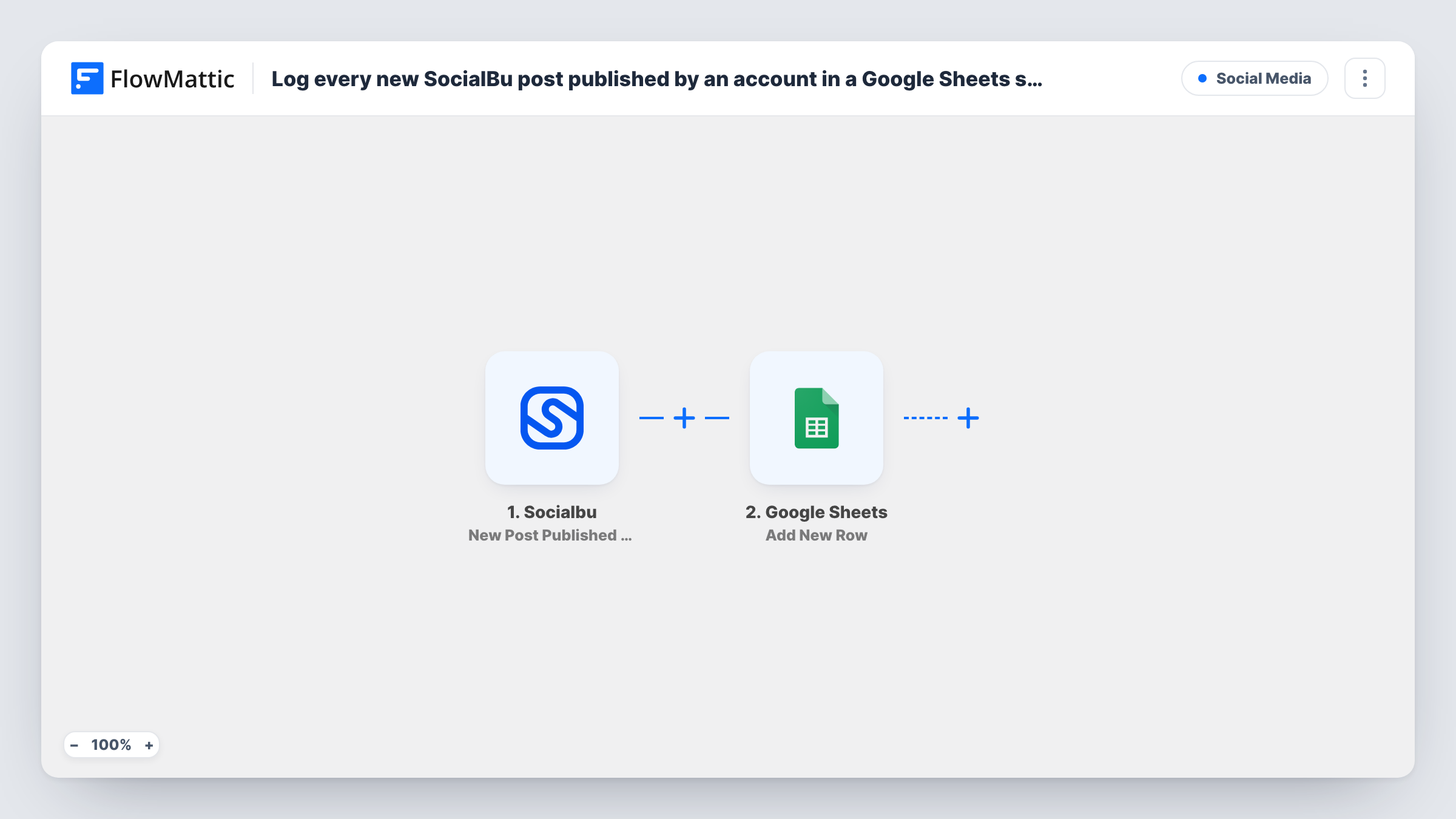
The SocialBu trigger fires when a new post is published by a connected account. FlowMattic captures the post data for mapping. The Google Sheets step then adds a new row with the values you map, for example the post text, the account and the publish time, once a test shows which values SocialBu sends.
Each published post produces one row. The workflow only reads from SocialBu, so nothing about your posts or schedule changes. If a post is edited or deleted later, the row stays as it was written. Task History shows each run and the data that went into the sheet.
Monthly client reports for a social agency
An agency publishes for several clients through SocialBu. The sheet lists every post, so the monthly report starts from a filtered view instead of screenshots.
Content audit for a small brand
A marketing lead reviews the log each quarter to see which topics were posted and how often, then plans the next quarter's calendar.
A published-post record for compliance
A financial adviser keeps a sheet of everything published on their social accounts as a plain record their compliance contact can read.
How this workflow runs
What happens at each step once the workflow is on, and what you need before you import it.
 Socialbu New Post Published by Account
Fires when a SocialBu account publishes a new post. The post's data is passed to the Google Sheets step for mapping.
- Google Sheets Add New Row
Appends one row per published post to your chosen spreadsheet. Set up column headers first, then map the SocialBu values a test post shows into them.
What you need
- FlowMatticCore
- Socialbu AccountAccount
- Google Sheets AccountAccount
After importing, map your own data. To keep the template universal, not every step is pre-filled. Open each step in the builder and connect your accounts and fields (channels, lists, sheets, recipients) before you switch the workflow on.
Make it yours
Changes worth making after you import it.
- Create the sheet's header row before import, for example Date, Account and Post, so each SocialBu value has a column to map into.
- Add a Filter after the trigger if you only want to log posts from one SocialBu account, using an account value if your test post includes one.
- Add a column for the date the row was written and freeze the header row, so the log stays easy to sort and filter as it grows.
Questions about this workflow
Are posts published in SocialBu before import added to the sheet?
No. The trigger only reacts to new posts, so the log starts from the day you turn the workflow on.
Does editing a SocialBu post update its Google Sheets row?
No. The workflow adds a row when the post is published and never goes back to change it.
Can I log posts from several SocialBu accounts in one Google Sheet?
Publish a test post from each account after import and check Task History to see which ones start a run. Where they do, mapping the account into a column shows where each post went.
Does this workflow change anything in SocialBu?
No. It only listens for published posts and copies their details to Google Sheets.
More Social Media workflows
Other ready-to-import templates from the same category.





Import this workflow into your WordPress site
Download the JSON, import it from the Workflows screen and connect your accounts. Every run stays on your server, with no per-task fees.
30-day money-back guarantee Unlimited workflows and runs Self-hosted