

Log every new VNTANA product in a Google Sheets spreadsheet
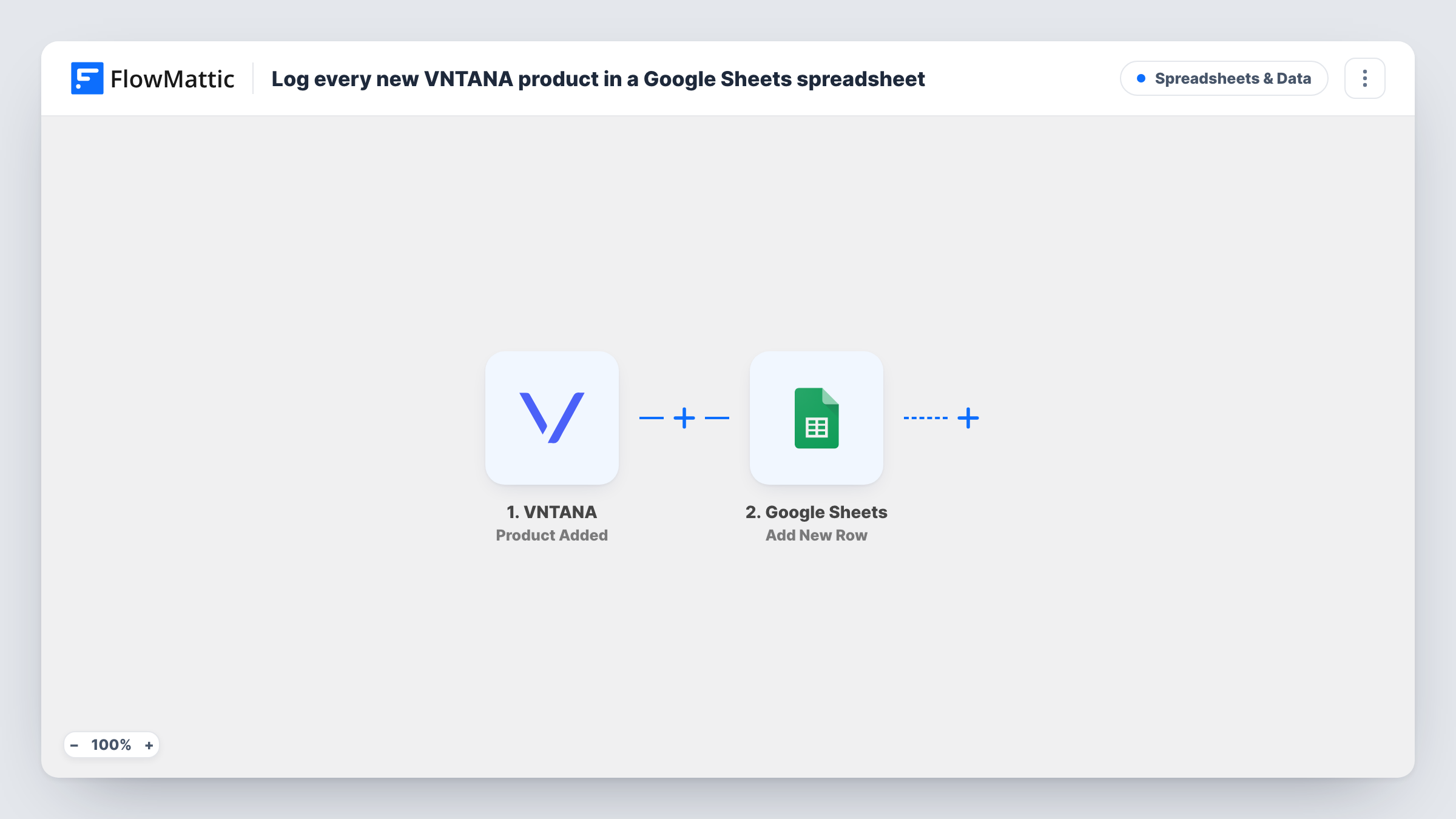
Every product added in VNTANA is written to a new row in Google Sheets, giving your team a running list of 3D product records that people without a VNTANA login can read, sort and share.
 VNTANA
 Google Sheets
2 steps Setup ~5 min Used on 2.9k sites Free to import
What this workflow does
VNTANA holds your 3D product assets, but not everyone who needs to know what has been added works in it. Merchandisers, ecommerce staff and clients often want a simple list. This workflow keeps that list in Google Sheets by adding a row each time a product is created in VNTANA.
The VNTANA trigger runs when a product is added and passes the product details to FlowMattic. The Google Sheets step then adds a row to the spreadsheet you pick, with the VNTANA values you map into each column.
One product means one row, recorded when it is added. Later processing, approval or publishing changes in VNTANA are not written to the sheet by this template. Add a test product after import and check Task History to see which details VNTANA sends before you set up your columns.
Catalogue tracking for an ecommerce team
Each product added in VNTANA appears in a shared sheet, so the web team can see which items have 3D assets on the way and plan product page updates.
Reporting to a brand client
A 3D studio shares the sheet with its client, who sees every product added to VNTANA on their behalf without needing an account.
Planning work across a large range
Merchandisers add columns for season or collection next to each VNTANA row and use the sheet to plan which products to photograph or model next.
How this workflow runs
What happens at each step once the workflow is on, and what you need before you import it.
 VNTANA Product Added
Runs when a new product is added in your VNTANA account. The product details VNTANA sends become available to map into the sheet.
- Google Sheets Add New Row
Adds a row to the Google Sheets spreadsheet you select. Map VNTANA product values into the columns so each new product is listed once.
What you need
- FlowMatticCore
- VNTANA AccountAccount
- Google Sheets AccountAccount
After importing, map your own data. To keep the template universal, not every step is pre-filled. Open each step in the builder and connect your accounts and fields (channels, lists, sheets, recipients) before you switch the workflow on.
Make it yours
Changes worth making after you import it.
- Pair this with a second workflow on another VNTANA trigger, if your account offers one for approvals or publishing, that writes the status change to a separate sheet tab.
- Add a Slack step after the row so the team gets a message whenever a new product appears in VNTANA.
- If only some products matter to the people reading the sheet, add a Filter after the VNTANA trigger that checks a product value your test run shows.
Questions about this workflow
Does the sheet update when a VNTANA product is approved or published?
No. This template only runs when a product is added. Status changes later in VNTANA do not change the row.
Which VNTANA product details can I put in Google Sheets?
Any value the trigger receives for the new product. Add a test product after import and look at the run in Task History to see them.
Will products already in VNTANA be listed?
No. Only products added after the workflow is switched on start a run. Add older products to the sheet by hand or from an export.
Can people without a VNTANA account see the product list?
Yes, if you share the Google Sheet with them. The sheet is an ordinary spreadsheet in the Google account you connect.
More Spreadsheets & Data workflows
Other ready-to-import templates from the same category.





Import this workflow into your WordPress site
Download the JSON, import it from the Workflows screen and connect your accounts. Every run stays on your server, with no per-task fees.
30-day money-back guarantee Unlimited workflows and runs Self-hosted