

Log Google Sheets rows when HighLevel pipeline stages change
Each time an opportunity moves to a different pipeline stage in HighLevel, this workflow adds a row to Google Sheets, building a dated record of how your deals progress.
 LeadConnector V2
 Google Sheets
2 steps Setup ~5 min Used on 578 sites Free to import
What this workflow does
HighLevel shows where each opportunity sits right now, but not an easy history of every move. If you want to see how long deals spend in each stage, or report on movement to someone outside the CRM, you need a log. This workflow writes one in Google Sheets.
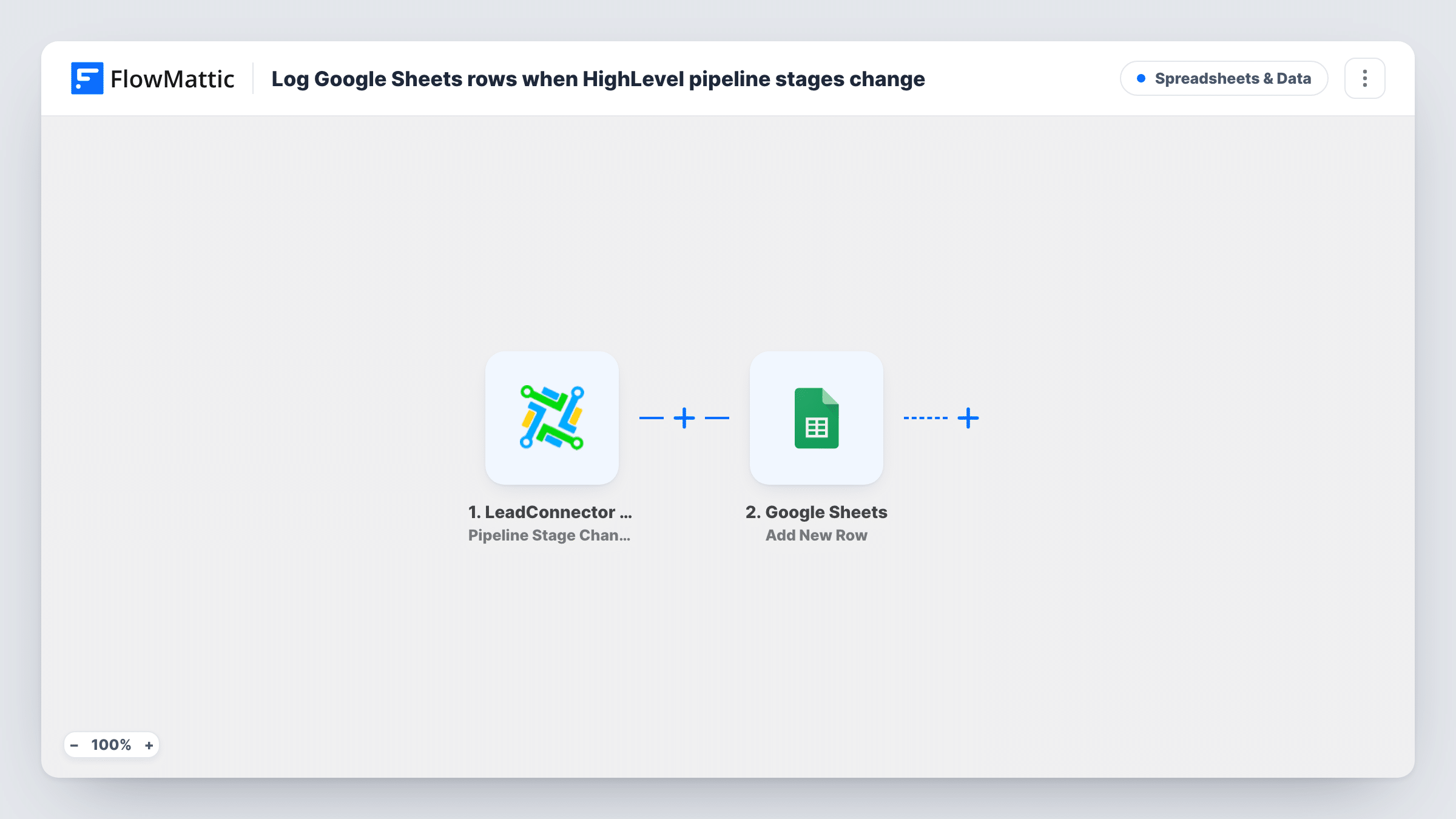
The LeadConnector V2 trigger, Pipeline Stage Changed, fires when the pipeline stage of an opportunity updates in your HighLevel account. The opportunity's details from that event, such as its name and new stage, become values you can map. A test run shows the exact set HighLevel sends.
The Google Sheets step then adds a new row to the spreadsheet you choose. Every stage change becomes its own row, so one deal that moves four times appears four times, which is what makes the sheet a history rather than a snapshot. No Filter is included, so changes in every pipeline are logged.
Time-in-stage reporting
An agency owner adds a date column and works out how many days opportunities spend between Proposal and Won, using the rows the workflow logs.
Weekly pipeline review with a partner
A partner without a HighLevel seat opens the shared sheet before the weekly call and sees which deals moved since last time.
Spotting stalled deals by hand
Sort the sheet by opportunity to see whose last logged move was weeks ago, then follow up in HighLevel.
How this workflow runs
What happens at each step once the workflow is on, and what you need before you import it.
 LeadConnector V2 Pipeline Stage Changed
Fires when an opportunity's pipeline stage updates in HighLevel (LeadConnector V2). Connect your account on import, then move a test opportunity to a new stage to capture the data it sends.
- Google Sheets Add New Row
Writes a fresh row to the Google Sheets spreadsheet you select for every stage change. Map the opportunity details, such as name and stage, to columns, and add a date column if the event carries a timestamp.
What you need
- FlowMatticCore
- LeadConnector V2 AccountAccount
- Google Sheets AccountAccount
After importing, map your own data. To keep the template universal, not every step is pre-filled. Open each step in the builder and connect your accounts and fields (channels, lists, sheets, recipients) before you switch the workflow on.
Make it yours
Changes worth making after you import it.
- Running several pipelines? Add a Filter after the trigger that continues only when the pipeline value matches the one you report on, using the field a test run shows.
- Give each pipeline its own tab by using a Router with one route per pipeline value. Each route gets its own Google Sheets step, and distinct pipeline values keep the routes apart.
- Map the opportunity's ID into a column as well as its name. Two deals can share a name, but the ID lets you group every row for one opportunity correctly.
Questions about this workflow
Does every HighLevel stage move create a new row?
Yes. The Pipeline Stage Changed trigger fires on each stage update, and the Google Sheets step always adds a row, so a deal's full path through the pipeline builds up in the sheet.
Will opportunities created in HighLevel be logged too?
Only when their stage changes. Creating an opportunity is a separate HighLevel trigger, Opportunity Created, which this template doesn't use.
Is the existing row for a deal updated when it moves again?
No. Add New Row appends; it never edits a row already in the sheet. If you want one row per deal that shows its current stage, you would need a step that finds and updates the existing row instead.
Which LeadConnector connection does this need?
The LeadConnector V2 app in FlowMattic, connected to the HighLevel account or location whose pipelines you want to log.
More Spreadsheets & Data workflows
Other ready-to-import templates from the same category.



Import this workflow into your WordPress site
Download the JSON, import it from the Workflows screen and connect your accounts. Every run stays on your server, with no per-task fees.
30-day money-back guarantee Unlimited workflows and runs Self-hosted