

Log every new Talkspirit circle activity in a Google Sheets spreadsheet
Each new activity in a Talkspirit circle you select is written to a new Google Sheets row, with the activity details you map, so you build a running record of what happened in that circle.
 Talkspirit
 Google Sheets
2 steps Setup ~5 min Used on 463 sites Free to import
What this workflow does
Talkspirit circles are where a team posts updates, questions and announcements. Scrolling back through the feed to find what happened last month is slow, and people outside the circle can't see it at all. A spreadsheet log gives you something you can search, count and share.
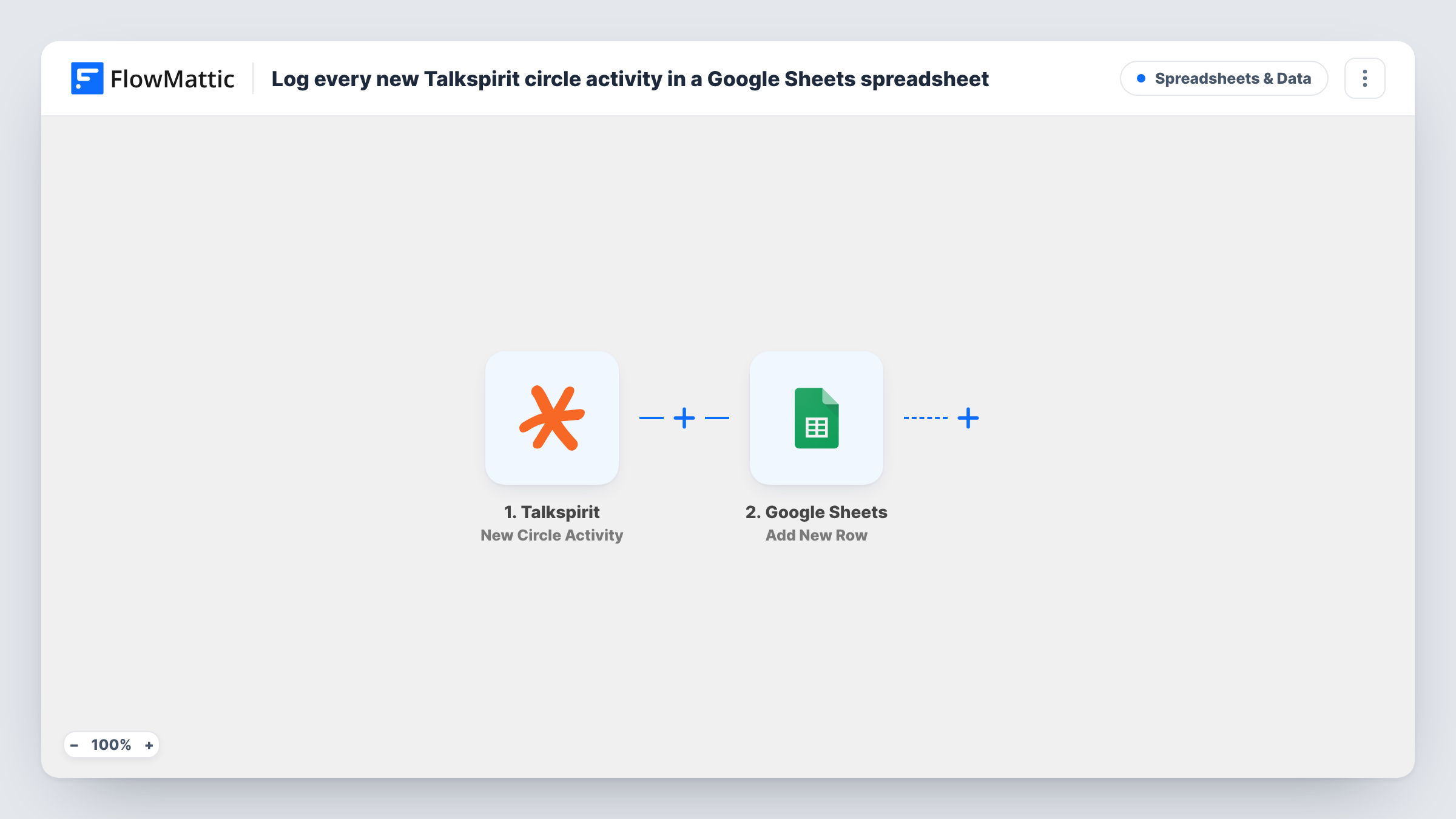
The Talkspirit trigger fires when a new activity occurs in the circle you select. FlowMattic passes that activity's data to Google Sheets, where the Add New Row action writes it to the sheet you choose. You decide which activity values fill which columns.
The trigger watches one circle. To log several circles, import the workflow again for each one. Every activity in the circle adds a row, so a busy circle fills the sheet quickly. Post a test update after import to see which values come through, and use Task History to review each run.
Archive of company announcements
Your leadership posts news in a Talkspirit circle. Each post becomes a row, giving HR a dated list of every announcement for the year.
Tracking a project circle
A project team works in its own circle. The sheet shows each update in order, which helps when writing the end-of-project report.
Activity counts for community managers
Chart the rows by week to see how active a circle is over time, without exporting anything from Talkspirit.
How this workflow runs
What happens at each step once the workflow is on, and what you need before you import it.
 Talkspirit New Circle Activity
Fires when a new activity occurs in the Talkspirit circle you select. The activity data is passed on to be mapped into the spreadsheet.
- Google Sheets Add New Row
Appends one row per circle activity to the Google Sheets spreadsheet you pick. Connect your Google account and map the Talkspirit values to the sheet's columns.
What you need
- FlowMatticCore
- Talkspirit AccountAccount
- Google Sheets AccountAccount
After importing, map your own data. To keep the template universal, not every step is pre-filled. Open each step in the builder and connect your accounts and fields (channels, lists, sheets, recipients) before you switch the workflow on.
Make it yours
Changes worth making after you import it.
- Include a date or time value from the activity in its own column, if Talkspirit sends one, so you can sort and chart the log by period.
- Add a Filter after the trigger if you only want certain activity logged, for example items whose text contains a project keyword.
- Use one sheet per circle and duplicate the workflow for each, so each log stays easy to read.
Questions about this workflow
Can one copy of this workflow log several Talkspirit circles?
The trigger is set to one selected circle. Duplicate the workflow and pick a different circle in each copy, pointing them at the same sheet or separate ones.
Does past Talkspirit circle activity get added to the sheet?
No. Only activity that happens after the workflow is switched on creates rows.
What counts as a new activity in a Talkspirit circle?
Whatever Talkspirit reports to FlowMattic for that circle. Post an update and a comment after import, then check Task History to see which actions start a run.
More Spreadsheets & Data workflows
Other ready-to-import templates from the same category.




Import this workflow into your WordPress site
Download the JSON, import it from the Workflows screen and connect your accounts. Every run stays on your server, with no per-task fees.
30-day money-back guarantee Unlimited workflows and runs Self-hosted