

Add a new Hibob employee to an Airtable people directory
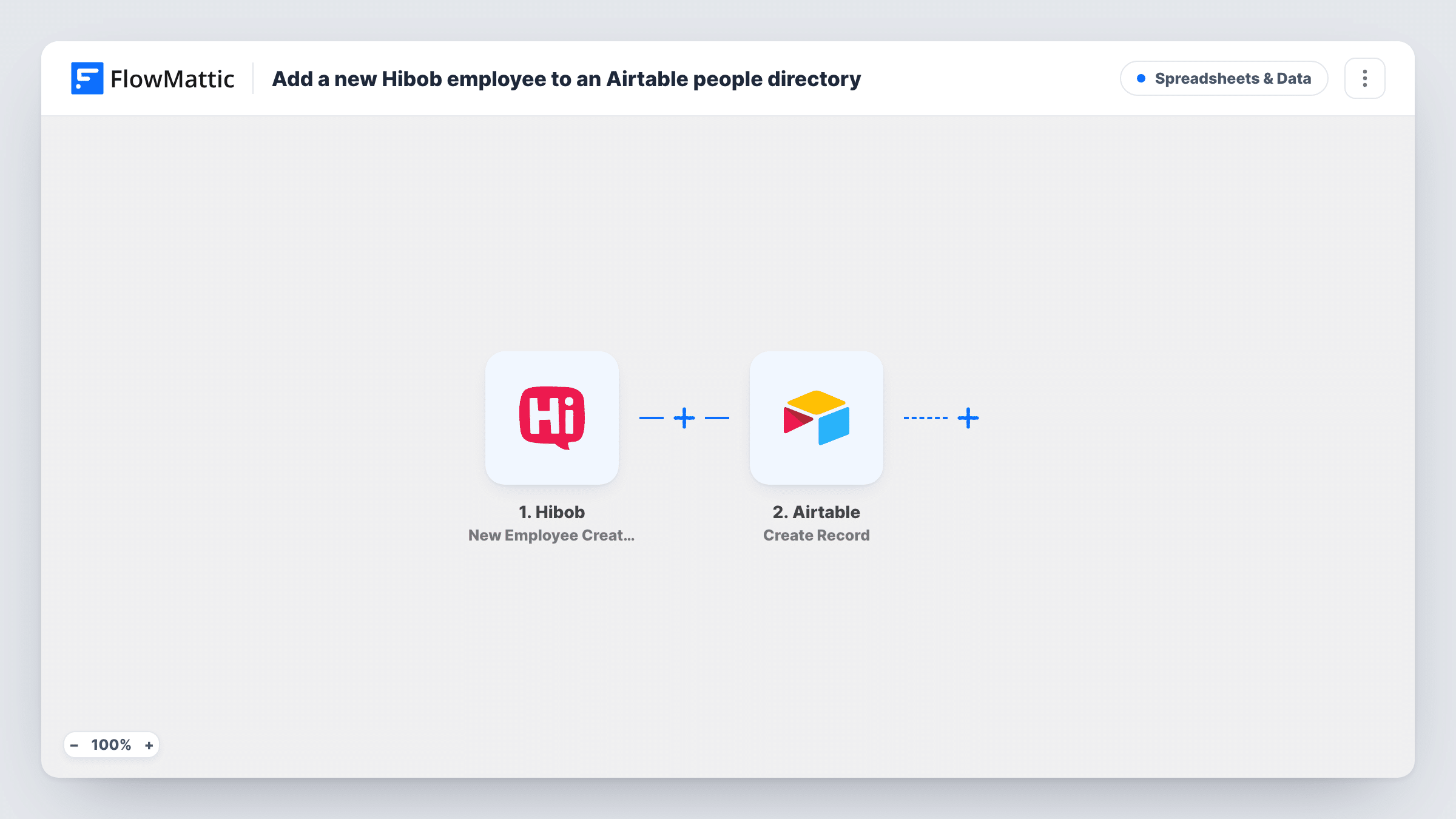
When a new employee is created in Hibob, this workflow adds a record for them to your Airtable base, so your people directory gains each hire without anyone retyping the profile.
 Hibob
 Airtable
2 steps Setup ~5 min Used on 1.2k sites Free to import
What this workflow does
Hibob holds your HR data, but plenty of teams keep a lighter people directory in Airtable: who sits where, who reports to whom, which projects someone is on. Keeping that base current usually means copying each hire across by hand. This workflow adds the row in Airtable as soon as HR creates the employee.
The Hibob trigger, New Employee Created, fires when a new employee record is created in Hibob. FlowMattic passes that employee's details to the Airtable step, which creates a new record in the base and table you pick. You map Hibob fields such as name, work email, department and start date to the matching Airtable columns.
Nothing in this flow edits or deletes Airtable rows. Later edits in Hibob, such as a new job title or a change of team, are not copied to Airtable, and leavers are not removed. Hibob creates the employee once, so each new hire normally produces one Airtable record. Check Task History to see each run and the values sent.
Office directory with photos and desks
Office managers keep desk numbers and photos in Airtable. Each new Hibob employee arrives as a record, and the manager fills in the desk before day one.
Onboarding tracker for team leads
Team leads work from an Airtable base with columns for laptop, accounts and buddy. New hires from Hibob appear as rows they can tick through.
Shareable staff list for other departments
Finance or facilities can see who has joined without access to Hibob, because the Airtable table holds only the fields you choose to map.
How this workflow runs
What happens at each step once the workflow is on, and what you need before you import it.
 Hibob New Employee Created
Runs whenever HR creates a new employee record in Hibob. That employee's details are passed on so you can map them into Airtable.
- Airtable Create Record
Adds a record for the new hire to the Airtable base and table you pick. Map each Hibob field you want to keep, such as name and work email, to the matching column.
What you need
- FlowMatticCore
- Hibob AccountAccount
- Airtable AccountAccount
After importing, map your own data. To keep the template universal, not every step is pre-filled. Open each step in the builder and connect your accounts and fields (channels, lists, sheets, recipients) before you switch the workflow on.
Make it yours
Changes worth making after you import it.
- Map only the fields your directory needs. Leaving salary or personal details out keeps sensitive HR data inside Hibob.
- Add a Filter after the trigger on a field such as department or site if this Airtable base covers only part of the company.
- Create a test employee in Hibob after import so FlowMattic captures the trigger data, map the Airtable columns, then remove the test employee and its Airtable row.
Questions about this workflow
Will changes to a Hibob employee update the Airtable record?
No. Each run adds one Airtable record and stops there. Hibob has an Employee Updated trigger in FlowMattic, but matching it to the right Airtable record would need a search step before an Airtable update.
Is New Employee Created the same as the employee's start date?
Not necessarily. It fires when the record is created in Hibob, which may happen before the person's first day. Hibob also has an Employee Joined trigger, which fires once the start date has occurred, if you would rather add people then.
Does my Airtable table need to be set up first?
Yes. Create the base and the columns you want before you configure the step, so the Airtable fields are there to map Hibob data into.
What if the same person is created twice in Hibob?
Each New Employee Created event adds its own Airtable record, so a duplicate in Hibob means a duplicate row. Remove one by hand if that happens.
More Spreadsheets & Data workflows
Other ready-to-import templates from the same category.




Import this workflow into your WordPress site
Download the JSON, import it from the Workflows screen and connect your accounts. Every run stays on your server, with no per-task fees.
30-day money-back guarantee Unlimited workflows and runs Self-hosted