

Log every FullStory custom event in a Google Sheets spreadsheet
Each time FullStory detects a custom event, this workflow adds a row to the Google Sheets spreadsheet you choose, so you build a running log of those events that you can sort, chart or share.
 FullStory
 Google Sheets
2 steps Setup ~5 min Used on 311 sites Free to import
What this workflow does
Custom events in FullStory mark the moments you care about, such as a completed signup step. Analysing them next to other business data is easier in a spreadsheet. This workflow writes each event to Google Sheets as it is detected.
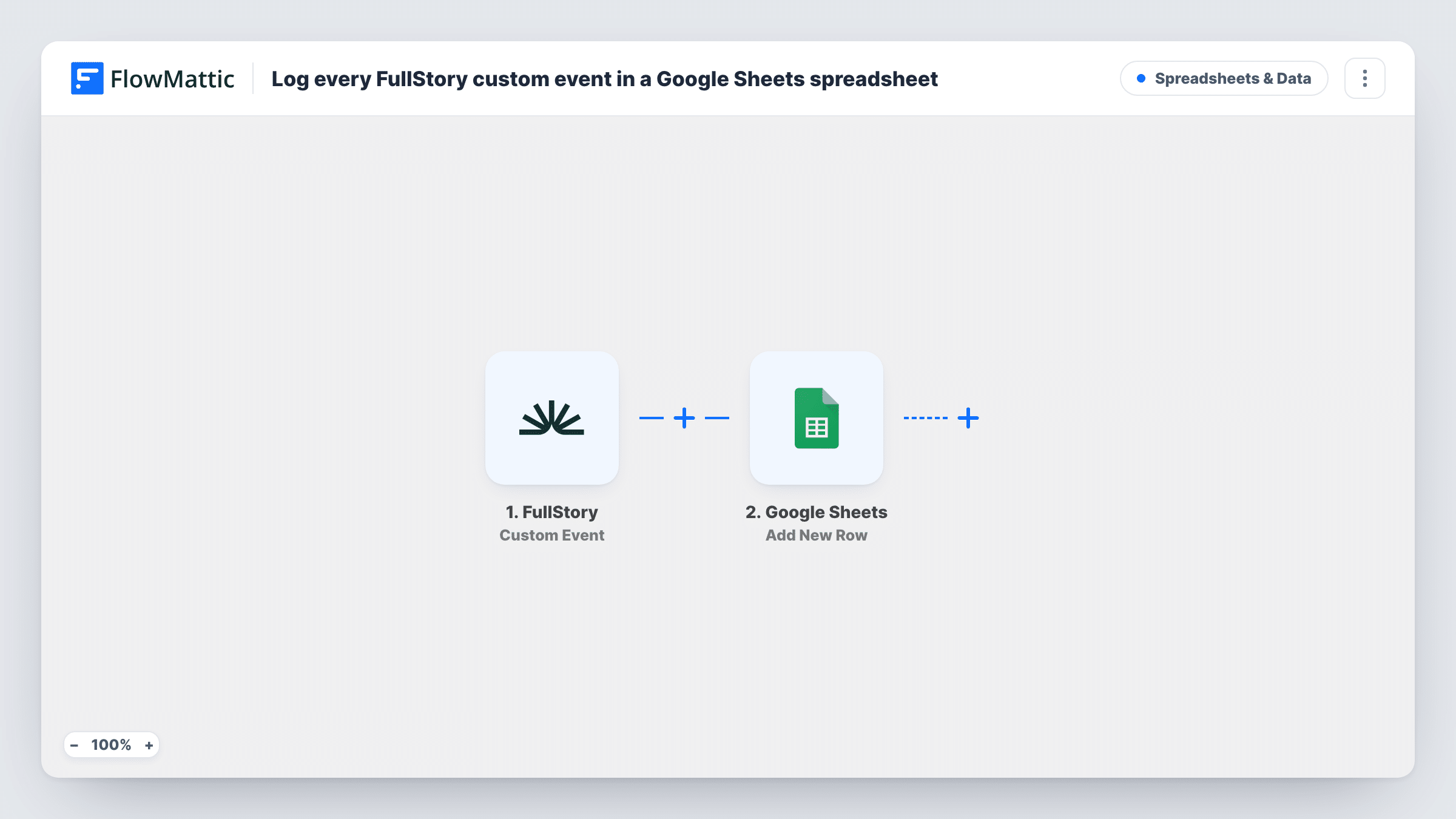
The FullStory trigger fires when a custom event is detected. The event data is passed to Google Sheets, where Add New Row writes it to the spreadsheet and sheet you pick. You map each column to a field from the event, such as its name or the time it happened.
The template logs every custom event it receives, with no Filter, so a high-volume event can fill a sheet quickly. Consider which events you send to FlowMattic, or add a Filter. Task History records each run and the row that was written.
Product team event log
A product manager keeps a sheet of every 'feature used' custom event and builds a simple chart of usage over the week.
Checkout step tracking
Custom events for each checkout step land in a sheet, where you can compare counts per step alongside your order data.
Sharing data with non-FullStory users
Stakeholders without a FullStory seat read the event log in a shared Google Sheet.
How this workflow runs
What happens at each step once the workflow is on, and what you need before you import it.
 FullStory Custom Event
Fires when FullStory detects a custom event. The event data is passed on so you can map it into the spreadsheet columns.
- Google Sheets Add New Row
Adds a row to the Google Sheets spreadsheet you choose for each custom event. Map the event fields to your columns and connect your Google account.
What you need
- FlowMatticCore
- FullStory AccountAccount
- Google Sheets AccountAccount
After importing, map your own data. To keep the template universal, not every step is pre-filled. Open each step in the builder and connect your accounts and fields (channels, lists, sheets, recipients) before you switch the workflow on.
Make it yours
Changes worth making after you import it.
- Add a Filter after the trigger on the event name, so only the custom events you analyse are written to the sheet.
- Use a Router with one route per event name and a Google Sheets step on each, to give every event type its own tab.
- Fire a test custom event after import, then check Task History to see which FullStory fields you can map into columns.
Questions about this workflow
Will past FullStory custom events be added to the sheet?
No. Only events detected after the workflow is on are written. Earlier events stay in FullStory.
Can the FullStory log grow too large for one sheet?
It can if you log a frequent event. Add a Filter on the event name, or start a new spreadsheet when the current one gets large.
Does every FullStory custom event start this workflow?
Yes, as imported. Each custom event FullStory sends runs it once. Narrow it with a Filter after import if you only need some events.
Can I log FullStory crash reports the same way?
Yes. FullStory also has a Mobile App Crash trigger in FlowMattic. Build a copy of this workflow with that trigger and a separate sheet.
More Spreadsheets & Data workflows
Other ready-to-import templates from the same category.




Import this workflow into your WordPress site
Download the JSON, import it from the Workflows screen and connect your accounts. Every run stays on your server, with no per-task fees.
30-day money-back guarantee Unlimited workflows and runs Self-hosted