

Log new AiWifi guest connections in a Google Sheets spreadsheet
Each time a guest connects to your AiWifi captive portal, FlowMattic adds a row to Google Sheets with the connection details, giving you a log of WiFi visitors you can sort, count and share.
 AiWifi
 Google Sheets
2 steps Setup ~5 min Used on 3.0k sites Free to import
What this workflow does
Guest WiFi is often the one place a cafe, hotel or venue learns who walked in. Keeping that information inside the WiFi portal limits what you can do with it. A spreadsheet lets you count visits by day, share them with a manager, or pass them to someone planning a mailing.
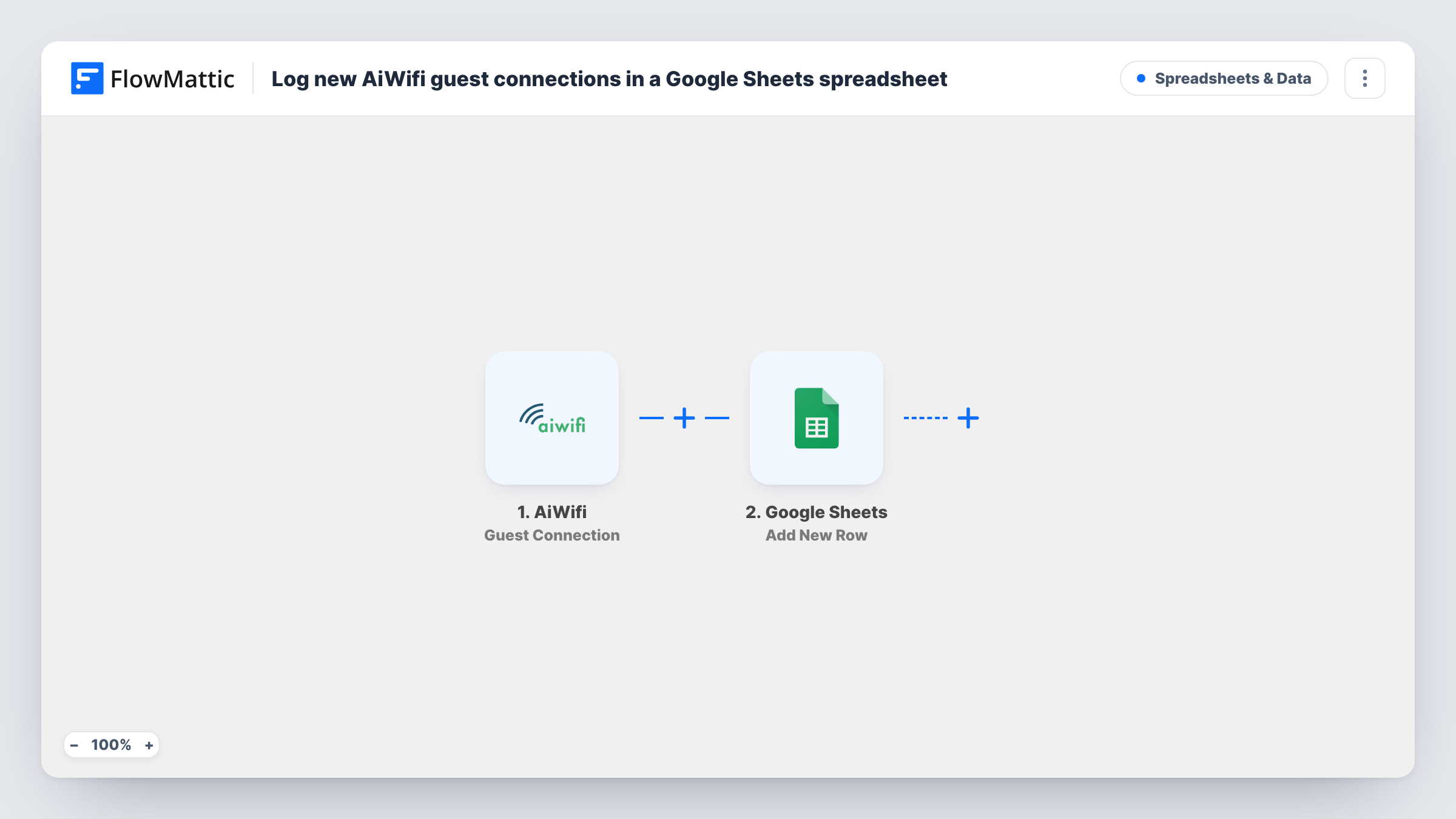
The AiWifi trigger, Guest Connection, fires when a new guest connects to your AiWifi captive portal. The data AiWifi sends with that connection goes to Google Sheets, where Add New Row writes it into the spreadsheet and sheet you choose, one row per connection.
There is no Filter in the template, so each connection AiWifi reports adds a row. Which details are included depends on what your portal collects and what AiWifi sends. Check a real connection in the trigger step before mapping, and keep in mind that guest details are personal data you are now storing in Google Sheets.
Footfall log for a cafe
Each guest WiFi login becomes a dated row, so the owner can chart busy days and quiet hours from the sheet.
Guest list for a hotel lobby
Front-desk staff open a shared sheet to see who connected to the lobby WiFi today, without access to the AiWifi dashboard.
Visitors at a pop-up or event
An event venue keeps a sheet of every WiFi connection over the weekend and reviews it with the organiser afterwards.
How this workflow runs
What happens at each step once the workflow is on, and what you need before you import it.
 AiWifi Guest Connection
Runs when a new guest connects to your AiWifi captive portal. The connection data AiWifi sends is passed to the Google Sheets step for mapping.
- Google Sheets Add New Row
Adds a row to the spreadsheet and tab you pick for each guest connection. Connect your Google account and map the AiWifi values you want to keep into named columns.
What you need
- FlowMatticCore
- AiWifi AccountAccount
- Google Sheets AccountAccount
After importing, map your own data. To keep the template universal, not every step is pre-filled. Open each step in the builder and connect your accounts and fields (channels, lists, sheets, recipients) before you switch the workflow on.
Make it yours
Changes worth making after you import it.
- Connect to your own portal once after import so FlowMattic captures a real Guest Connection event. You then see exactly which AiWifi values exist before you map the sheet.
- If your portal asks guests for an email address and the sheet is meant for contacts rather than a full footfall count, add a Filter after the trigger that continues only when that value is not empty.
- Want new WiFi guests in your CRM or email tool too? Add that app's contact step after Google Sheets and map the same AiWifi values.
Questions about this workflow
What guest details does AiWifi send to the sheet?
Whatever AiWifi includes with the Guest Connection event, which depends on what your captive portal asks guests for. Check the trigger step's captured data after a test connection.
Do returning AiWifi guests get a new row?
The row is added for each Guest Connection event AiWifi sends. Test with a device that has connected before to see whether your portal reports it again.
Are guests who connected before the workflow was on included?
No. Only connections made while the workflow is on start a run, so earlier guests aren't copied into the spreadsheet.
Can I send AiWifi guests to a different Google Sheet per location?
Add a Router after the trigger with one route per location, each with its own Google Sheets step, if the event carries a value that identifies the location.
More Spreadsheets & Data workflows
Other ready-to-import templates from the same category.




Import this workflow into your WordPress site
Download the JSON, import it from the Workflows screen and connect your accounts. Every run stays on your server, with no per-task fees.
30-day money-back guarantee Unlimited workflows and runs Self-hosted