

Log every successful Juspay order to a Google Sheets spreadsheet
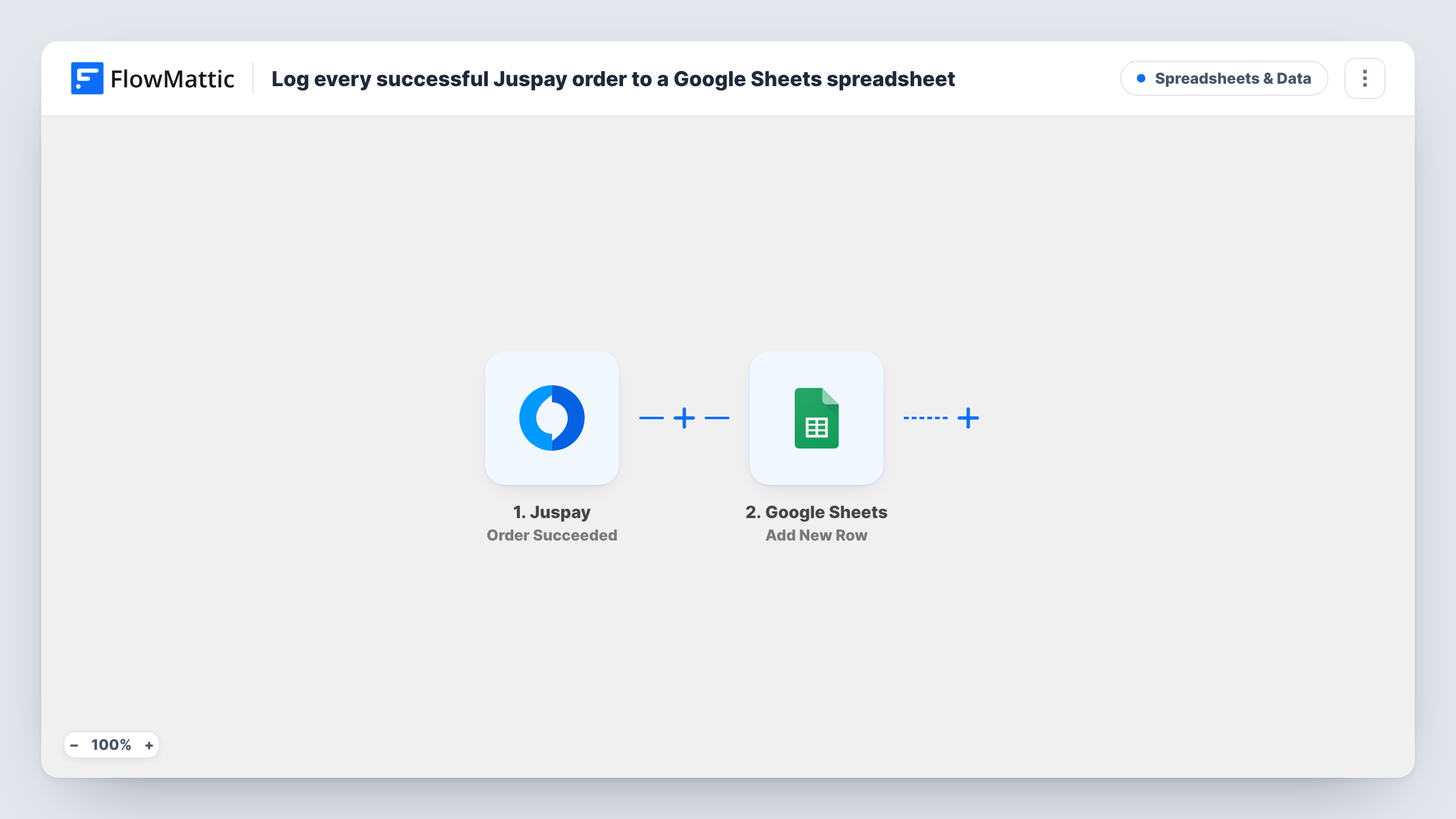
Each time a Juspay order succeeds, this workflow writes the order’s details to a new row in Google Sheets, building a spreadsheet of successful payments you can reconcile and report from.
 Juspay
 Google Sheets
2 steps Setup ~5 min Used on 835 sites Free to import
What this workflow does
Finance and operations teams often want successful payments in a spreadsheet, where they can check them against bank deposits or count them by day. Exporting from the Juspay dashboard each time is a chore. This workflow adds a row the moment Juspay reports a successful order.
The Juspay trigger fires when an order succeeds. FlowMattic receives the order data that Juspay sends and passes it to Google Sheets. The Add New Row action writes it to the spreadsheet you choose, with each column mapped to a value from the Juspay event.
Only successful orders start this workflow. Failed, refunded and partly charged orders have their own Juspay triggers and don't add rows here. Each successful order becomes one row.
Daily reconciliation against settlements
Your accountant compares the day's rows with Juspay settlements and bank deposits, using the order IDs in the sheet.
Sales totals for a small team
A SUM column over the amount gives the team a running total of successful orders without logging in to Juspay.
A list for order fulfilment
The warehouse works from the sheet of successful orders, marking each one packed in an extra column as they ship it.
How this workflow runs
What happens at each step once the workflow is on, and what you need before you import it.
 Juspay Order Succeeded
Fires when an order succeeds in Juspay. The order data Juspay sends with the event becomes available to map into the sheet.
- Google Sheets Add New Row
Adds a row to the Google Sheets spreadsheet you select, filled with the Juspay order values you map to each column. Connect your Google account when you set it up.
What you need
- FlowMatticCore
- Juspay AccountAccount
- Google Sheets AccountAccount
After importing, map your own data. To keep the template universal, not every step is pre-filled. Open each step in the builder and connect your accounts and fields (channels, lists, sheets, recipients) before you switch the workflow on.
Make it yours
Changes worth making after you import it.
- Run a test payment in Juspay after import so FlowMattic captures a real order. You can then see which values Juspay sends before mapping the columns.
- Juspay also has Order Failed and Order Refunded triggers in FlowMattic. A second workflow on one of those can log to another tab of the same spreadsheet.
- Add a date column and map the order time, if the test data includes it, so you can sort and total the sheet by day.
Questions about this workflow
Are failed or refunded Juspay orders logged?
No. This workflow uses the Order Succeeded trigger only. Juspay's Order Failed and Order Refunded triggers can drive separate workflows if you want those too.
Does the sheet include orders from before I imported this?
No. Only orders that succeed after you turn the workflow on are added. Older orders would need an export from Juspay.
Which Juspay order details can I put in the sheet?
Whatever Juspay includes in the event. Run a test payment and look at the captured data, then map the values you need to columns.
Is my customers' payment data safe in Google Sheets?
The sheet holds whatever you map, so map only what your team needs. Avoid adding card or personal details you don't need, and share the sheet only with people who should see it.
More Spreadsheets & Data workflows
Other ready-to-import templates from the same category.




Import this workflow into your WordPress site
Download the JSON, import it from the Workflows screen and connect your accounts. Every run stays on your server, with no per-task fees.
30-day money-back guarantee Unlimited workflows and runs Self-hosted