

Log new ChargeOver invoices in a Google Sheets spreadsheet
Each invoice created in ChargeOver is added to a Google Sheets spreadsheet as a new row, giving your finance team a running invoice log they can sort, total and share.
 ChargeOver
 Google Sheets
2 steps Setup ~5 min Used on 2.5k sites Free to import
What this workflow does
ChargeOver handles your billing, but bookkeepers and managers often want invoices in a spreadsheet too: to reconcile against payments, total by month, or share with an accountant who has no ChargeOver login. This workflow keeps that sheet filled as invoices are made.
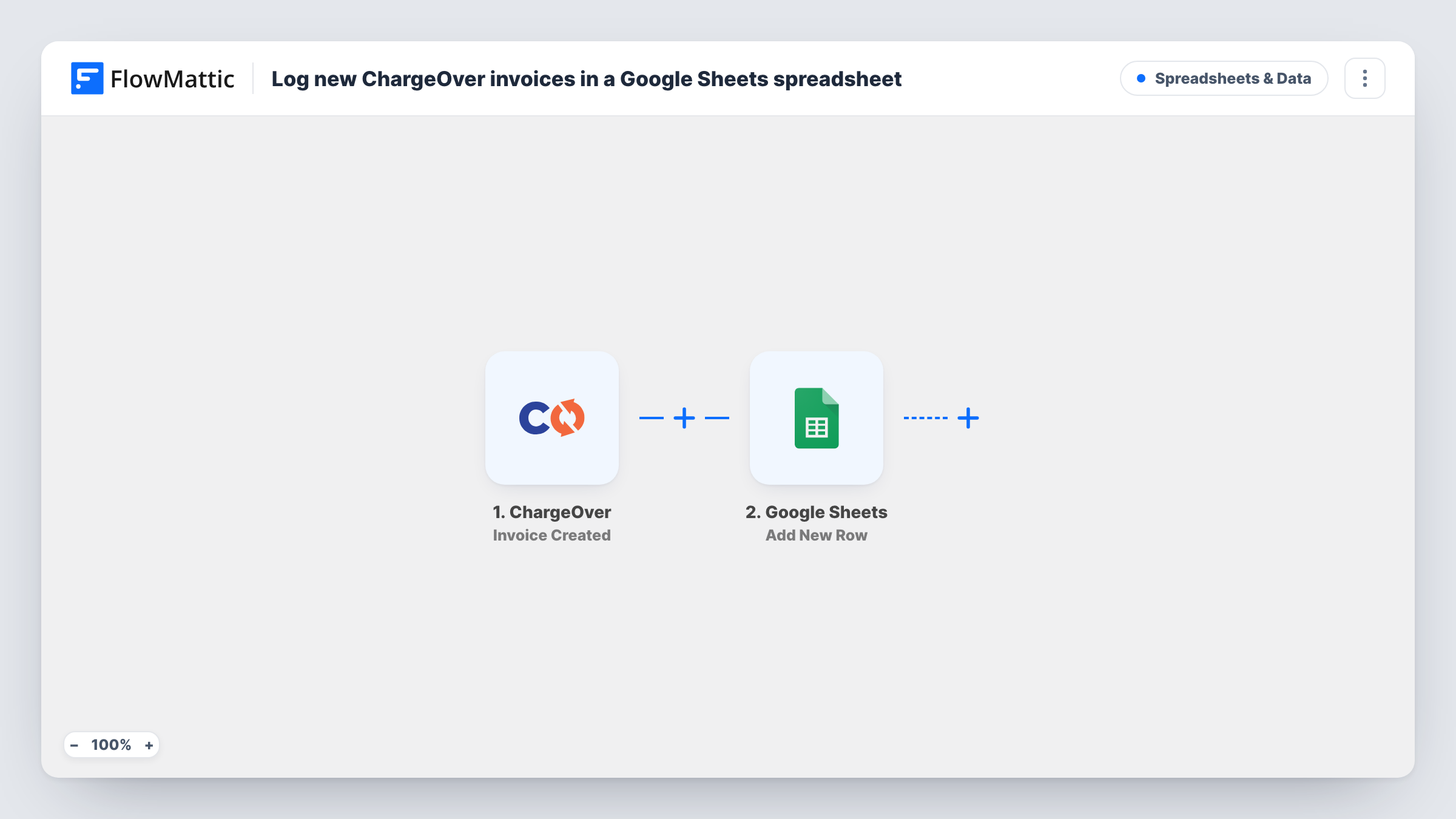
The ChargeOver trigger is Invoice Created, which fires when an invoice is created. FlowMattic passes the invoice data to Google Sheets, where Add New Row writes it to the spreadsheet and sheet you pick. You choose the columns, for example the invoice number, customer, total and date, from the fields a test invoice shows.
The row is a snapshot from the moment of creation. If an invoice is later paid, changed or voided in ChargeOver, the row stays as it was, because this workflow only listens for new invoices. You can review every invoice run in Task History.
Monthly reconciliation
Your bookkeeper matches the invoice log in Google Sheets against bank deposits at month end without exporting from ChargeOver.
Sharing billing with an accountant
An outside accountant reads the shared sheet of ChargeOver invoices instead of needing a seat in your billing system.
Simple revenue dashboards
A chart or pivot table on top of the sheet shows invoiced amounts per customer or per month as new rows arrive.
How this workflow runs
What happens at each step once the workflow is on, and what you need before you import it.
 ChargeOver Invoice Created
Fires when an invoice is created in ChargeOver. The invoice's details become available to map into the spreadsheet. Connect your ChargeOver account on import.
- Google Sheets Add New Row
Writes one row per new ChargeOver invoice to the Google Sheets spreadsheet you pick. Pair each invoice field with a column and connect your Google account.
What you need
- FlowMatticCore
- ChargeOver AccountAccount
- Google Sheets AccountAccount
After importing, map your own data. To keep the template universal, not every step is pre-filled. Open each step in the builder and connect your accounts and fields (channels, lists, sheets, recipients) before you switch the workflow on.
Make it yours
Changes worth making after you import it.
- Create the header row in your sheet before testing, with a column for each invoice value you want, so mapping the Google Sheets step is quick.
- Create a test invoice in ChargeOver after import so FlowMattic captures the invoice fields, then map them and delete the test row.
- Add a Slack or email step after the sheet if your team also wants a heads-up for each new invoice.
Questions about this workflow
Does the Google Sheets row change when a ChargeOver invoice is paid?
No. The workflow only runs when an invoice is created, so later payments, edits or voids are not written to the sheet.
Which ChargeOver invoice fields can I log?
The fields ChargeOver sends when the invoice is created. Make a test invoice after import and map the ones you need to columns.
Will invoices that existed before import be logged?
No. Only ChargeOver invoices created after the workflow is turned on are added.
Can I keep invoices for each ChargeOver customer on a separate sheet?
Add a Router with one route per customer, each with its own Add New Row step pointed at that customer's sheet.
More Spreadsheets & Data workflows
Other ready-to-import templates from the same category.




Import this workflow into your WordPress site
Download the JSON, import it from the Workflows screen and connect your accounts. Every run stays on your server, with no per-task fees.
30-day money-back guarantee Unlimited workflows and runs Self-hosted