

Log new Lemcal bookings in a Google Sheets spreadsheet
Meetings booked through Lemcal, across all your meeting types, are written to a Google Sheets spreadsheet one row at a time, giving you a booking log you can sort, share and report on.
 Lemcal
 Google Sheets
2 steps Setup ~5 min Used on 989 sites Free to import
What this workflow does
Lemcal handles the scheduling, but questions like how many calls you booked this week or which meeting type is busiest are easier to answer in a spreadsheet. This workflow keeps that spreadsheet filled in as meetings are booked.
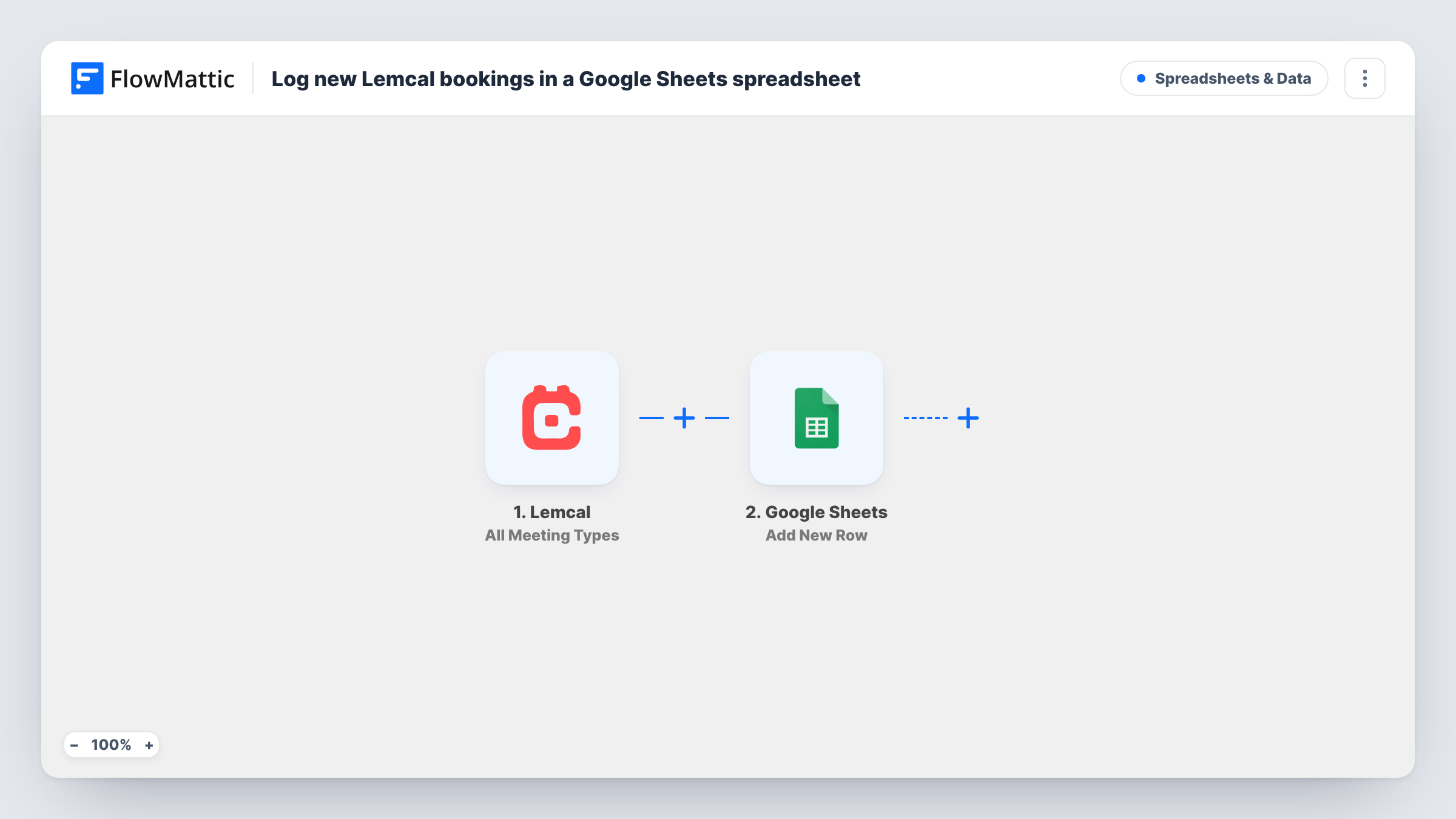
The Lemcal trigger used here is All Meeting Types, which fires for meetings of every type you offer rather than just one. FlowMattic sends the meeting data to Google Sheets, where Add New Row puts it in the sheet you choose, column by column.
Each event gives one row. The template has no condition, so every meeting the trigger reports is logged. Lemcal also offers triggers for a single meeting type or for your whole team, if you want a narrower or wider log. Each logged meeting run can be checked in Task History.
Weekly call counts for a sales rep
A rep books discovery and demo calls through Lemcal and uses the sheet to count both kinds each week.
Consultant tracking billable sessions
Each booked Lemcal meeting becomes a row you mark as billed once the invoice goes out.
Reporting for a manager
A manager who doesn't use Lemcal reads the shared sheet to see how many meetings are on the calendar.
How this workflow runs
What happens at each step once the workflow is on, and what you need before you import it.
 Lemcal All Meeting Types
Uses Lemcal's All Meeting Types trigger, which fires for meetings of every type you offer. The meeting data is passed to the sheet step.
- Google Sheets Add New Row
Records the Lemcal meeting on a new line of the spreadsheet you pick. Connect Google, select the file and tab, and map each column to a meeting detail.
What you need
- FlowMatticCore
- Lemcal AccountAccount
- Google Sheets AccountAccount
After importing, map your own data. To keep the template universal, not every step is pre-filled. Open each step in the builder and connect your accounts and fields (channels, lists, sheets, recipients) before you switch the workflow on.
Make it yours
Changes worth making after you import it.
- Book a test meeting after import and look at the run in Task History. Check which meeting details Lemcal sends, and whether other changes also start a run, before you rely on the log.
- Switch the trigger to A Specific Meeting Type if you only want one kind of meeting in this sheet.
- Use All Meetings From My Team as the trigger instead if the sheet should cover your colleagues' meetings too.
Questions about this workflow
Does the sheet include meetings booked before import?
No. The trigger reports meetings from the moment the workflow is on, so earlier Lemcal bookings are not added.
Can I log just one Lemcal meeting type?
Yes. Change the trigger to A Specific Meeting Type and pick the type. The Google Sheets step stays the same.
Will my team's Lemcal meetings appear in the sheet?
Not with All Meeting Types alone. Lemcal has a separate All Meetings From My Team trigger for that.
More Spreadsheets & Data workflows
Other ready-to-import templates from the same category.




Import this workflow into your WordPress site
Download the JSON, import it from the Workflows screen and connect your accounts. Every run stays on your server, with no per-task fees.
30-day money-back guarantee Unlimited workflows and runs Self-hosted