

Log new LendingWise loan applications in a Google Sheets spreadsheet
Each loan application event LendingWise sends to this workflow becomes a new row in Google Sheets, giving your team a running log of applications it can sort, filter and share outside the loan system.
 LendingWise
 Google Sheets
2 steps Setup ~5 min Used on 1.6k sites Free to import
What this workflow does
LendingWise holds your loan files, but not everyone who tracks applications works inside it. A partner, an investor or a manager may only want a simple list of what came in and when. Keeping that list by hand means retyping each borrower. This workflow writes it for you in Google Sheets.
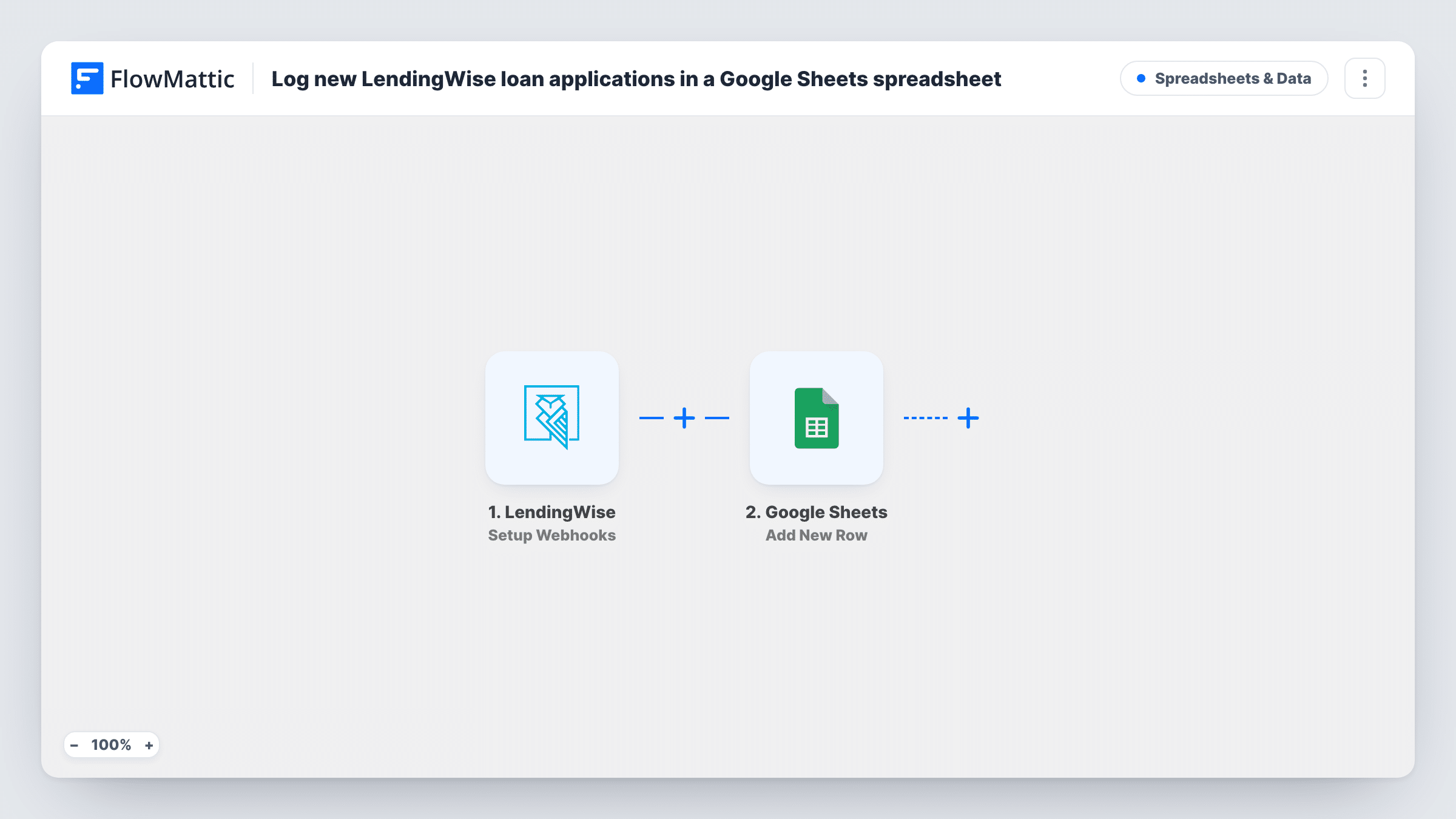
The LendingWise trigger, Setup Webhooks, sends this workflow the LendingWise events you specify. For this template, specify only the event for a new loan application. FlowMattic receives the application data and passes it to Google Sheets, where Add New Row writes it to the spreadsheet and sheet you pick, one value per column.
Add New Row always adds a row and never edits an existing one. If you also send update or status events to this workflow, every change to a loan file adds another row. Send the new-application event only, or put a Filter on the event type after the trigger. Task History records each run and the response from Google.
Broker sharing the pipeline with a partner
A mortgage broker's referral partner has no LendingWise login. A shared Google Sheet lists each new application so the partner sees how many deals came in.
Weekly volume reporting
Operations counts applications per week with a pivot table on the sheet, instead of exporting reports from LendingWise each Monday.
Backup list of incoming files
A private lender keeps a plain spreadsheet record of every application received, with borrower name and loan amount, alongside the full files in LendingWise.
How this workflow runs
What happens at each step once the workflow is on, and what you need before you import it.
 LendingWise Setup Webhooks
Receives the LendingWise events you specify for this workflow. Send it the event for a new loan application only, then create a test application so FlowMattic captures its fields.
- Google Sheets Add New Row
Adds a row to your chosen Google Sheets spreadsheet for each application. Map LendingWise values such as borrower name and loan amount to the columns, and connect your Google account.
What you need
- FlowMatticCore
- LendingWise AccountAccount
- Google Sheets AccountAccount
After importing, map your own data. To keep the template universal, not every step is pre-filled. Open each step in the builder and connect your accounts and fields (channels, lists, sheets, recipients) before you switch the workflow on.
Make it yours
Changes worth making after you import it.
- If update events must reach the same webhook, add a Filter after the trigger that continues only when the event type in the data matches a new application.
- Add a column for the LendingWise loan file ID. Later workflows can use it to find the matching row when you want to record a status change.
- Keep borrower data to what the sheet's readers need. Leave out fields such as income or identity numbers if the spreadsheet is shared widely.
Questions about this workflow
Will a change to a LendingWise loan file add another row?
Only if update events are sent to this workflow. Add New Row writes a row on every run, so send only the new-application event, or filter on the event type.
Are older LendingWise applications added to the sheet?
No. Only events LendingWise sends after the webhook is set up start a run. Export earlier applications from LendingWise to bring them into the sheet.
Do the Google Sheets columns need to exist first?
Yes. Add a header row with the columns you want, such as borrower and amount, before mapping. The step fills the sheet's existing columns.
Which LendingWise application details can I log?
Whatever LendingWise includes in the event it sends. Create a test application after setup, then map the captured values to your sheet's columns.
More Spreadsheets & Data workflows
Other ready-to-import templates from the same category.




Import this workflow into your WordPress site
Download the JSON, import it from the Workflows screen and connect your accounts. Every run stays on your server, with no per-task fees.
30-day money-back guarantee Unlimited workflows and runs Self-hosted