

Notify team on Slack when new user joins the space in FluentCommunity
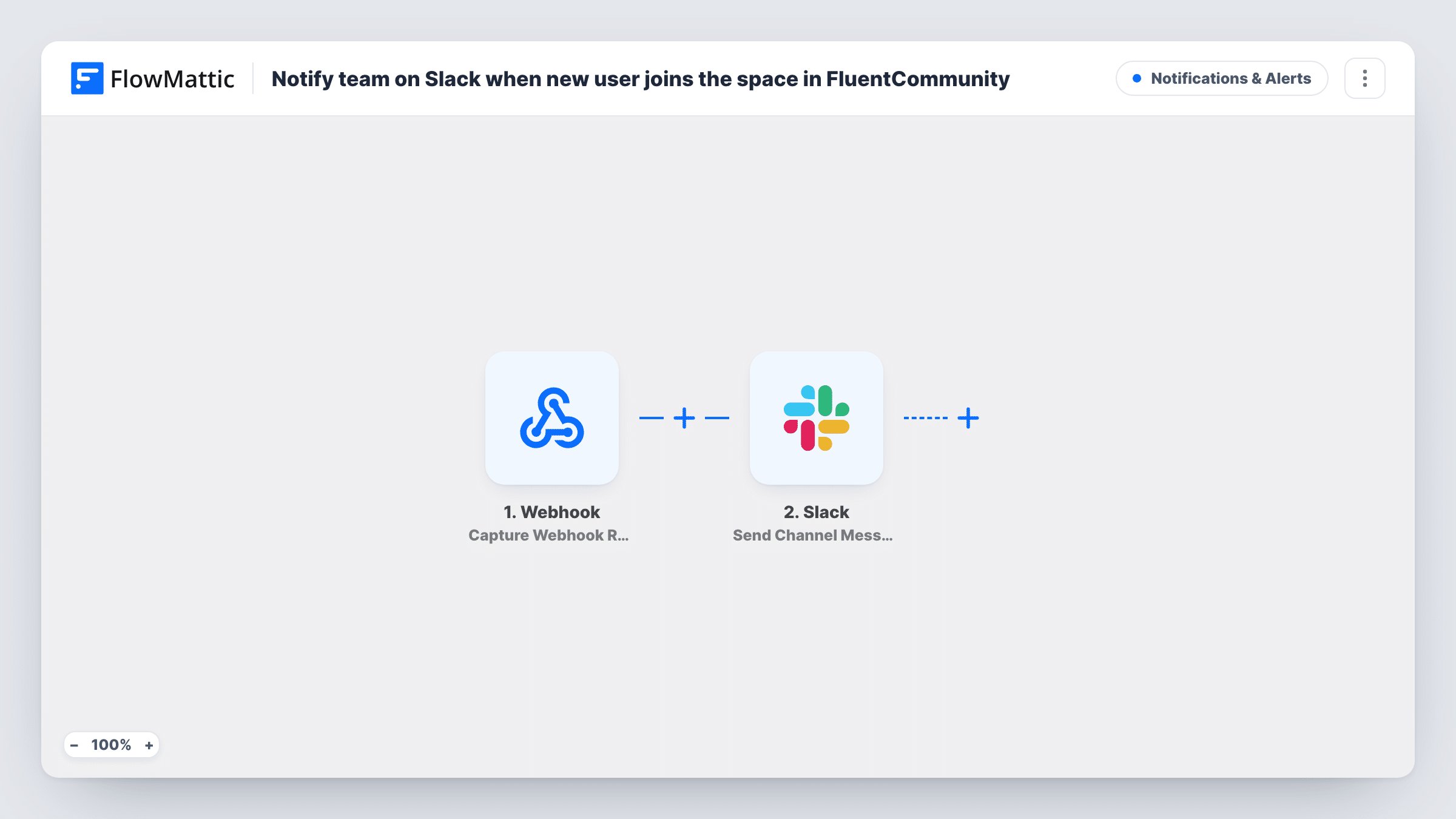
Each time a member joins a space in your FluentCommunity site, FlowMattic posts a message in the Slack channel you choose, so your team can welcome them while they’re still looking around.
 Fluent Community
 Slack
2 steps Setup ~5 min Used on 1.9k sites Free to import
What this workflow does
A new member's first visit to a community space decides whether they come back. If a moderator or community manager says hello early, the space feels alive. Most teams already live in Slack, not in the community dashboard, so this workflow brings each join to them there.
The FluentCommunity User Joins Space trigger runs when a user joins a space on your WordPress community site. The member's details and the space they joined are passed on. Requests to join a private space have their own trigger in FlowMattic.
The Slack step posts to a channel. It ships unmapped: after import you connect Slack, pick the channel, and write the message, mapping in the member's name and the space so the post says who joined where.
The template has no condition, so every join in every space creates a post. On a busy community that can be a lot of messages; the tips show how to limit it to the spaces your team wants to hear about. Join a space with a test account and check Task History to see the fields FluentCommunity sends.
Moderators greet new members
A course creator's moderators watch a Slack channel and reply in the community whenever someone joins the beginners space.
Paid space signups for the sales team
A membership site posts joins of its premium space to a sales channel, so the team can follow up with a welcome call.
Event space headcount
An organiser running a community space for an upcoming event watches the Slack feed to see who has joined before the day.
How this workflow runs
What happens at each step once the workflow is on, and what you need before you import it.
 Fluent Community User Joins Space
Fires when a user joins a space in FluentCommunity. Details about the member and the space are passed on, ready to map into the Slack message.
- Slack Send Channel Message
Sends the join alert to Slack. The step ships unmapped: pick the channel, then write the text and map the member's name and the space name so the team knows who joined where.
What you need
- FlowMatticCore
- FluentCommunity PluginPlugin
- Slack AccountAccount
After importing, map your own data. To keep the template universal, not every step is pre-filled. Open each step in the builder and connect your accounts and fields (channels, lists, sheets, recipients) before you switch the workflow on.
Make it yours
Changes worth making after you import it.
- Put a Filter between the FluentCommunity trigger and the Slack step that continues only when the space field exactly matches the space your team watches. A test join shows which field holds the space.
- Use Slack's Send Private Channel Message action instead if the alert should go to a private moderators channel.
- Include a link to the member's community profile in the message, if FluentCommunity sends one, so moderators can open it in one click.
- Build a second workflow on the User Requests to Join Space trigger if your team also approves requests for private spaces.
Questions about this workflow
Does every FluentCommunity space trigger a Slack post?
Yes, as imported. The trigger runs for joins in any space. To limit it, put a Filter between the User Joins Space trigger and the Slack step that checks the space.
Are requests to join a private space included?
Requests have their own trigger: FluentCommunity's User Requests to Join Space in FlowMattic. Build another workflow on it if you want a Slack alert while a request is pending.
Do I need FluentCommunity on the same WordPress site as FlowMattic?
Yes. FluentCommunity is a WordPress plugin, and the trigger listens for space joins on the site where FlowMattic is installed.
More Notifications & Alerts workflows
Other ready-to-import templates from the same category.



Import this workflow into your WordPress site
Download the JSON, import it from the Workflows screen and connect your accounts. Every run stays on your server, with no per-task fees.
30-day money-back guarantee Unlimited workflows and runs Self-hosted