

Post a Discord notification when a new reaction is left on an AnnounceKit announcement
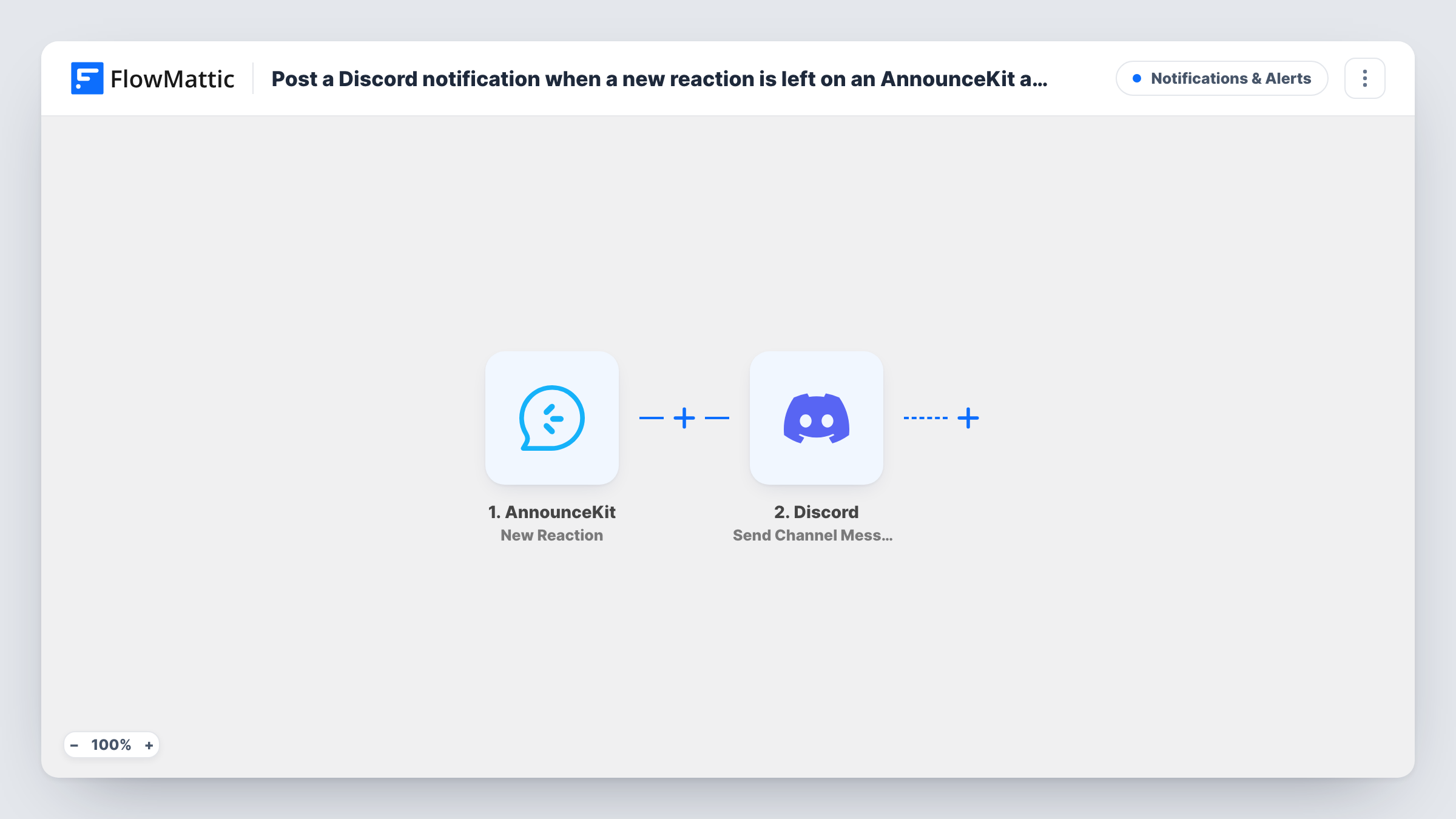
When someone reacts to an AnnounceKit announcement, this workflow posts a message to the Discord channel you pick, so your team sees feedback on product updates where they already chat.
 AnnounceKit
 Discord
2 steps Setup ~5 min Used on 1.1k sites Free to import
What this workflow does
Reactions on your changelog are a quick signal of how users feel about a release. They are easy to miss if nobody opens AnnounceKit. For a team that works in Discord, a short message per reaction keeps that feedback in view.
The AnnounceKit trigger fires when a new reaction is recorded on your announcements. FlowMattic passes the reaction data to the Discord step, which posts a message to the channel you choose. You write the message and add values from the reaction, such as which post it was on, where the event includes them.
Every reaction produces one Discord message, so a popular announcement can post many in a row. Leave a test reaction after import to see the fields AnnounceKit sends, then shape the message.
Product team watching a launch
After a big release note goes out, the product team sees each reaction in their Discord channel as users respond.
Community managers on a Discord server
A private moderators' channel shows reactions to your changelog, so community managers know which updates to talk about with members.
Small SaaS founder keeping an eye on updates
A solo founder gets a Discord ping whenever a user reacts to an announcement, without logging in to AnnounceKit.
How this workflow runs
What happens at each step once the workflow is on, and what you need before you import it.
 AnnounceKit New Reaction
Runs when a new reaction is recorded on one of your AnnounceKit announcements. The reaction data is passed on for the Discord message.
- Discord Send Channel Message
Sends a Discord message into the channel set in this step. Combine your own text with values from the AnnounceKit reaction and connect Discord on import.
What you need
- FlowMatticCore
- AnnounceKit AccountAccount
- Discord AccountAccount
After importing, map your own data. To keep the template universal, not every step is pre-filled. Open each step in the builder and connect your accounts and fields (channels, lists, sheets, recipients) before you switch the workflow on.
Make it yours
Changes worth making after you import it.
- Use a dedicated Discord channel for these messages, since busy announcements can post many reactions in a short time.
- Add a Filter after the trigger that checks the reaction type, if the event carries one, so only negative reactions reach Discord.
- Include the announcement title in the message, if the event provides it, so the team knows which update the reaction belongs to.
Questions about this workflow
Does every AnnounceKit reaction post to Discord?
Yes. No step checks the reaction, so each new one sends a message. A Filter placed right after the trigger can narrow which reactions get posted.
Can the Discord message say which announcement got the reaction?
If the AnnounceKit event includes the post details, map them into the message. A test reaction shows what is available.
Do I need a Discord bot or webhook first?
You connect Discord to FlowMattic when you import the workflow, then pick the channel in the Discord step.
Are reactions from before the import sent to Discord?
No. Only reactions recorded after you turn the workflow on produce a message.
More Notifications & Alerts workflows
Other ready-to-import templates from the same category.





Import this workflow into your WordPress site
Download the JSON, import it from the Workflows screen and connect your accounts. Every run stays on your server, with no per-task fees.
30-day money-back guarantee Unlimited workflows and runs Self-hosted