

Post a Discord notification when a new UpGuard vendor is monitored
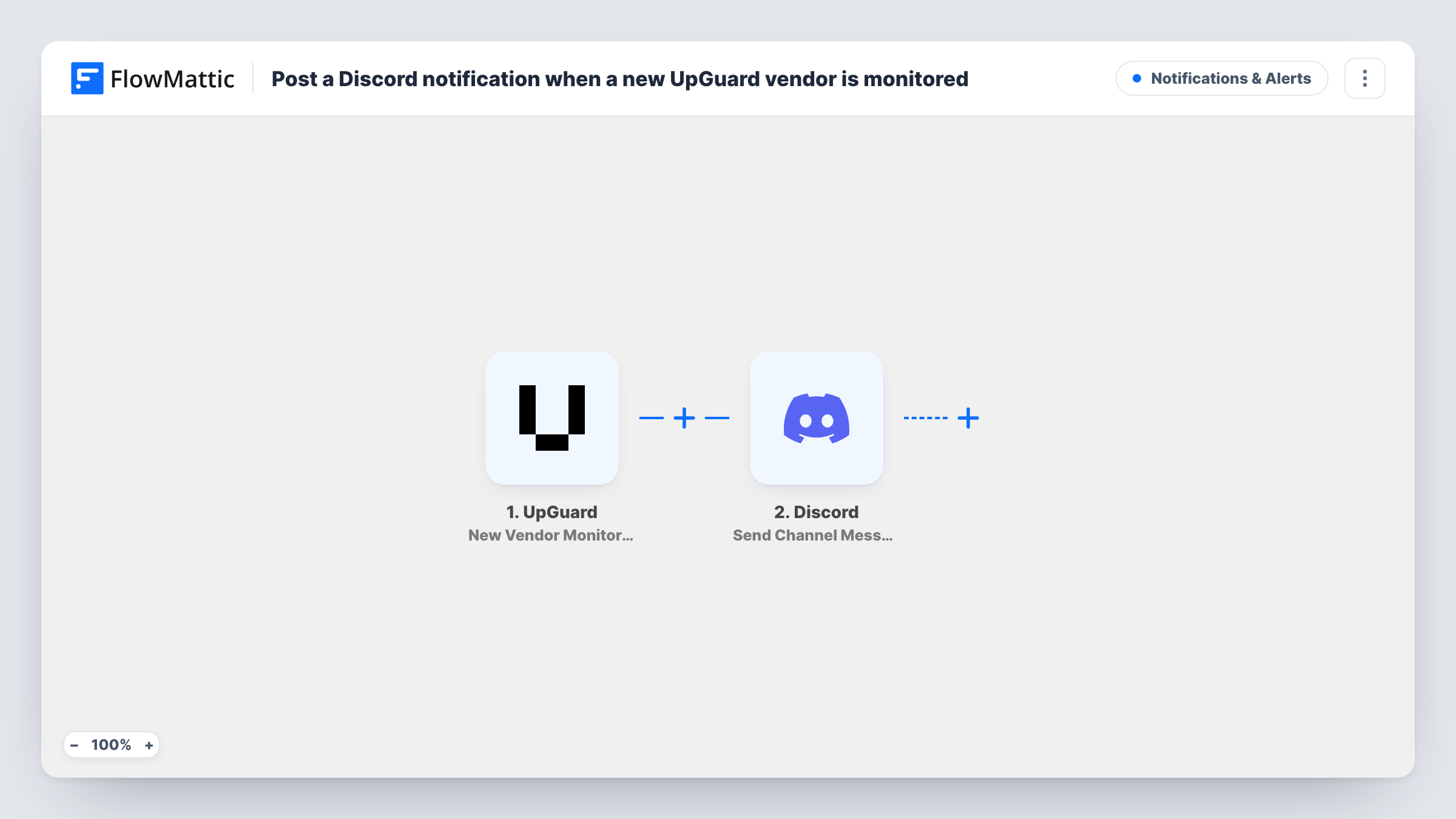
Each time a vendor is newly monitored in UpGuard, this workflow posts a notice to a Discord channel you pick, so your team knows which supplier has been added to vendor risk monitoring.
 UpGuard
 Discord
2 steps Setup ~5 min Used on 331 sites Free to import
What this workflow does
Vendor risk work is shared. Procurement adds a supplier, security reviews it, and someone else answers for it in an audit. When a vendor starts being monitored in UpGuard, the people who care often hear about it late. This workflow posts the news to the Discord channel your team already reads.
The UpGuard trigger fires when a vendor is newly monitored. FlowMattic takes the vendor details from that event and passes them to Discord. The Send Channel Message action posts to the channel you choose, with the text you write and any vendor fields you map in.
The workflow only announces. It doesn't change the vendor in UpGuard or start an assessment. Score changes for that vendor come through other UpGuard triggers if you want those posted too. You can review each UpGuard-to-Discord run in Task History.
Security team on Discord
A small security team runs its day in Discord. Each newly monitored UpGuard vendor appears in #vendor-risk, ready for someone to start the review.
Keeping procurement in the loop
Procurement shares a Discord server with security, and the notice confirms that the supplier they asked for is now under monitoring.
Record of when monitoring began
The channel history shows the date each UpGuard vendor was added, which helps when you later need to show when monitoring started.
How this workflow runs
What happens at each step once the workflow is on, and what you need before you import it.
 UpGuard New Vendor Monitored
Runs when a vendor is newly monitored in your UpGuard account. The vendor details from that event are passed on to the Discord message.
- Discord Send Channel Message
Sends the vendor notice to whichever Discord channel you select. Write the notice and map UpGuard's vendor details into it, such as the vendor name or domain.
What you need
- FlowMatticCore
- UpGuard AccountAccount
- Discord AccountAccount
After importing, map your own data. To keep the template universal, not every step is pre-filled. Open each step in the builder and connect your accounts and fields (channels, lists, sheets, recipients) before you switch the workflow on.
Make it yours
Changes worth making after you import it.
- Pair this with UpGuard's Vendor Score Drop trigger in a second workflow so the same channel also hears when a monitored vendor's score falls.
- Add a Google Sheets step after Discord to keep a list of monitored vendors you can sort and share.
- Add a vendor in UpGuard as a test after import, so FlowMattic has a real event to map from before you write the message.
Questions about this workflow
Does the workflow post vendors already monitored in UpGuard?
No. It reacts to vendors newly monitored after you turn the workflow on. Existing vendors are not posted.
Can the Discord message show the vendor's UpGuard score?
Only if the score is part of the trigger data. Check the fields in a test run; map the score into the message if it's there.
Will a score change post to Discord?
Not with this trigger. UpGuard has separate FlowMattic triggers for score drops, increases and thresholds that you can use in other workflows.
More Notifications & Alerts workflows
Other ready-to-import templates from the same category.




Import this workflow into your WordPress site
Download the JSON, import it from the Workflows screen and connect your accounts. Every run stays on your server, with no per-task fees.
30-day money-back guarantee Unlimited workflows and runs Self-hosted