

Record New Memberships to Google Sheet and Airtable
When someone registers as a member on your ARMember site, this workflow adds a row to Google Sheets and creates a matching record in Airtable, so both tools hold the same membership list.
 ARMember
 Google Sheets
 Airtable
3 steps Setup ~5 min Used on 2.2k sites Free to import
What this workflow does
Membership data is often needed outside WordPress. Finance may want a simple spreadsheet, while operations runs reports from an Airtable base. Copying each new member into both by hand is slow and easy to forget. This workflow writes every new ARMember registration to both places.
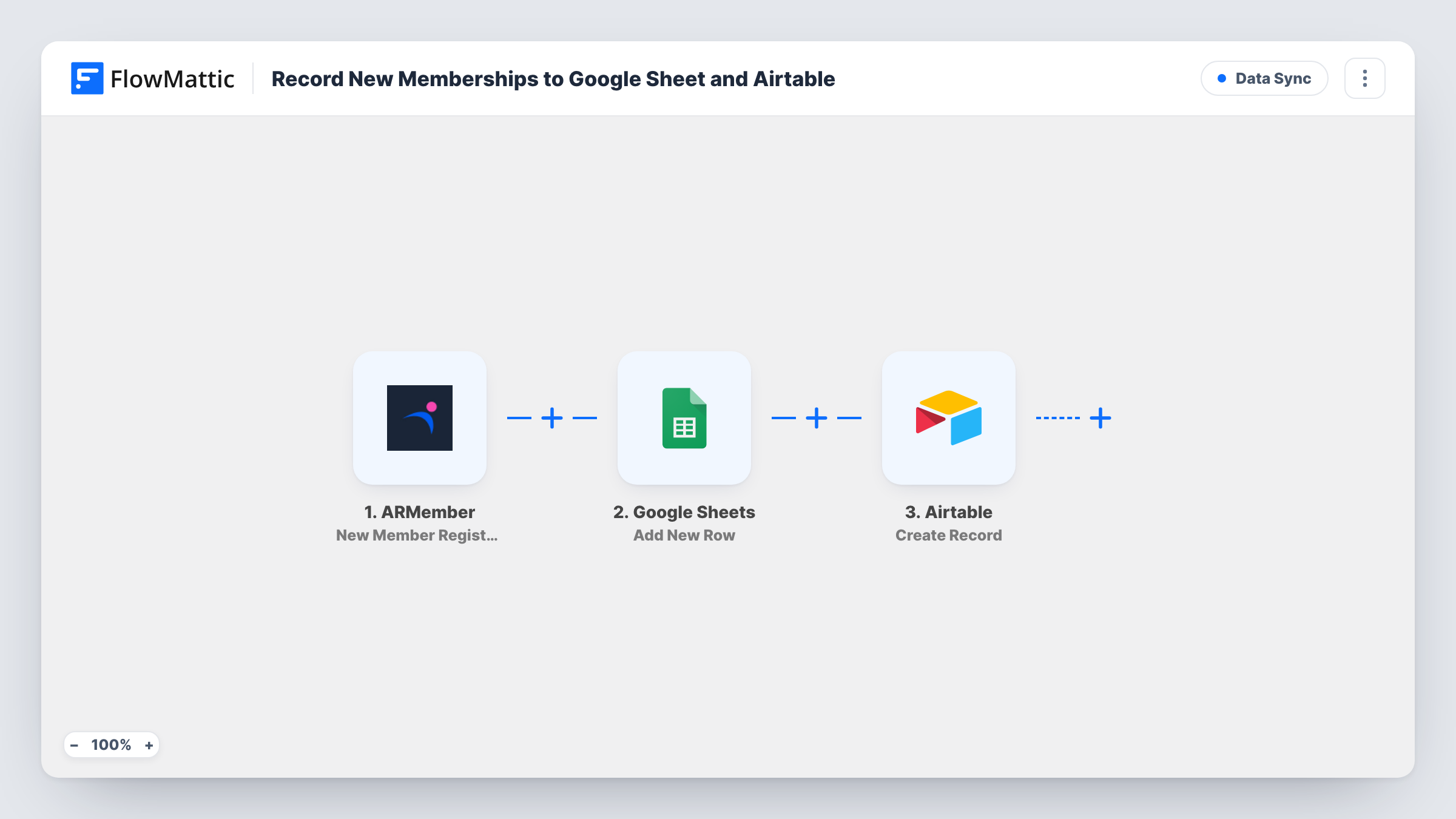
The ARMember trigger fires when a new member registers on your site. FlowMattic first sends the member's details to Google Sheets, where Add New Row writes them to the spreadsheet you pick. The same details then go to Airtable, where Create Record adds a record to your chosen base and table.
Both actions add new entries every time. Neither checks for an existing row or record, so a member who registers twice appears twice. Task History lists every run and shows the response from each step.
Gym or club sign-ups
Front-desk staff check the shared Google Sheet for new members, while the manager tracks memberships and renewals in an Airtable base.
Online course community
Each new ARMember registration lands in Airtable for your onboarding pipeline, and the sheet gives your accountant a plain list of who joined.
Association membership roll
A professional association keeps its official register in Airtable and shares the Google Sheet with board members who don't use Airtable.
How this workflow runs
What happens at each step once the workflow is on, and what you need before you import it.
 ARMember New Member Registration
Fires when a new member registers through ARMember on your WordPress site. The member's registration details become available to map in the next two steps.
- Google Sheets Add New Row
Adds a row to the Google Sheets spreadsheet you choose, holding the new member's details. Map each column to an ARMember field and connect your Google account.
- Airtable Create Record
Creates a new record in the Airtable base and table you select, using the same member details. Map ARMember fields to the table's fields and connect your Airtable account.
What you need
- FlowMatticCore
- ARMember PluginPlugin
- Google Sheets AccountAccount
- Airtable AccountAccount
After importing, map your own data. To keep the template universal, not every step is pre-filled. Open each step in the builder and connect your accounts and fields (channels, lists, sheets, recipients) before you switch the workflow on.
Make it yours
Changes worth making after you import it.
- Register a test member after import so FlowMattic captures the ARMember fields, then map them in both the Google Sheets and Airtable steps.
- If you only want paid plans recorded, put a Filter between the ARMember trigger and the Google Sheets step on the membership plan value. Members on other plans stop there and reach neither the sheet nor Airtable.
- Want the same member list somewhere else too? Add a third step after Airtable, such as a Slack message or an email to the membership manager, using the same ARMember data.
Questions about this workflow
Does a member's ARMember profile update change the sheet or Airtable?
No. The trigger fires on new registrations only, and both steps add new entries. Later profile edits are not copied.
Which Airtable fields does the new member record fill?
The ones you map. The Create Record step ships unmapped, so after import you choose the base and table and match ARMember values, such as the member's name and email, to its fields. Register a test member first to see what ARMember sends.
Can I record new ARMember members in only one of the two tools?
Yes. Delete the step you don't need after import. The remaining step works the same way on its own.
Will members who joined before I set this up be added?
No. Only registrations made after you turn the workflow on are recorded. Export older members from ARMember if you need them in the sheet or base.
More Data Sync workflows
Other ready-to-import templates from the same category.





Import this workflow into your WordPress site
Download the JSON, import it from the Workflows screen and connect your accounts. Every run stays on your server, with no per-task fees.
30-day money-back guarantee Unlimited workflows and runs Self-hosted