

Save data from a Chatfuel JSON listener to a Google Sheets spreadsheet
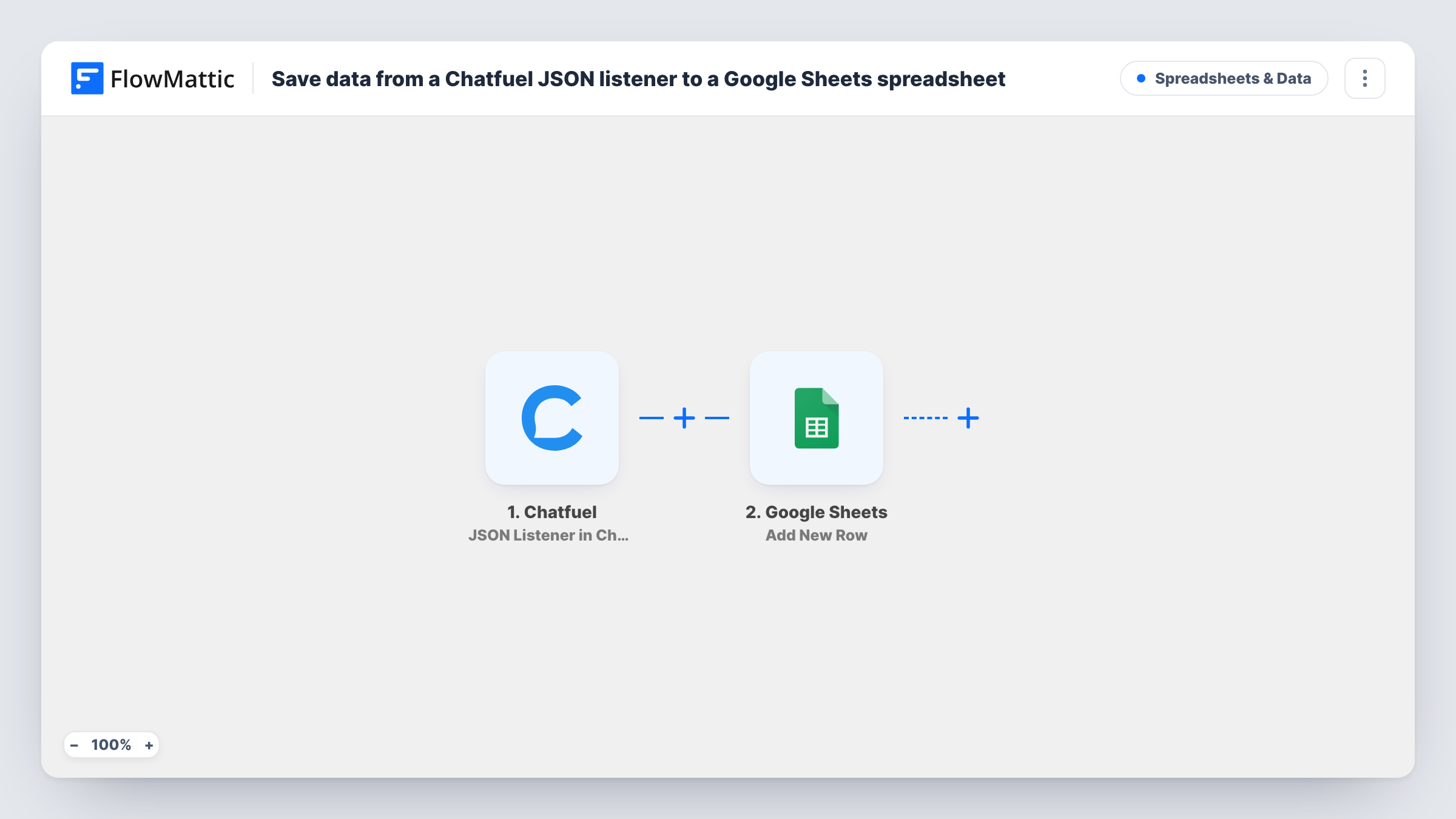
When your Chatfuel bot sends data to FlowMattic’s JSON listener, this workflow writes it to a new Google Sheets row, giving you a running log of what your bot collects.
 Chatfuel
 Google Sheets
2 steps Setup ~5 min Used on 2.6k sites Free to import
What this workflow does
A chatbot gathers answers all day: names, emails, choices people tap, replies to your questions. Reading them back inside the bot builder is slow, and sharing them with someone outside it is harder. This workflow copies each batch of bot data into a spreadsheet you already know how to sort and share.
The Chatfuel trigger listens for JSON that your bot posts. FlowMattic receives whatever values the bot includes in that request. Those values become fields you can map in the next step.
The Google Sheets step then adds a new row to the spreadsheet and worksheet you choose. You decide which bot value goes into which column. Every request from the bot produces one row, so the sheet grows as conversations happen. Task History keeps a record of each run, including what arrived from Chatfuel and what was sent to the sheet.
Survey answers from a Messenger bot
Your bot asks customers three quick questions after a purchase. Each completed set of answers lands as a row, and you chart the results in Google Sheets.
Booking requests for a small studio
A bot collects a preferred date, service and phone number. Staff without a Chatfuel login read the requests in a shared sheet and call people back.
Giveaway entries
People enter a contest through your bot. The sheet holds every entry with the details the bot gathered, ready for you to pick a winner.
How this workflow runs
What happens at each step once the workflow is on, and what you need before you import it.
 Chatfuel JSON Listener in Chatfuel
Starts a run whenever the bot posts a JSON request to this listener. The values your bot includes in that request become fields you can map in the next step.
- Google Sheets Add New Row
Writes each bot request into one fresh row of your chosen Google Sheets worksheet. Connect your Google account, choose the sheet, and map each column to a value that came from the bot.
What you need
- FlowMatticCore
- Chatfuel AccountAccount
- Google Sheets AccountAccount
After importing, map your own data. To keep the template universal, not every step is pre-filled. Open each step in the builder and connect your accounts and fields (channels, lists, sheets, recipients) before you switch the workflow on.
Make it yours
Changes worth making after you import it.
- Send one test request from your Chatfuel bot after import so FlowMattic captures the data shape, then map the fields to columns before you turn the workflow on.
- Add a Filter after the trigger that continues only when an email or phone value is not empty, so half-finished conversations don't add rows.
- Have the bot send a value naming the flow or question set with each request, and map it to its own column so you can tell entries apart.
Questions about this workflow
Which Chatfuel values reach the Google Sheets row?
Whatever your bot includes in the request it sends to the listener. If a value isn't in the request, it isn't available to map, so add it on the Chatfuel side first.
Does the bot get a reply back from this workflow?
The template only receives data and writes a row. It has no step that builds a reply message for the bot.
Will a person who chats twice get two rows in the sheet?
Yes. Each request from the bot is a separate run and adds its own row. The workflow does not check the sheet for an existing entry first.
More Spreadsheets & Data workflows
Other ready-to-import templates from the same category.




Import this workflow into your WordPress site
Download the JSON, import it from the Workflows screen and connect your accounts. Every run stays on your server, with no per-task fees.
30-day money-back guarantee Unlimited workflows and runs Self-hosted