

When a survey is submitted in Frill.co, store responses in Google Sheets.
Each time someone submits a Frill.co survey, FlowMattic writes their answers to a new row in Google Sheets, so all your survey responses build up in one sheet you can sort and chart.
 Frill.co
 Google Sheets
2 steps Setup ~5 min Used on 2.8k sites Free to import
What this workflow does
Frill.co surveys capture what users think about your product, but analysing responses is often easier in a spreadsheet you can sort, filter and share. This workflow copies each submitted survey into Google Sheets as it arrives.
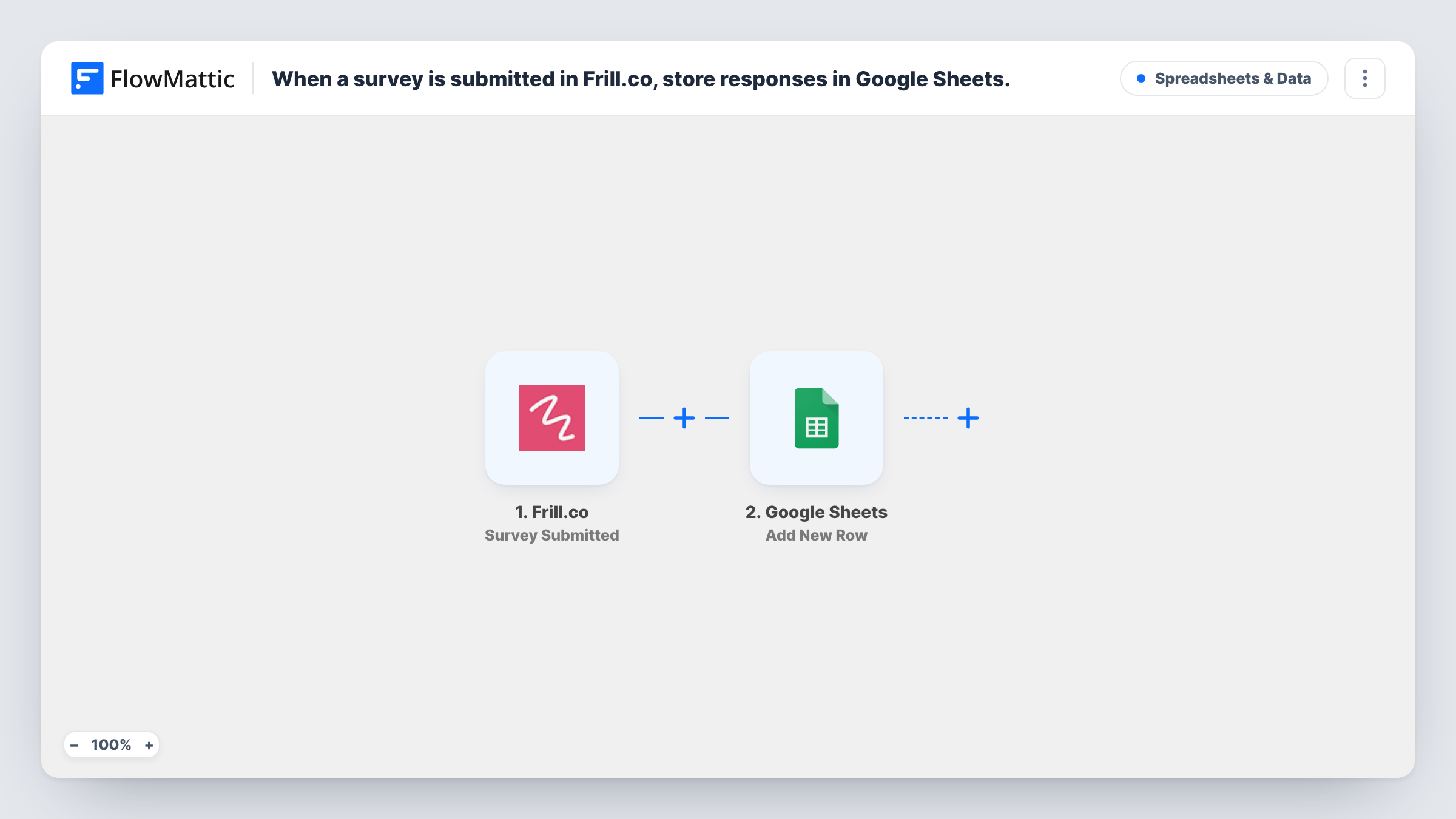
The Frill.co trigger runs on Survey Submitted. FlowMattic receives the response data and passes it to Google Sheets, where Add New Row writes it to the sheet you pick. You decide which answers go into which column, so the sheet matches the questions you care about.
Every submission adds its own row, which gives you a full history of responses. If you run more than one survey, a Filter or Router after the trigger can keep them on separate tabs. Task History shows each run.
Product satisfaction surveys
Collect Frill.co survey scores in a sheet and chart them by month to see how sentiment changes after each release.
Sharing feedback with the wider team
Designers and support staff without a Frill.co login read user answers in a shared Google Sheet.
Combining with other data
Put survey responses next to signup or plan data in the same spreadsheet to look at answers by customer group.
How this workflow runs
What happens at each step once the workflow is on, and what you need before you import it.
 Frill.co Survey Submitted
Runs when a user submits one of your Frill.co surveys. The response data is passed on for mapping in the Google Sheets step.
- Google Sheets Add New Row
Writes a new row to the Google Sheets spreadsheet you select. Map each survey answer to a column and connect your Google account.
What you need
- FlowMatticCore
- Frill.co AccountAccount
- Google Sheets AccountAccount
After importing, map your own data. To keep the template universal, not every step is pre-filled. Open each step in the builder and connect your accounts and fields (channels, lists, sheets, recipients) before you switch the workflow on.
Make it yours
Changes worth making after you import it.
- Submit the survey yourself after import so FlowMattic captures a real Frill.co response before you map columns.
- If you run several Frill.co surveys, add a Router with a route per survey and a Google Sheets step on each, writing to different tabs.
- Add a Slack step after the row is written if the product team should see each new survey response as well.
Questions about this workflow
Are older Frill.co survey responses copied to the sheet?
No. Only surveys submitted after the workflow is turned on are added.
What if I change the questions in my Frill.co survey?
Capture a new response, then update the column mapping in the Google Sheets step so the new answers land in the right place.
Does each Frill.co response get its own Google Sheets row?
Yes. Every submission runs the workflow once and adds one row.
More Spreadsheets & Data workflows
Other ready-to-import templates from the same category.



Import this workflow into your WordPress site
Download the JSON, import it from the Workflows screen and connect your accounts. Every run stays on your server, with no per-task fees.
30-day money-back guarantee Unlimited workflows and runs Self-hosted