

Log every completed Upflowy step in a Google Sheets spreadsheet
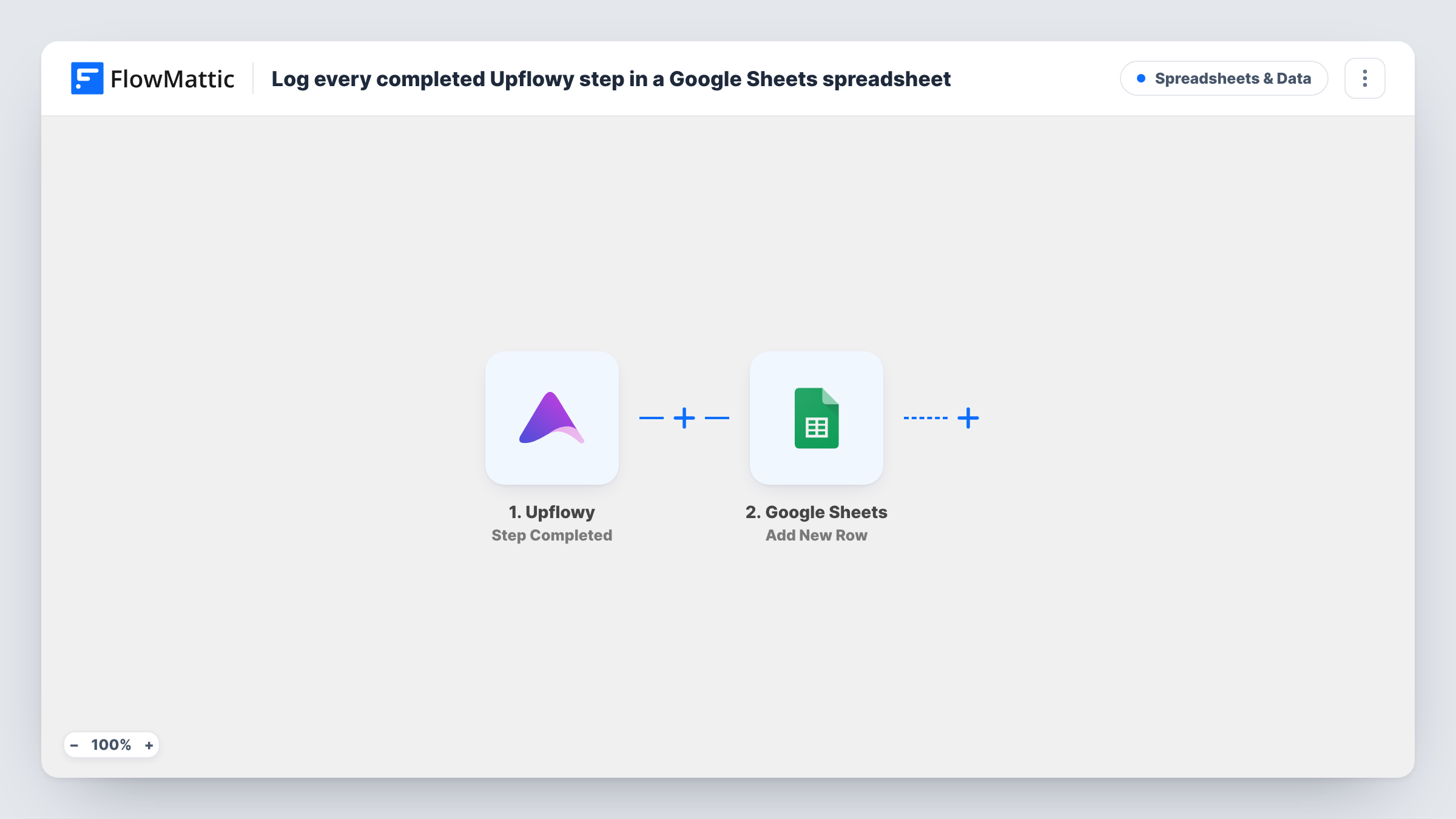
Each time a user completes a step in one of your Upflowy flows, FlowMattic adds a row to Google Sheets with the step data you map, giving you a running log of progress through your onboarding and lead flows.
 Upflowy
 Google Sheets
2 steps Setup ~5 min Used on 599 sites Free to import
What this workflow does
Upflowy flows take people through several steps, and you may want to study that progress outside the tool: count completions, spot where people stop, or share the data with someone who has no Upflowy login. A spreadsheet that gains a row for each completed step makes that easy to set up. This workflow builds that log as people move through your flows.
The Upflowy trigger fires whenever a step is completed and passes the step data to FlowMattic. The Google Sheets step then appends a row to the spreadsheet you select, filling each column from the Upflowy field you map to it, such as the step and whatever answers or contact details come with it.
Since one person can complete several steps, expect several rows per person, one for each completed step. The sheet only grows; rows are never merged or updated. That makes it a log you can sort, chart or pivot. Task History shows what Upflowy sent for every run.
Finding where people stop in a signup flow
Count rows per step in the sheet. A step with far fewer rows than the one before it shows where people leave your flow.
Sharing quiz or survey answers with a client
If the completed steps carry the visitor's answers, the client reads them in a Google Sheet without needing access to Upflowy.
Auditing a new onboarding flow
After launching a flow, check the log for a few days to confirm each step records the data you expect before you connect it to your CRM.
How this workflow runs
What happens at each step once the workflow is on, and what you need before you import it.
 Upflowy Step Completed
Starts each time a user completes a step in an Upflowy flow. Connect Upflowy on import and complete a step yourself so FlowMattic captures the fields that come with the event.
- Google Sheets Add New Row
Appends a row to the Google Sheets spreadsheet and sheet you choose for every completed step. Connect your Google account and map each column to a field from the Upflowy event.
What you need
- FlowMatticCore
- Upflowy AccountAccount
- Google Sheets AccountAccount
After importing, map your own data. To keep the template universal, not every step is pre-filled. Open each step in the builder and connect your accounts and fields (channels, lists, sheets, recipients) before you switch the workflow on.
Make it yours
Changes worth making after you import it.
- Track one flow only by adding a Filter after the trigger that checks the flow name or ID, if Upflowy includes it in the step data.
- Give the sheet columns for the step and any person identifier Upflowy sends, so you can group rows by person when you analyse the log.
- Use a Router with one route per flow and a Google Sheets step on each, writing to separate tabs. Each route should check a different flow value so a step lands on one tab.
Questions about this workflow
Does Google Sheets get one row per Upflowy step or one per person?
One row per completed step. A person who finishes five steps produces five rows, because the step adds rows and never updates earlier ones.
Which Upflowy fields can I log in the sheet?
The fields Upflowy sends when a step is completed. Complete a test step after import and the Google Sheets step lists them for mapping.
Will steps completed before I imported the workflow be logged?
No. Only steps completed after the workflow is on reach the sheet.
More Spreadsheets & Data workflows
Other ready-to-import templates from the same category.




Import this workflow into your WordPress site
Download the JSON, import it from the Workflows screen and connect your accounts. Every run stays on your server, with no per-task fees.
30-day money-back guarantee Unlimited workflows and runs Self-hosted