

Log new Aircall calls to a Google Sheets spreadsheet
Each call started in Aircall is added as a new row in a Google Sheets spreadsheet, building a call log you can sort, filter and share with people who don’t use Aircall.
 Aircall
 Google Sheets
2 steps Setup ~5 min Used on 379 sites Free to import
What this workflow does
Aircall shows your call history inside its own dashboard, but managers, finance or clients often want the numbers in a spreadsheet they can slice their own way. Exporting call lists by hand each week takes time and is easy to skip. This workflow keeps a call log in Google Sheets that grows by itself.
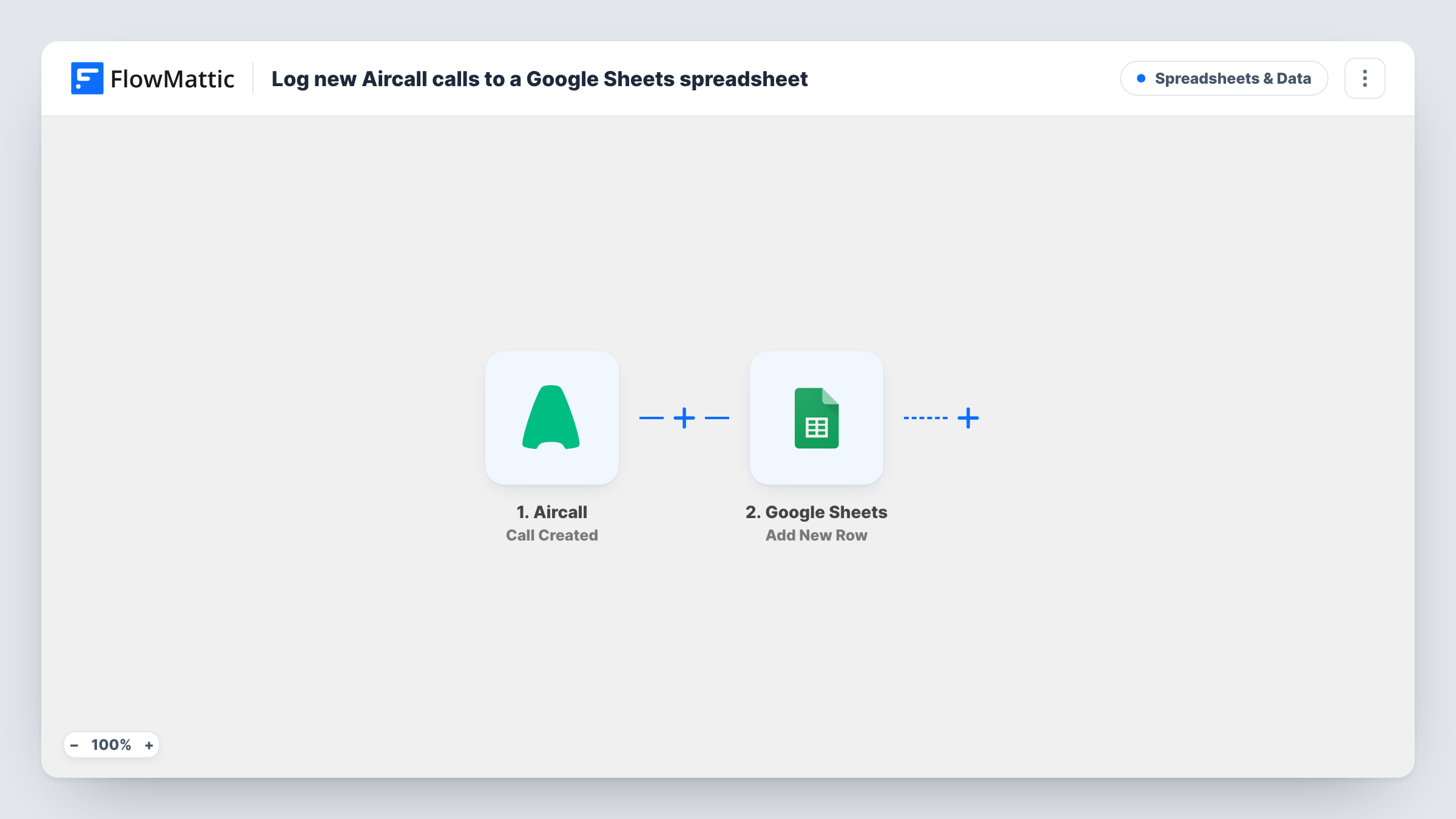
The Aircall Call Created trigger fires when a call is started. FlowMattic passes the call data to Google Sheets, where the Add New Row action writes it to the spreadsheet and tab you pick. You map the call details you want, such as the number or direction, to your columns.
Because the row is written as the call starts, it holds what Aircall knows at that moment. Details settled later, such as how long the call lasted or whether a voicemail was left, are reported by other Aircall events like Call Ended. Each run shows up in Task History with the values sent to the sheet.
Daily call counts for a sales floor
A team lead builds a pivot table on the sheet to count calls started per agent each day, without an Aircall admin seat.
Client reporting for an outsourced support desk
An agency answering phones for a client shares the call log sheet so the client can see call volume as it happens.
Spotting busy hours
Map the call's start time to a column and chart the rows by hour to see when your phone lines are busiest.
How this workflow runs
What happens at each step once the workflow is on, and what you need before you import it.
 Aircall Call Created
Fires when a call is started in Aircall. The call data available at that moment is passed to the Google Sheets step for mapping.
- Google Sheets Add New Row
Adds one row per started call to the spreadsheet and tab you select. Set up the column headers, connect your Google account, then map each Aircall value to its column.
What you need
- FlowMatticCore
- Aircall AccountAccount
- Google Sheets AccountAccount
After importing, map your own data. To keep the template universal, not every step is pre-filled. Open each step in the builder and connect your accounts and fields (channels, lists, sheets, recipients) before you switch the workflow on.
Make it yours
Changes worth making after you import it.
- Want duration and outcome in the log? Swap the trigger for Aircall's Call Ended event, which fires 30 seconds after a call is hung up, so the row is written once the call is over.
- Log only inbound or only outbound calls by adding a Filter after the trigger on the call's direction value, if Aircall includes it in the data.
- Place a test call after import so FlowMattic captures the Aircall call fields, then map them before you turn the workflow on.
Questions about this workflow
Does the Google Sheets row show how long the Aircall call lasted?
Not reliably, because the row is written when the call starts. Use Aircall's Call Ended trigger instead if you need details that exist only after the call.
Are missed calls logged?
Call Created fires when a call is started, before anyone answers. Run a test with a call nobody picks up and check Task History to confirm how your Aircall account reports it.
Will older Aircall calls appear in the sheet?
No. Only calls started after you switch the workflow on are logged. Export earlier calls from Aircall if you need a full history.
More Spreadsheets & Data workflows
Other ready-to-import templates from the same category.




Import this workflow into your WordPress site
Download the JSON, import it from the Workflows screen and connect your accounts. Every run stays on your server, with no per-task fees.
30-day money-back guarantee Unlimited workflows and runs Self-hosted