

Log every new or updated Hudby blog post in a Google Sheets content log
Whenever a blog post is created or updated in Hudby, a row is added to your Google Sheets content log, so your team keeps a dated record of what was published and every later revision.
 Hudby
 Google Sheets
2 steps Setup ~5 min Used on 3.5k sites Free to import
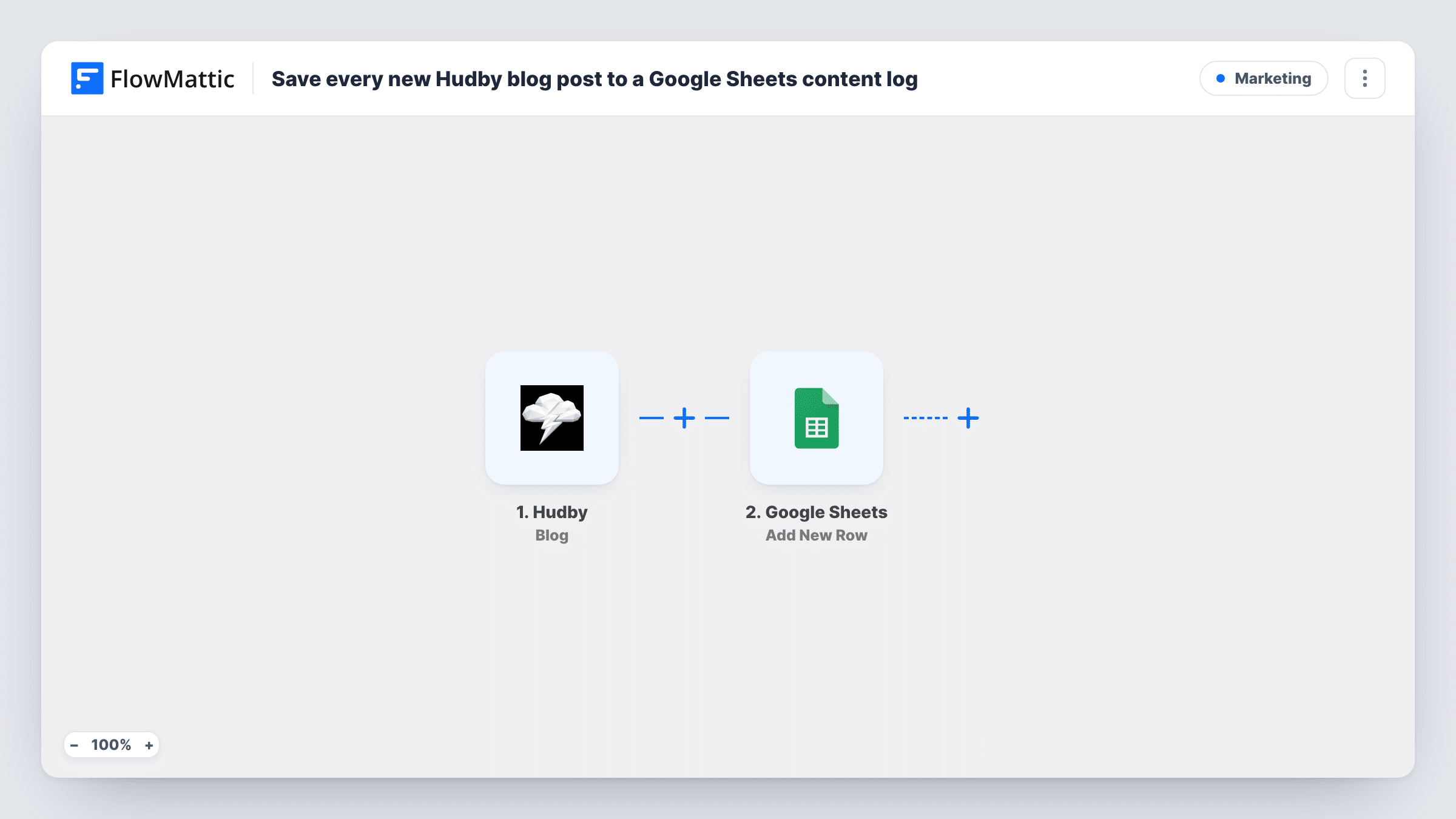
What this workflow does
Content teams often need a list of what went out and when, outside the site builder, for reporting, planning or a client review. This workflow builds that list for you: every time a Hudby blog post is created or changed, the post's details land in a Google Sheet.
The Hudby Blog trigger runs when a blog post is created and again whenever one is updated. It passes the post data on to the next step. Next, Google Sheets appends a row for that event. Nothing is mapped in the template, so after import you pick the spreadsheet and sheet and choose which post fields fill which columns, such as the title, link and date.
Because edits fire the trigger too, the sheet works as a change log rather than a one-row-per-post index. A post that is revised three times shows up four times. That is useful when you want to see how often content is touched; if you only want new posts, add a Filter as described in the tips.
Try it by creating a test post in Hudby, then open Task History to see the fields Hudby sent and the row Google Sheets added.
Monthly content report for a client
An agency that runs a client's blog on Hudby filters the sheet by month to show which posts went live and which were refreshed.
Editorial audit trail
An editor checks the log to see when a post was last changed before approving a new round of edits.
Planning the next quarter
A marketing lead sorts the sheet by date to spot gaps in the publishing schedule and plan topics for the coming weeks.
How this workflow runs
What happens at each step once the workflow is on, and what you need before you import it.
 Hudby Blog
Fires when a blog post is created in Hudby and again each time a post is updated. The post's details are passed to the Google Sheets step.
- Google Sheets Add New Row
Adds one row to the spreadsheet you choose for every create or update event. Columns aren't mapped in the template, so connect Google, pick the sheet and map the Hudby post fields you want to track.
What you need
- FlowMatticCore
- Hudby AccountAccount
- Google Sheets AccountAccount
After importing, map your own data. To keep the template universal, not every step is pre-filled. Open each step in the builder and connect your accounts and fields (channels, lists, sheets, recipients) before you switch the workflow on.
Make it yours
Changes worth making after you import it.
- Add a column for the time of the run, mapped from the post's update date if Hudby sends one, so you can tell a first publication from a later edit.
- To log only new posts, put a Filter between the Hudby trigger and the Google Sheets step that compares the post's created and updated dates. Check a test run to see which date fields Hudby sends.
- Keep a header row in the sheet before you map the step, so FlowMattic shows your column names when you match the post fields.
Questions about this workflow
Does editing a Hudby post add another row to the sheet?
Yes. The Blog trigger fires on updates as well as new posts, and every run adds a new row. Use a Filter between the trigger and the Google Sheets step if you want fewer rows.
Which Hudby post details can I put in the Google Sheet?
Any field the Blog trigger sends. Run a test after import to see them, then map the ones you want, such as the title, URL and dates, into your columns.
Will posts I published in Hudby before importing be logged?
Not by this workflow. Only posts created or updated after it is active start a run. Older posts appear in the sheet the next time you edit them.
Can I log Hudby pages as well as blog posts?
Hudby has a separate Pages trigger in FlowMattic. Set up a second workflow with it that adds rows to the same sheet, or a separate tab.
More Marketing workflows
Other ready-to-import templates from the same category.






Import this workflow into your WordPress site
Download the JSON, import it from the Workflows screen and connect your accounts. Every run stays on your server, with no per-task fees.
30-day money-back guarantee Unlimited workflows and runs Self-hosted