

Send a Slack alert to the team for every captured Foxy.io transaction
Each time a Foxy.io transaction is captured, this workflow posts a message about it to a Slack channel, so your team sees completed sales without logging in to the Foxy.io admin.
 Foxy.io
 Slack
2 steps Setup ~5 min Used on 1.5k sites Free to import
What this workflow does
Foxy.io runs the cart and checkout behind your store, and its admin is where transactions live. Most of the team never opens it, so sales go unnoticed until someone runs a report. This workflow brings each captured payment into Slack.
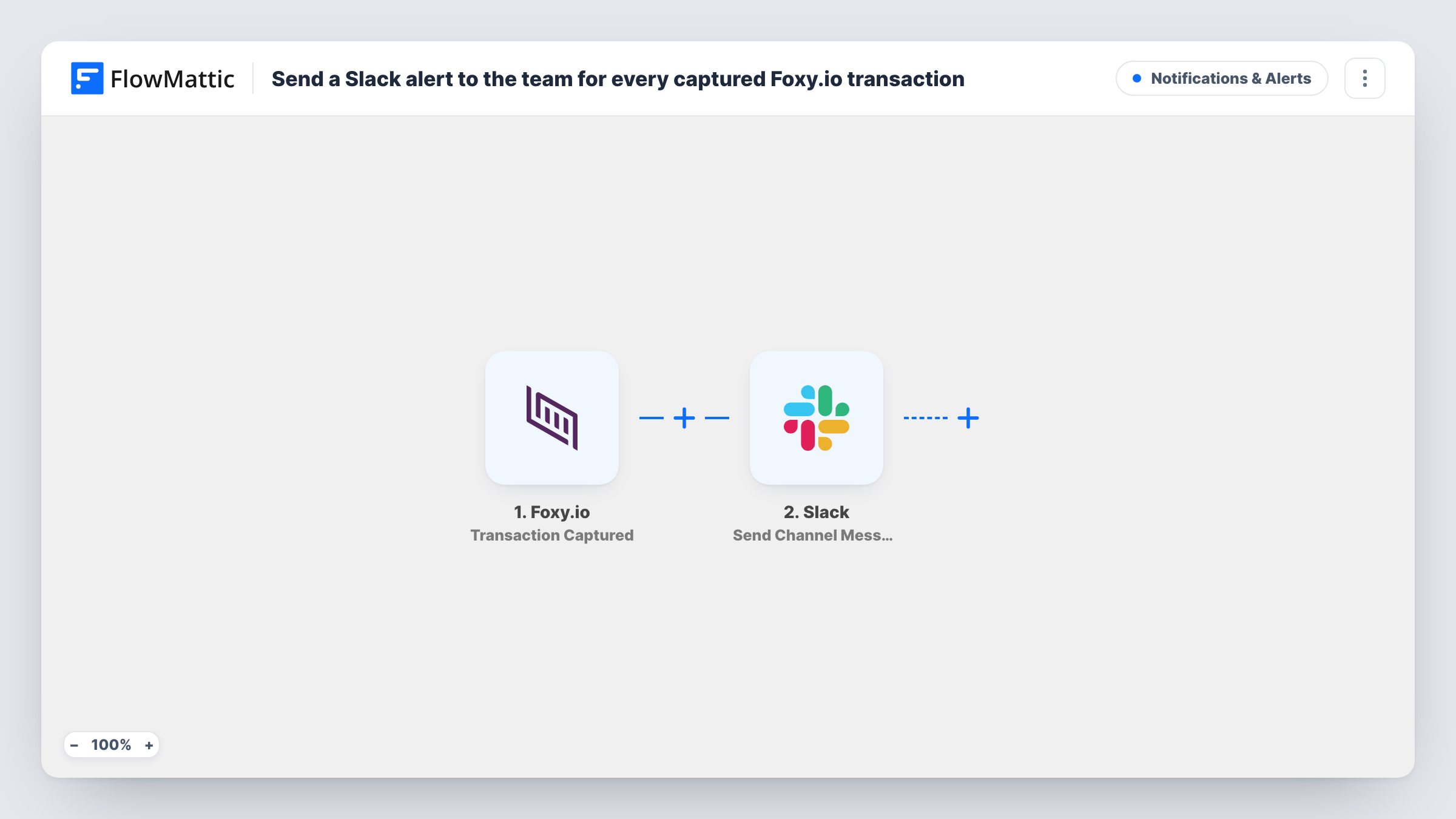
The Foxy.io trigger fires when a transaction is captured, meaning the payment has been collected. FlowMattic passes the transaction data to Slack, where the Send Channel Message action posts it to the channel you choose, in the wording you build from mapped fields.
One captured transaction means one message. Transactions that are only created, later refunded or voided don't post here, because Foxy.io has separate triggers for those events in FlowMattic.
Sales feed for a small online shop
Post every captured Foxy.io sale to #sales so the whole team sees orders come in during a product launch.
Heads-up for the fulfilment team
Warehouse staff watch the Slack channel and start packing as soon as a captured payment appears, without a login to Foxy.io.
Spot large orders quickly
Map the transaction amount into the message so the owner notices big purchases in the channel and can send a personal thank-you.
How this workflow runs
What happens at each step once the workflow is on, and what you need before you import it.
 Foxy.io Transaction Captured
Runs when a transaction is captured in your connected Foxy.io store. The transaction data Foxy.io sends is passed on for mapping in the Slack message.
- Slack Send Channel Message
Posts a message to the Slack channel you choose, built from the Foxy.io transaction fields you map. Pick a public channel and connect your Slack workspace on import.
What you need
- FlowMatticCore
- Foxy.io AccountAccount
- Slack AccountAccount
After importing, map your own data. To keep the template universal, not every step is pre-filled. Open each step in the builder and connect your accounts and fields (channels, lists, sheets, recipients) before you switch the workflow on.
Make it yours
Changes worth making after you import it.
- Build a second workflow with Foxy.io's Transaction Refunded trigger that posts to the same channel, so refunds show up next to the sales.
- Add a Filter after the trigger with a greater-than rule on the transaction amount if the channel should only hear about larger sales. The Filter compares whole numbers, so 99.50 counts as 99.
- Place a test order in your Foxy.io store after import so FlowMattic captures the transaction fields, then write the Slack message with them.
Questions about this workflow
Does a Foxy.io refund post to Slack?
No. This workflow uses the Transaction Captured trigger only. Use Foxy.io's Transaction Refunded or Transaction Voided trigger in a separate workflow for those.
Can Foxy.io sales post to a private Slack channel?
Send Channel Message targets public channels. For a private one, change the step to Slack's Send Private Channel Message action.
Does the workflow change the Foxy.io transaction?
No. It reads the captured transaction and posts a message. Nothing in Foxy.io is edited.
More Notifications & Alerts workflows
Other ready-to-import templates from the same category.



Import this workflow into your WordPress site
Download the JSON, import it from the Workflows screen and connect your accounts. Every run stays on your server, with no per-task fees.
30-day money-back guarantee Unlimited workflows and runs Self-hosted