

Send a Slack alert when a ChargeOver quote is accepted
When a customer accepts a quote in ChargeOver, this workflow posts a message to a Slack channel, so sales and billing hear about the accepted quote without checking ChargeOver.
 ChargeOver
 Slack
2 steps Setup ~5 min Used on 2.1k sites Free to import
What this workflow does
An accepted quote is the moment a deal turns into billing work. In ChargeOver that acceptance generates an invoice or a subscription, and the people who need to know, such as the account owner or whoever handles onboarding, may not be looking at ChargeOver when it happens. This workflow puts the news in Slack.
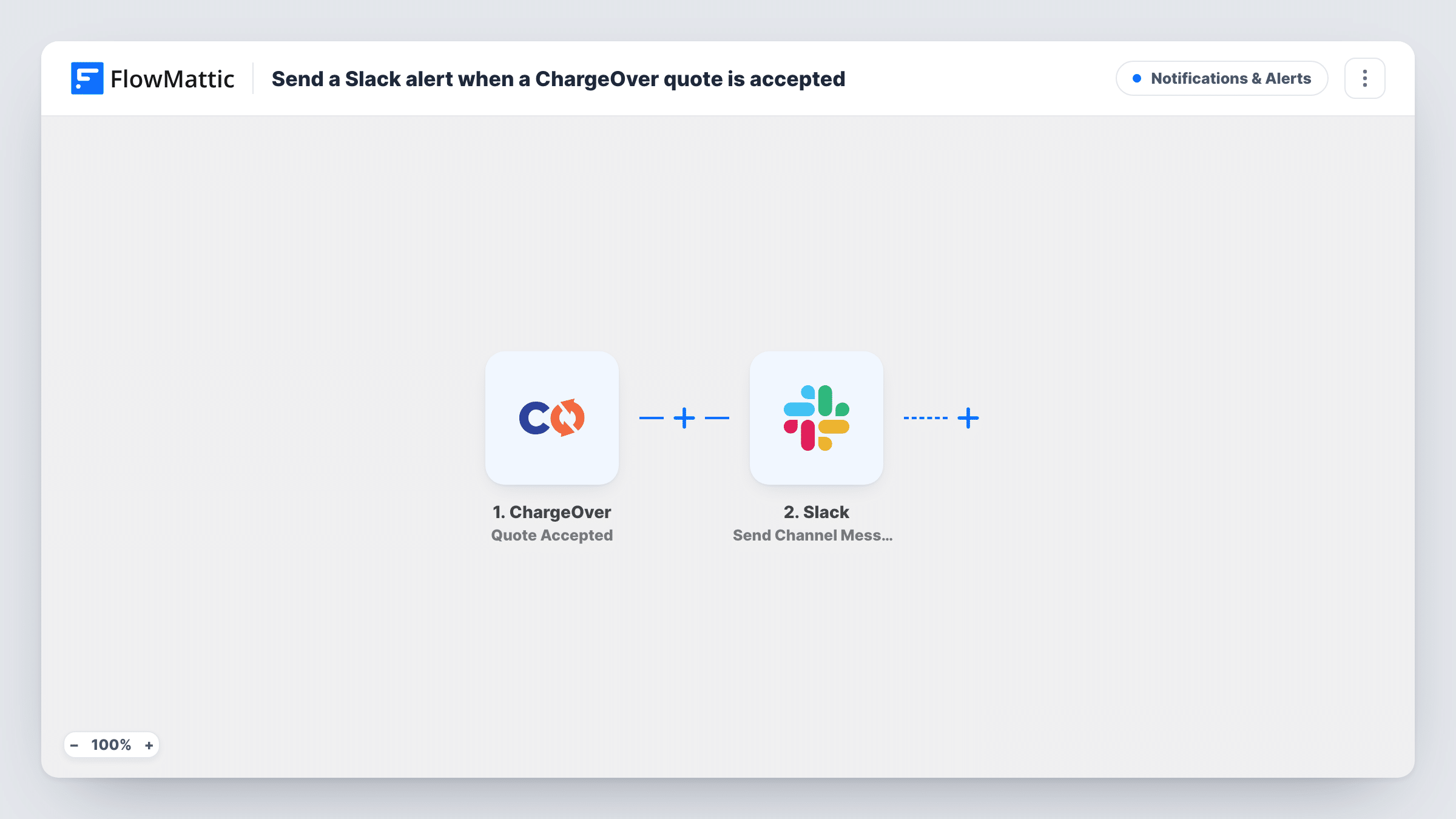
The ChargeOver trigger is Quote Accepted, which fires when a quote is accepted and generates an invoice or subscription. FlowMattic passes the quote data to the Slack step, which posts a message to the #channel you pick. You write the message and map in quote details, such as the customer name or the quote number, from a test run.
Only acceptance starts a run. New, updated or rejected quotes have their own ChargeOver triggers and don't reach Slack through this workflow. Each acceptance appears as its own run in Task History, alongside the text sent to Slack.
Closed-won alerts in a sales channel
Each accepted ChargeOver quote posts to #sales, so the rep who sent it and their manager see the deal close in the same place they discuss pipeline.
Hand-off to onboarding
An accepted quote can start a new ChargeOver subscription. A message in the onboarding team's channel tells them a new customer is on the way.
Billing team awareness
Finance sees each acceptance in Slack and knows an invoice has just been generated in ChargeOver, ready to check if needed.
How this workflow runs
What happens at each step once the workflow is on, and what you need before you import it.
 ChargeOver Quote Accepted
Fires when a quote in ChargeOver is accepted and generates an invoice or subscription. The quote's data is passed to the Slack step for mapping.
- Slack Send Channel Message
Posts a message in the Slack #channel set during import. Write the text and map ChargeOver quote values into it so the team can tell which deal was accepted.
What you need
- FlowMatticCore
- ChargeOver AccountAccount
- Slack AccountAccount
After importing, map your own data. To keep the template universal, not every step is pre-filled. Open each step in the builder and connect your accounts and fields (channels, lists, sheets, recipients) before you switch the workflow on.
Make it yours
Changes worth making after you import it.
- If the alert belongs in a private Slack channel, replace the step with Send Private Channel Message; to alert a single rep, Send Direct Message fits better.
- Want rejected quotes in Slack too? Build a second workflow on ChargeOver's Quote Rejected trigger that posts to the same channel with a different message.
- Accept a test quote in ChargeOver after import so FlowMattic captures real quote data, then map the fields you want into the Slack message.
Questions about this workflow
Does this post when a ChargeOver quote is created or rejected?
No. The trigger is Quote Accepted, so only accepted quotes start a run. ChargeOver's Quote Created and Quote Rejected triggers could drive separate workflows.
Can accepted ChargeOver quotes be announced in a private Slack channel?
Yes, by switching to the Send Private Channel Message action in the Slack app. The step in this template is Send Channel Message, meant for a regular #channel.
What details from the accepted quote can appear in Slack?
Whatever the ChargeOver trigger delivers for the quote. Accept a test quote after import and the available values appear for mapping in the Slack step.
More Notifications & Alerts workflows
Other ready-to-import templates from the same category.




Import this workflow into your WordPress site
Download the JSON, import it from the Workflows screen and connect your accounts. Every run stays on your server, with no per-task fees.
30-day money-back guarantee Unlimited workflows and runs Self-hosted