

Send a Slack alert when Fluxguard detects a website change
When Fluxguard spots a change on a web page it monitors, this workflow posts an alert to a Slack channel, so your team hears about edits to competitor, partner or your own pages where they already talk.
 Fluxguard
 Slack
2 steps Setup ~5 min Used on 1.4k sites Free to import
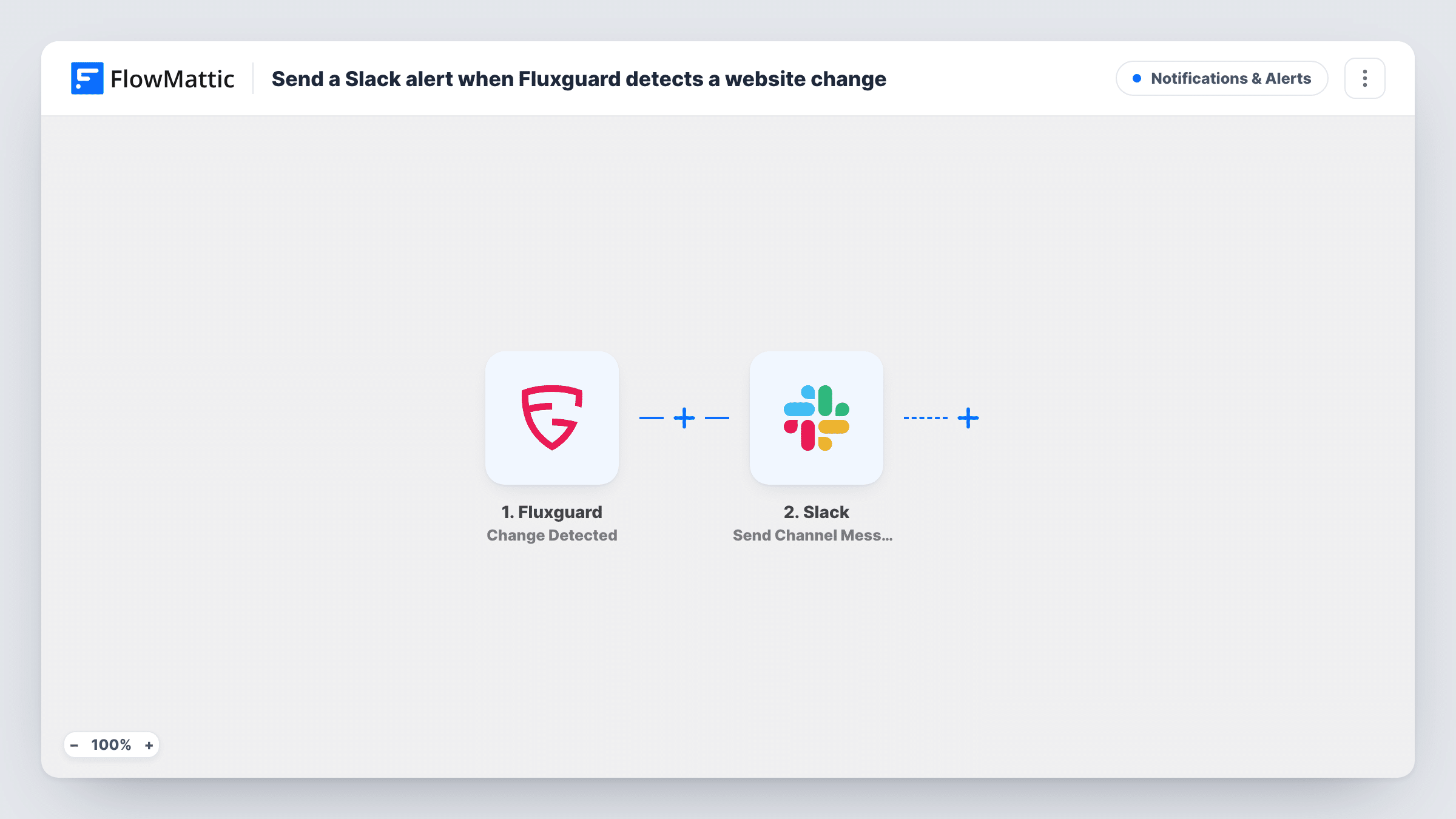
What this workflow does
Fluxguard watches web pages and notices when they change. Those notices are only useful if someone reads them in time. This workflow takes each change Fluxguard finds and turns it into a message in the Slack channel your team follows.
The Fluxguard trigger fires when a change is detected on a monitored page. FlowMattic receives the change data that Fluxguard sends and passes it to Slack. The Send Channel Message step posts your text to the channel you set, with details from the change mapped in wherever Fluxguard supplies them.
Every detected change produces one Slack message, and the workflow does not judge whether a change matters. Pages that change often will post often. You can narrow that with a Filter, as the tips explain. Each run is kept in Task History with the data Fluxguard sent.
Watch competitor pricing pages
A product marketing team monitors rivals' pricing pages in Fluxguard. Any change posts to #competitive so someone can review the new plans the same day.
Catch unapproved edits to your legal pages
Your terms and privacy pages should only change after review. A Slack alert on each change lets the legal contact confirm the edit was intended.
Track partner documentation
An integration team follows a partner's API docs. When Fluxguard sees the docs change, developers get a Slack message pointing them to check for breaking updates.
How this workflow runs
What happens at each step once the workflow is on, and what you need before you import it.
 Fluxguard Change Detected
Runs each time Fluxguard detects a change on a page it monitors. The change data Fluxguard sends is passed on. Use a test event to see which details you can map.
- Slack Send Channel Message
Posts your alert text to the public Slack channel you pick. Map change details from Fluxguard, such as the page address if it is sent, into the message.
What you need
- FlowMatticCore
- Fluxguard AccountAccount
- Slack AccountAccount
After importing, map your own data. To keep the template universal, not every step is pre-filled. Open each step in the builder and connect your accounts and fields (channels, lists, sheets, recipients) before you switch the workflow on.
Make it yours
Changes worth making after you import it.
- Add a Filter after the trigger so only changes to certain monitored pages reach Slack, using a page field from a test run.
- For a private channel, use Slack's Send Private Channel Message action in place of this step. For alerts to one person, Send Direct Message fits better.
- To keep a history of Fluxguard alerts too, add a Google Sheets Add New Row step after Slack so each change is also logged in a spreadsheet.
Questions about this workflow
Will every Fluxguard change post to Slack?
Yes, as imported. There is no Filter, so each change Fluxguard detects starts a run and posts one message.
Which Fluxguard pages does this workflow cover?
Whichever pages Fluxguard sends change events for. The pages you monitor are set up in Fluxguard itself, not in FlowMattic.
Can the Fluxguard alert go to a private Slack channel?
Send Channel Message is the public-channel action. For a private room, swap in the Send Private Channel Message action from the Slack app.
What text goes into the Fluxguard alert in Slack?
Whatever you write in the Slack step. Map in the details Fluxguard sends with the change; run a test to see what is available.
More Notifications & Alerts workflows
Other ready-to-import templates from the same category.






Import this workflow into your WordPress site
Download the JSON, import it from the Workflows screen and connect your accounts. Every run stays on your server, with no per-task fees.
30-day money-back guarantee Unlimited workflows and runs Self-hosted