

Send a Slack alert when a Google RCS Business Messaging event is received
Post a Slack channel message whenever your Google RCS Business Messaging agent receives a user message, a suggestion chip tap or a delivery or read receipt, so your team can follow RCS activity in Slack.
 Google RCS Business Messaging
 Slack
2 steps Setup ~5 min Used on 518 sites Free to import
What this workflow does
An RCS agent talks to customers on their phones, but your staff work somewhere else. If nobody is watching the agent's traffic, a customer's reply can sit unanswered. This workflow forwards the agent's activity to a Slack channel so people see it while they work.
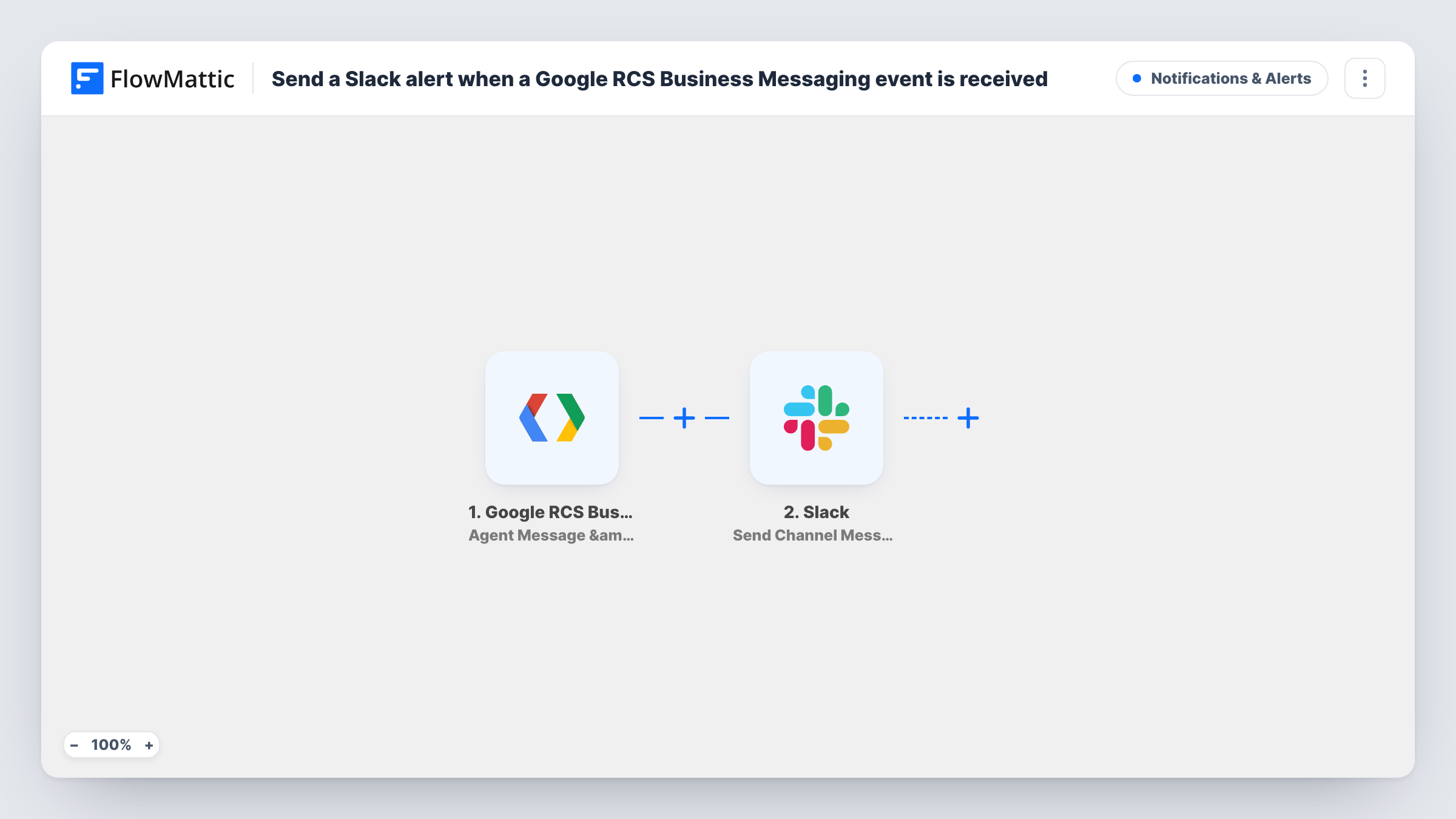
The Google RCS Business Messaging trigger fires for one specific agent. It fires when a user sends a message, when they select a suggestion chip, and when a delivery or read receipt is generated. FlowMattic then posts to Slack with Send Channel Message, using the text you write and any event data you insert.
Because receipts count as events, a channel can get busy as imported: one outgoing message can produce a delivery receipt and a read receipt. If you only want customer messages in Slack, add a Filter after the trigger. Task History lists each run.
Customer replies to an RCS campaign
You send an offer through your RCS agent. When customers reply or tap a chip, the event appears in the marketing channel for someone to follow up.
Watching a new agent during launch
In the first weeks after an agent goes live, every message and receipt in Slack helps the team see how people interact with it.
Support handover from the agent
Staff in a support channel see each incoming customer message and can pick up the conversation in your RCS tooling.
How this workflow runs
What happens at each step once the workflow is on, and what you need before you import it.
 Google RCS Business Messaging Agent Message & Event Received
Fires when a user sends a message to your RCS agent, selects a suggestion chip, or when a delivery or read receipt is generated for that agent. The event data is passed to Slack.
- Slack Send Channel Message
Posts a message to the Slack #channel you choose. Write the text and insert details from the RCS event, then connect your Slack workspace.
What you need
- FlowMatticCore
- Google RCS Business Messaging AccountAccount
- Slack AccountAccount
After importing, map your own data. To keep the template universal, not every step is pre-filled. Open each step in the builder and connect your accounts and fields (channels, lists, sheets, recipients) before you switch the workflow on.
Make it yours
Changes worth making after you import it.
- Add a Filter after the trigger so only user messages reach Slack. Run a test with a real message and a receipt first, then check Task History to see which field tells the two apart.
- Use a Router with one route per event kind, each with its own Slack step, so chip selections and messages go to different channels.
- Look at a test run's event data for a value that identifies the user, and add it to the Slack message so the team knows which conversation to open.
Questions about this workflow
Will delivery and read receipts from Google RCS post to Slack too?
Yes, as imported. The trigger fires for messages, chip selections and receipts alike. Add a Filter after the trigger if you want only some of these in Slack.
Can my team reply to the RCS customer from Slack?
Not with this template. Slack only receives a notification. Replies still go out through your RCS Business Messaging setup.
Does the trigger cover all my RCS agents?
No. It fires for the specific agent you connect in the trigger step. Import the workflow again and connect another agent to cover more than one.
What do I need to set up the RCS to Slack workflow?
A Google RCS Business Messaging agent connected in FlowMattic and a Slack workspace where you can post to the channel you pick.
More Notifications & Alerts workflows
Other ready-to-import templates from the same category.



Import this workflow into your WordPress site
Download the JSON, import it from the Workflows screen and connect your accounts. Every run stays on your server, with no per-task fees.
30-day money-back guarantee Unlimited workflows and runs Self-hosted